Most of the time, images need alternative (alt) text to be properly accessible. The only exception is for images that are truly 100% decorative, in which case they still need the alt attribute, just using an empty string. The presence of the alt attribute is the only thing automated accessibility checkers are guaranteed to find, though - for the most part, it can't validate that you've got good alt text.
What does get validated: the presence of the alt attribute
When images are missing the alt attribute entirely, Siteimprove will report this as "image missing a text alternative".
The WCMS will not allow you to upload images without providing alt text or marking the image as decorative, so this issue is generally caused by pasting in HTML from elsewhere else. When manually pasting in HTML, it's up to you to make sure the alt attribute is added.
If the HTML you're pasting in references an image that is hosted elsewhere, be particularly sure that the alt text matches any possible state of the image - for example, if you've got a link to contact the service desk, and it uses a dynamic image that changes its appearance depending on whether or not someone is present, you can't have alt text saying "service desk open" or "service desk closed" because alt text can't change on the fly - you'd be better to use something like "contact the service desk" which makes no promises. (Also, make sure you trust that image source - you have no control if they suddenly decide to delete that image, or replace it with a completely different image.)
If an image is added using the <img> tag in source view, you can double-click it to add alt text.
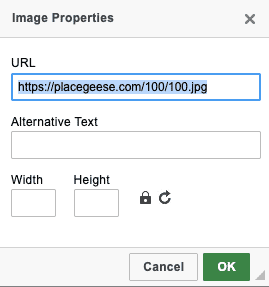
What might get validated: unneeded descriptors
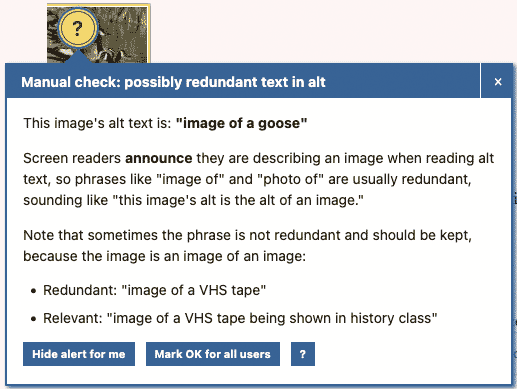
It might be tempting to start describing an image with "image of" - but people using assistive technology already know that it's an image so this is redundant. The validator in the visual editor doesn't report on this, but Editoria11y does - but it can't catch every potential unneeded descriptor, and sometimes there might be a valid reason to start the alt text that way.
What can't get validated, part 1: proper use of "decorative"
When you mark an image as decorative, or provide it with an empty alt string, you are saying "this image has.no meaning; it makes the page prettier but conveys no information whatsoever". It's completely valid to mark an image that is only used to brighten up the page as decorative - but if for any reason it has meaning, then it needs actual alt text.
If you're using an image as a link, with no accompanying text, or in place of a header, for example - these aren't decorative, because without alt text there is no indication for someone who can't see the image what the link or header is for.
There may be some nuanced cases where it might be appropriate to mark an image as decorative, even if it conveys meaning - perhaps the image is a graphical treatment of text that already appears underneath? - but be cautious. Pretend the image isn't there and read the surrounding area to yourself - does everything still make sense?
What can't get validated, part 2: good or bad alt text
There's a few things that make for good alt text. Some of them can be contradictory in some circumstances, so it's a bit of an art and can take trial and error to "get it right".
- if the image contains text that needs to be read, make sure to include it
- only describe what's relevant to describe
- only include technical detail (like how a photo was taken, or the materials used to create an artwork) if it's crucial
- keep it short and simple
Perhaps the biggest trick is writing "situational" alt text. The same image used in different contexts might call for different alt text.
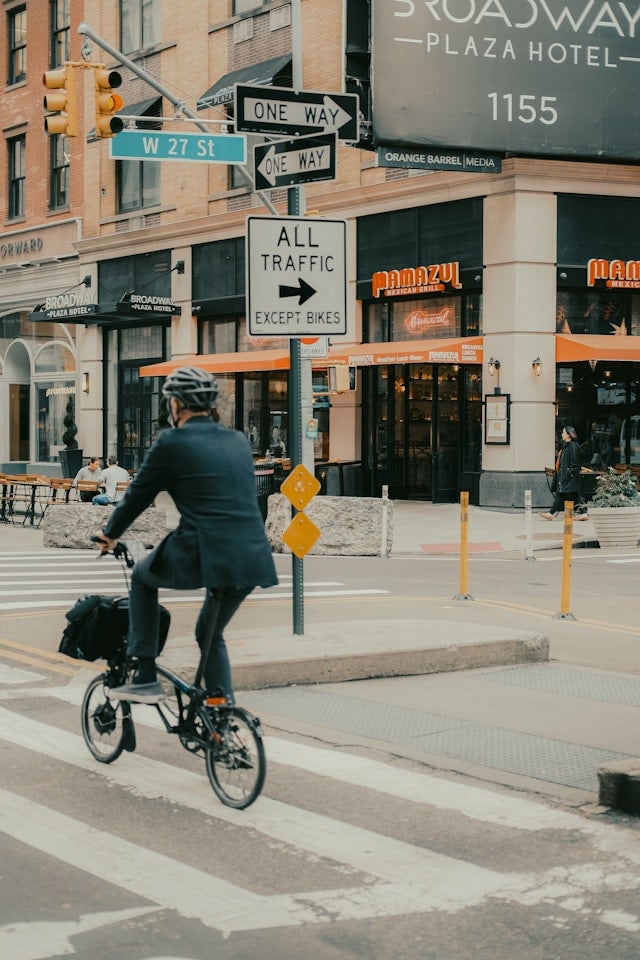
Consider this image from Unsplash which has a lot of detail, not all of which may be important. Asking AI to provide alt text, it gives "A person in a suit rides a bicycle across a crosswalk near a restaurant with signage, under traffic signals and street signs indicating one-way traffic.”
Consider how that might change:
- on a web page describing different types of bikes (say, "a folding bicycle being ridden down the streets of New York")
- beside an event taking place at the Broadway Plaza hotel (perhaps "the Broadway Plaza Hotel on West 27th St.")
- in a catalog of one-way streets (maybe "two one way streets meet at West 27th St. in New York")
- in a news item about the road being closed to vehicular traffic (how about "traffic must turn where the road ahead is closed to all traffic except buses"?)
When creating alt text, think about what details are relevant where the image is being used.
Checking your site for alt text accessibility issues
As you are authoring content, you can check for alt text accessibility issues in a couple of different ways. Note that each method checks differently and may not report all issues.
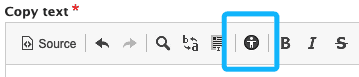
When you're inside the visual editor (e.g. in a copy text block), you can click the "check accessibility" button, which will identify accessibility issues within your content.
When you're on a page, the Editoria11y accessibility checker will identify accessibility issues with the whole page.
Additionally, if you have access to Siteimprove, you can check your site's accessibility report for instances of these issues. Visiting the link, you will get a list of all the pages where the issue occurs. If this is every page on your site, there is a good chance that the issue is within your site footer.
Further reading
- “Dungeons & Dragons taught me how to write alt text”, Eric Bailey
- “Writing great alt text: emotion matters”, Jake Archibald
- “Alt text: not always needed”, Emma Cionca and Tanner Kohler