The Archives Database Clipboard feature allows you to compile a temporary list of records of interest that you can save and refer back to at a later date. The function can be used by clicking on the paperclip icon that appears to the right of search results and on the pages of whatever record you are viewing. Please note that the Archives Database is refreshed periodically with updated content, and this refresh will overwrite saved clipboard results.
-
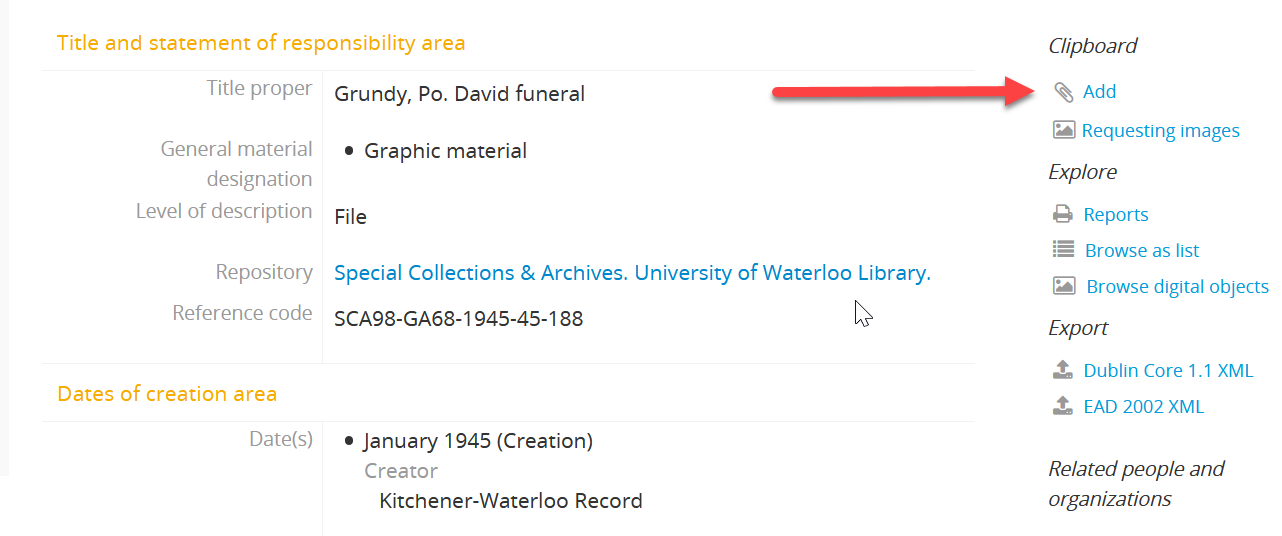
As
you
read
through
individual
archival
descriptive
records,
you
can
add
records
to
the
Clipboard
for
future
review.
Click
the
Add
link
next
to
the
paperclip
symbol
in
the
Clipboard
section.
-
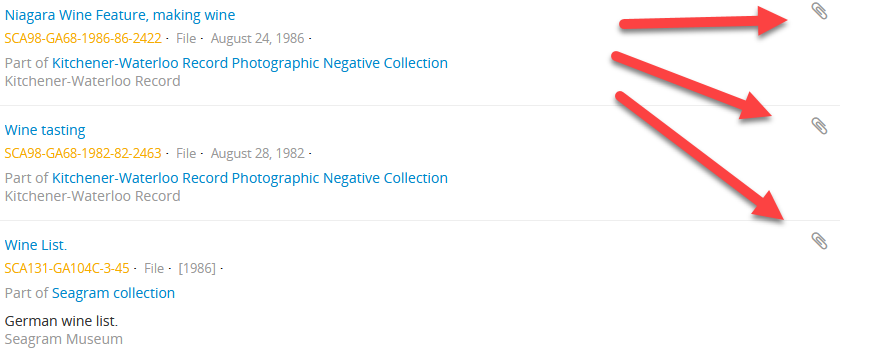
You
can
also
add
records
directly
from
your
search
results
by
clicking
on
the
paperclip
icon.
-
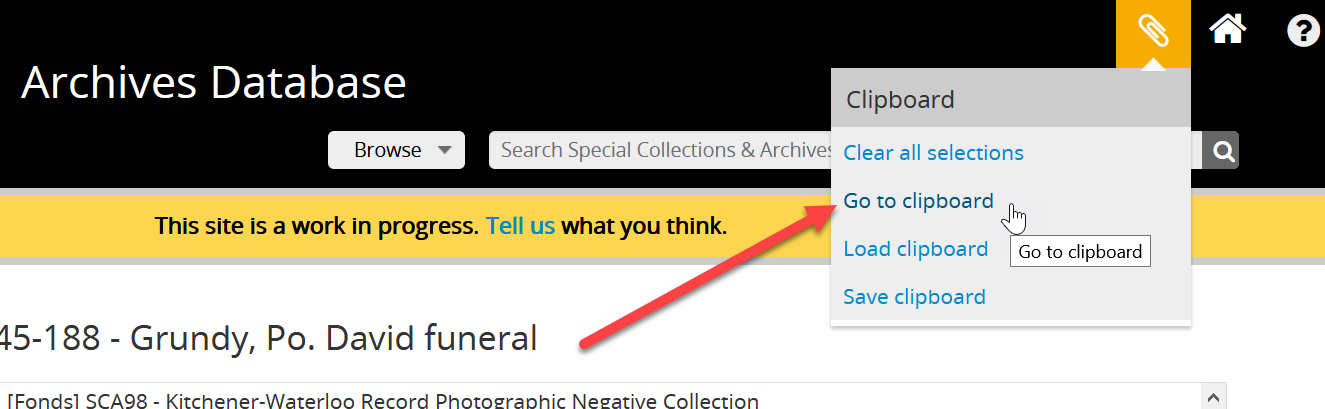
Once
you
are
done
adding
records,
review
the
contents
of
the
Clipboard
by
selecting
Go
to
clipboard
in
the
Clipboard
drop-down
menu.
Note
that
you
may
save
the
clipboard
now
and
return
to
add
more
records
at
a
later
date.
-
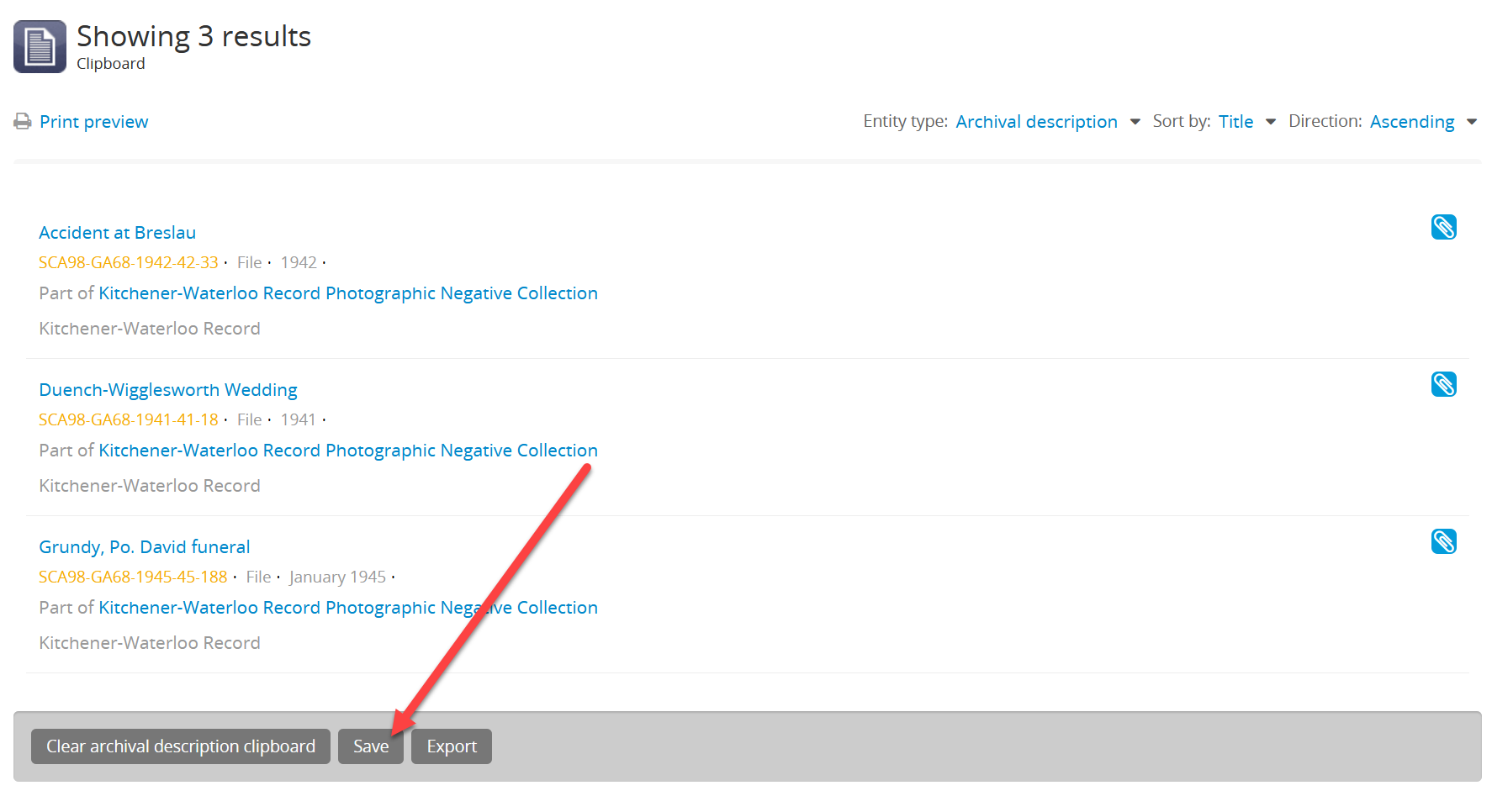
Save
the
Clipboard
by
clicking
Save
at
the
bottom
of
the
page.
-
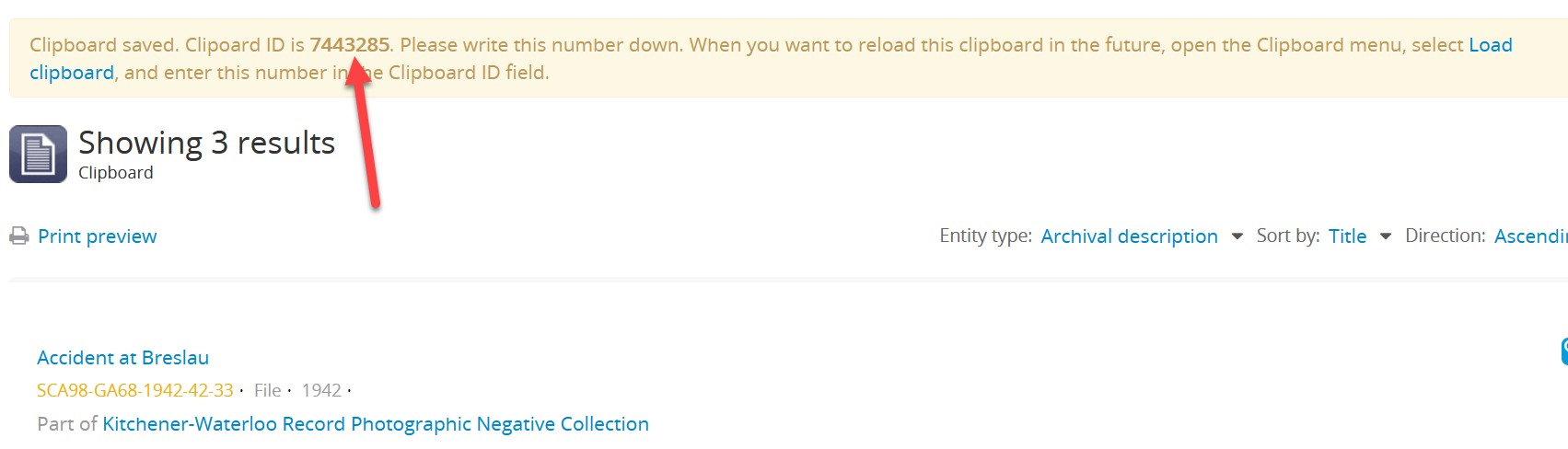
Copy
the
Clipboard
ID
and
save
it
someplace
secure.
This
step
is
important
as
you
can't
access
your
list
without
the
ID.
-
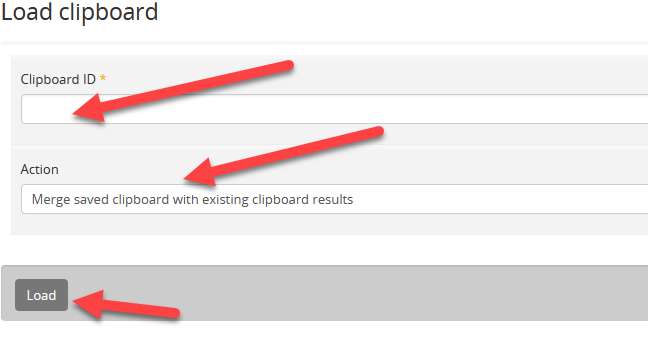
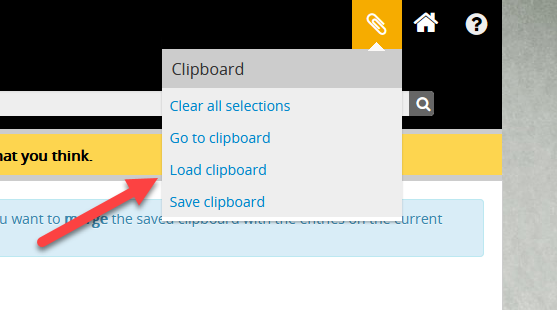
To
open
a
saved
Clipboard
list,
select
Load
clipboard
from
the
Clipboard
drop-down
menu.
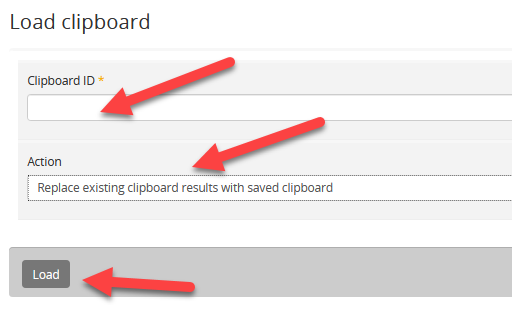
Enter
the
Clipboard
ID
in
the
Clipboard
ID
field
and
select
Replace
existing
clipboard
results
with
saved
clipboard
in
the
Action
menu
field.
Once
complete,
click
Load.
- To add items to a saved clipboard, first add the new items to a new clipboard as in Step 1. When you have finished adding all the items you want to add to your saved clipboard, select Load clipboard from the Clipboard drop-down menu, enter your saved Clipboard ID, and in the Action menu select Merge saved clipboard with existing clipboard results. Click Load.