Contingent Contract Extension
The instructions below will guide you through the process of extending a contingent worker contract in Workday.
Change Contingent Worker Details
- Go to the contingent profile of the person you are extending the contract for. Contingent profiles are denoted with “[C]” beside their name.
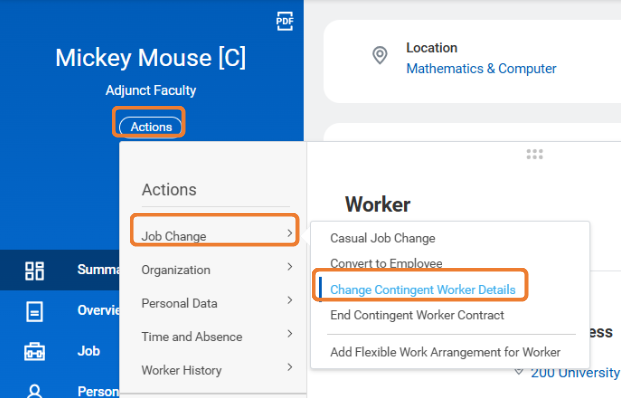
- On their profile, select “Actions” underneath their name in the blue menu on the left-hand side, then move your cursor over to “Job Change” and select “Change Contingent Worker Details” from the options that pop up. A start page will open that has two fillable fields.
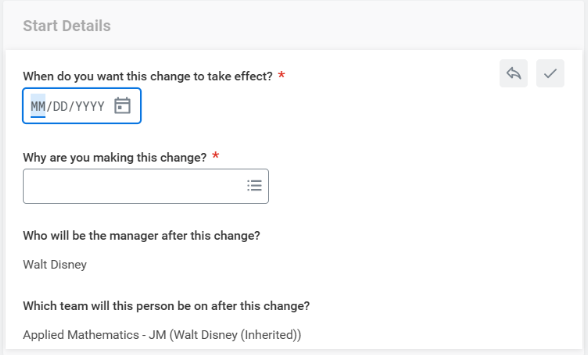
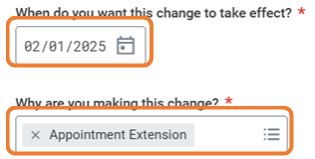
- Fill out the date that you want the change to take effect and select “Appointment Extension” as the reason for making the change.
- Click “Start”. A contract details page will open with the current contract end date.
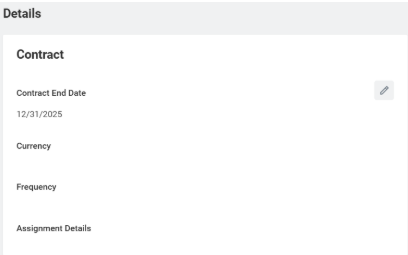
- Update the contract end date field with the new end date from the appointment extension. Leave the “Currency”, “Frequency”, and “Assignment Details” fields blank.
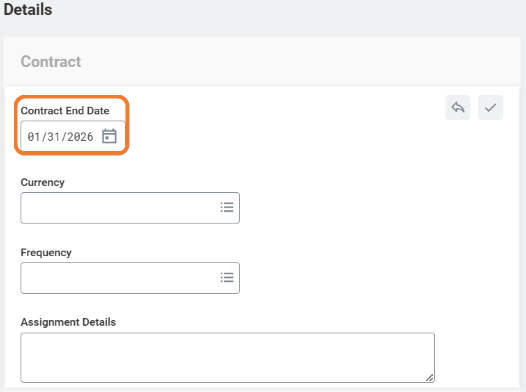
- Click “Next”. A summary page will open that shows what you submitted on the two previous screens for you to review and make any further changes.
- You have the option to add a comment or attachments at the bottom of the summary.
- Click “Submit” once you have reviewed and added any comments/attachments. You will see a confirmation of your submission.