Follow the instructions below to enter overtime for an employee. A video demo on approving or entering hours for payment is also available.
- On the Workday homepage, use the search bar to search up Enter Time for Worker.

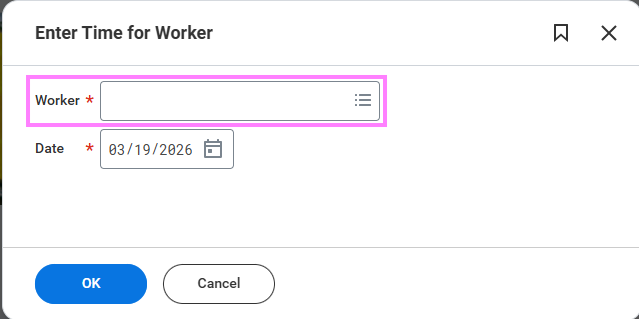
- Enter the worker's name into the pop-up task and click "OK".
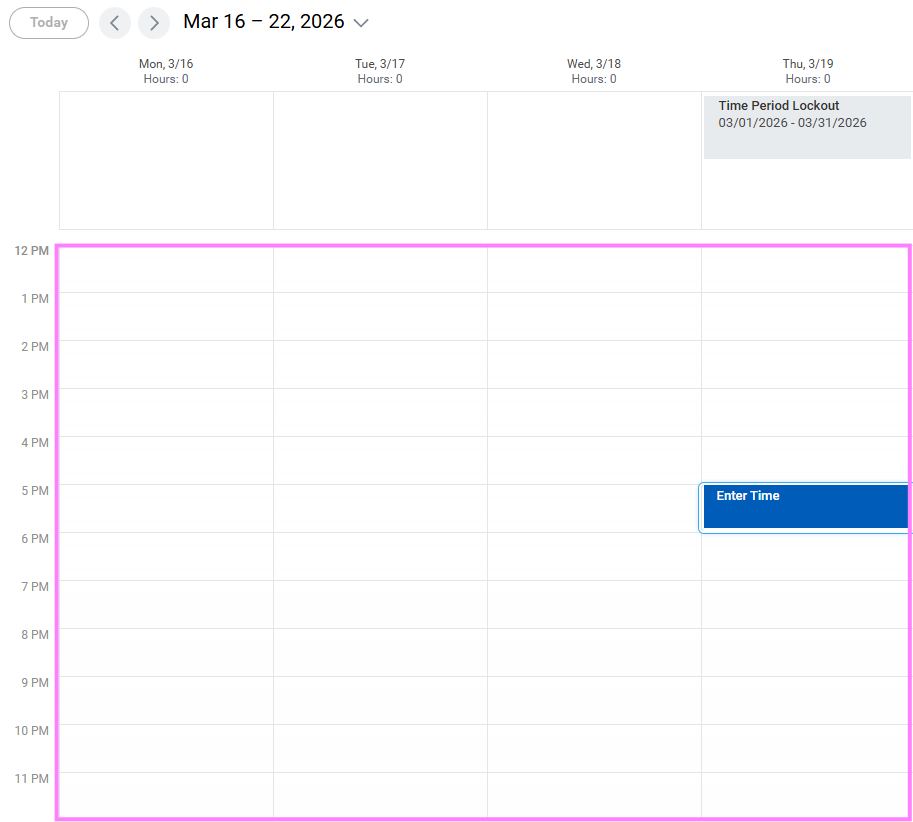
- Click on the date you want to enter Overtime hours for. You will be able to add exact hours worked in the next step.
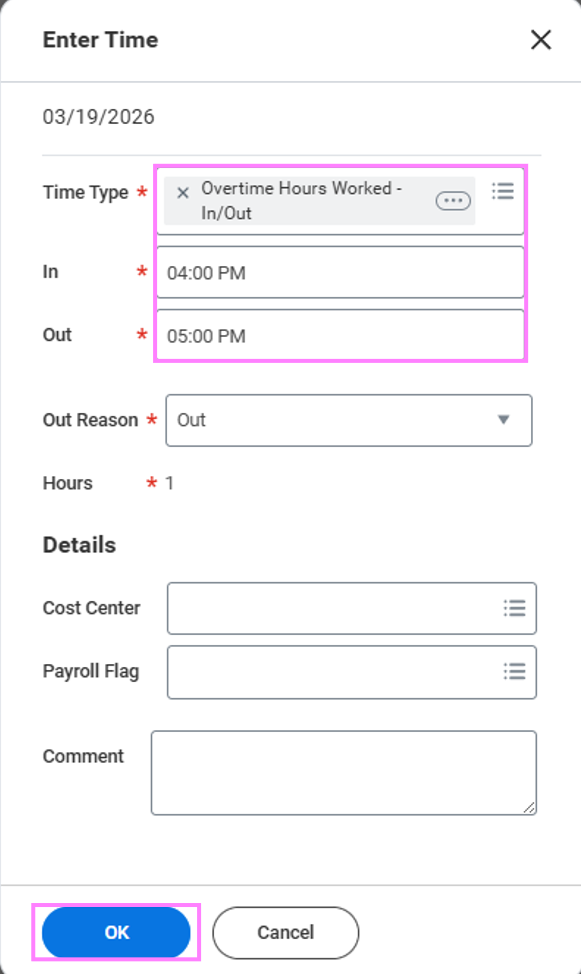
- Enter "In" and "Out" times and then press "OK" to populate the hours onto the calendar.
NOTE: "In" time is when overtime was initiated and "Out" time would be when overtime was completed.
Note: The hours entered for the week will display in the Summary section to the right of the time entry calendar.
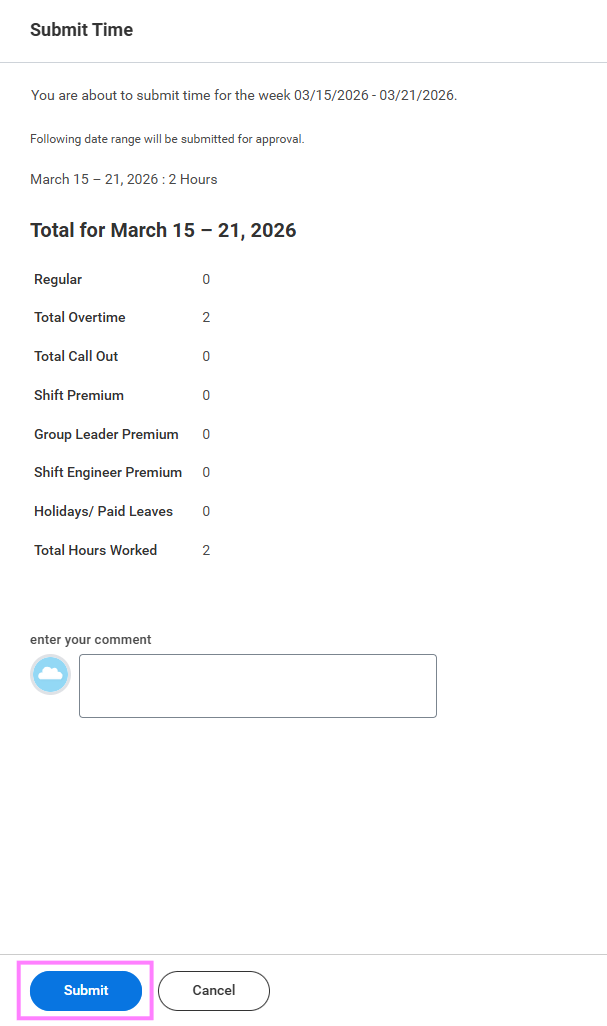
- Once all hours have been entered for the week, click Review to review and Submit the hours.
Video demo
Please note that the user guides are more frequently updated than the video demos.