The steps outlined below will guide you through the review of casual pay rate changes and/or appointment extensions initiated in Workday. This process is only to be used for those two types of job change.
- In Workday, navigate to your inbox to view the pending job change review task.

-
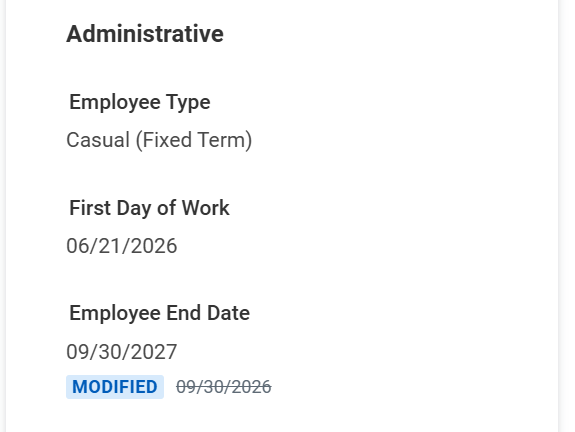
Changes will be indicated with a blue “modified” highlight and the updated value will be shown alongside the previous value.
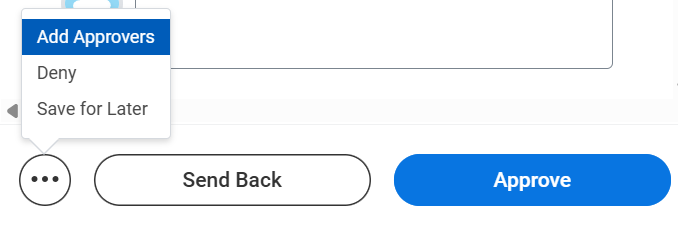
- Review the changes and if OK, click the Approve button. If you do not approve, click the Deny button with a comment as to why. The initiator can then re-initiate with the appropriate changes if applicable.