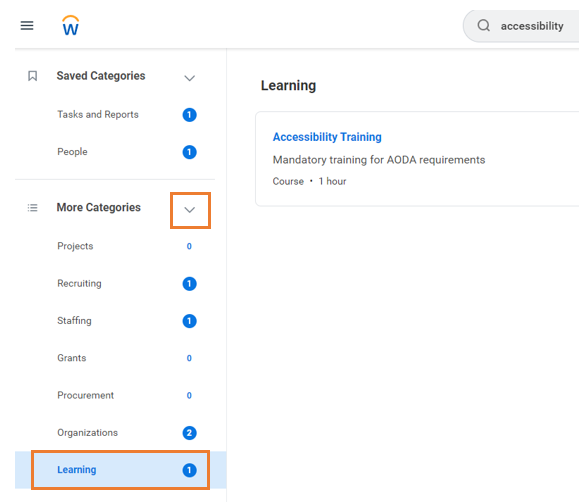
Workday makes it easy to search for people, tasks, reports, and business data using the search bar.
For example, find an active worker by typing their name into the search field and press Enter. Search categories are used to filter your search for faster, more accurate results.

Prefixes can be used to improve search results. For example, to find a hire event, type "event:" and the employee's name to pull up processes related to that person, e.g. "event: John Doe" - this will provide any events (i.e. hire events, time entry events, etc.) that you have access to view. To view a list of available prefixes, type ? into the Workday search bar and press enter.
Tip: Keep in mind that searches find exact matches. If you misspell the search text, you may not see any results. You can shorten words to find more matches. Use longer search terms to improve accuracy and reduce the time to return results. Business Processes will only be available by first typing "event:" before the employee name.
When the search results provide what you’re looking for, you can either initiate an action using the object’s Related Actions (orange rectangle with three white dots) or click the link to see more information.
Search preferences
You can set the search categories to display your most relevant results at the top.
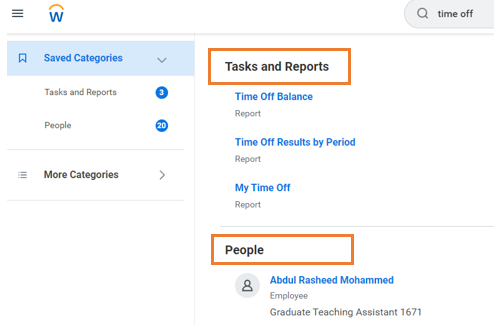
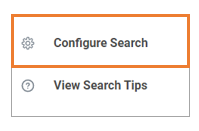
- On the search results screen, click Configure Search at the bottom left of the page.
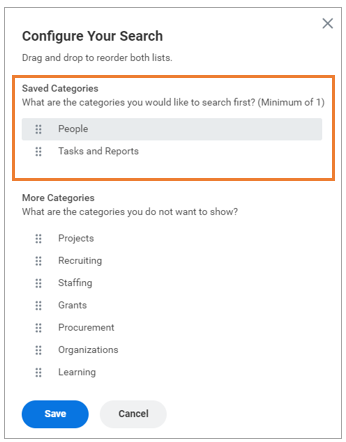
- Drag and drop the categories you'd like to see results for first to the Saved Categories section at the top.
Tip: The top category will display first and then the second, and so on.
- Leave less relevant categories in the More Categories section. Doing so will still allow you to see results in these categories by expanding More Categories and clicking on the category results you'd like to see.