Follow the instructions below to enter overtime hours.
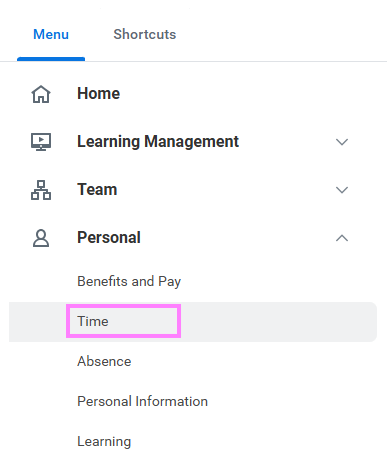
- On the Workday homepage, click View All Apps go to Time under Personal.
- Under Enter Time, click This Week, Last Week, or Select Week.
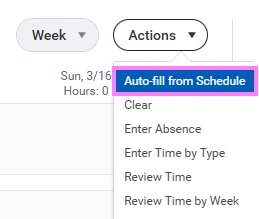
- At the top right of the time entry calendar, click the Actions button to select Auto-fill from Schedule. This will fill in all regularly scheduled hours for the week.
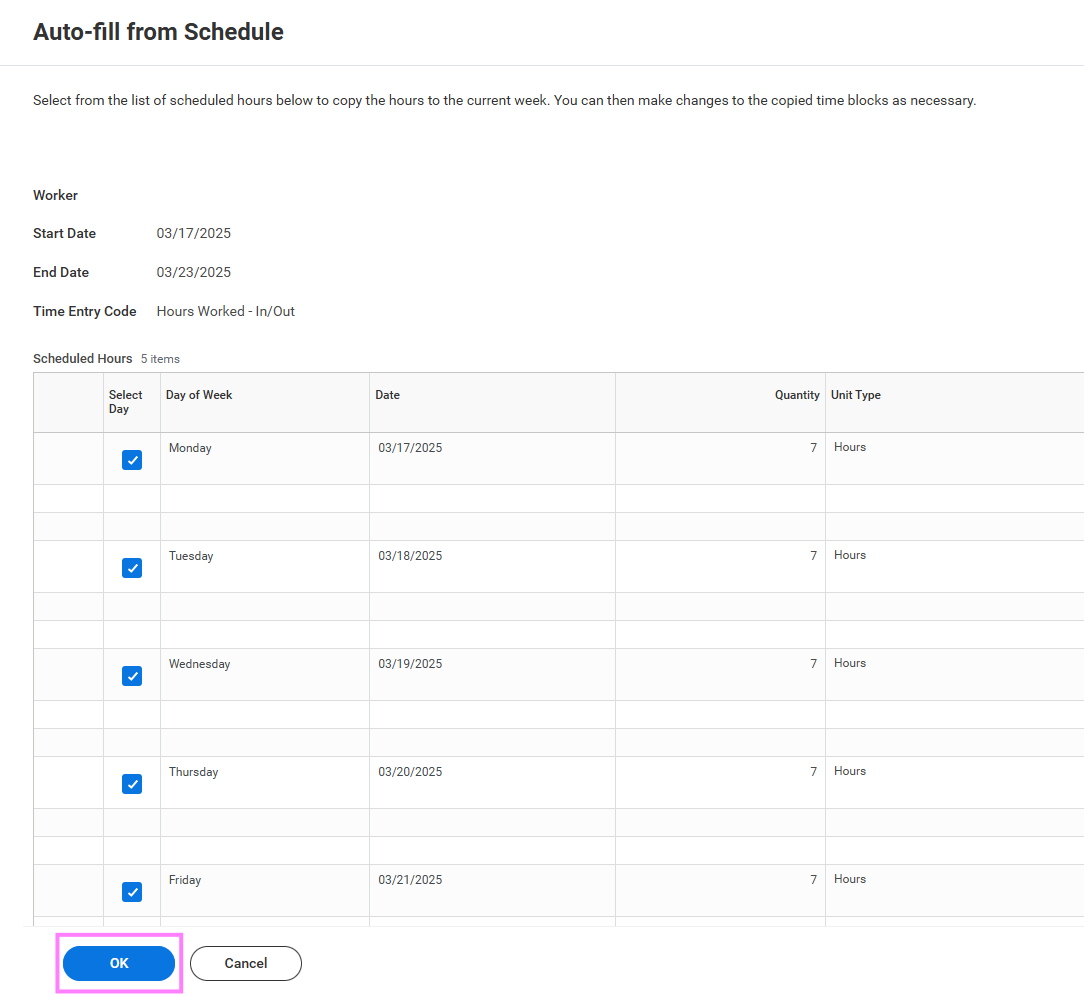
- Click OK to populate the hours into the calendar.
Note: Uncheck any stat holidays or vacation days.
- Select the portion of the day where the hours will be added (i.e. if you’re working past 4:30 p.m., select the afternoon portion of the applicable day).
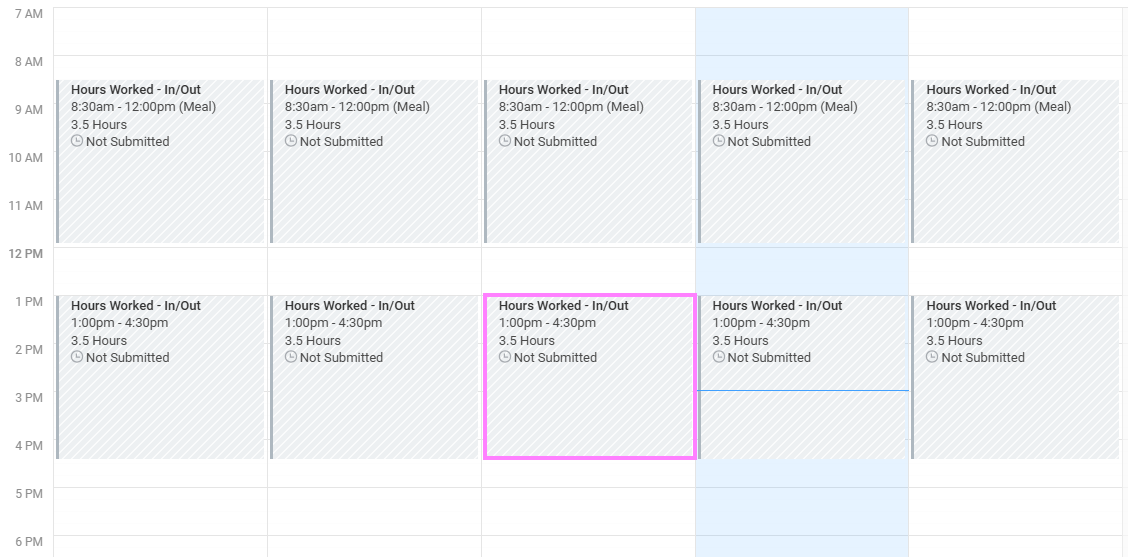
- Update the hours worked to include overtime hours and click OK.
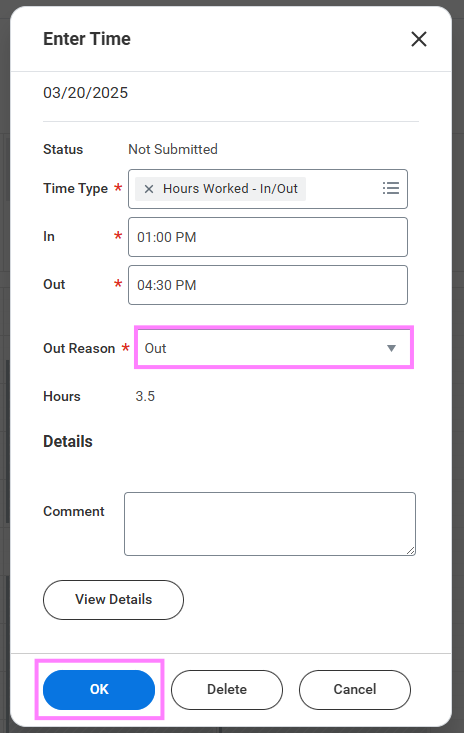
- The hours entered for the week will display in the Summary section to the right of the time entry calendar.
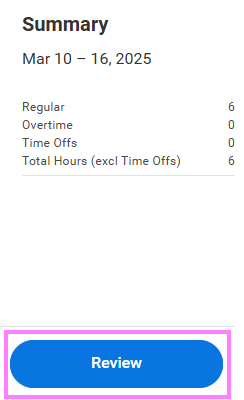
- Once all hours have been entered for the week, click Review to review and submit the hours.
- In the review screen, click Submit to send the hours for manager approval.
- Once submitted, a confirmation screen will pop up and show who the time entry has gone to for approval.