- On the Workday homepage, use the search bar to search up Enter Time for Worker.

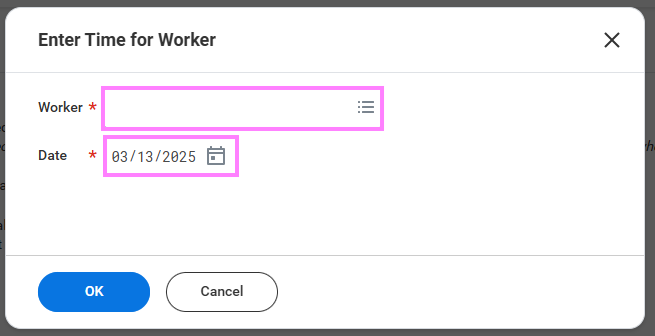
- Enter the workers name into the pop-up task and click "OK".
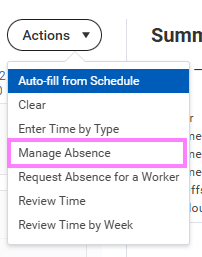
- Click the Actions button and select Manage Absence.
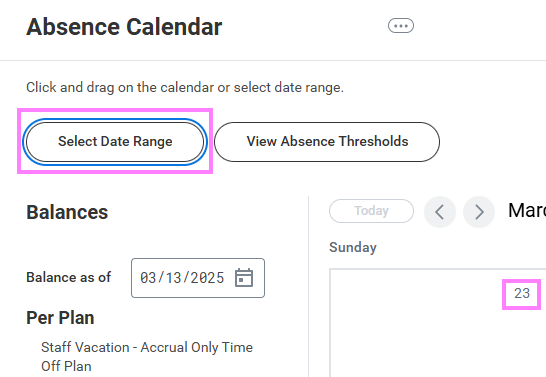
- Click the day(s) to book off in the calendar or click Select Date Range to book a larger block of time.
- Once dates are selected, click Request Absence to choose the absence type and select Next.


Note: A Reason Code for the requested Absence may be required. A red asterisk beside the 'Reason' field indicates that the field is required in order to proceed.
- Review the time off and click Submit.