Follow the instructions below to enter overtime for an employee. A video demo on approving or entering hours for payment is also available.
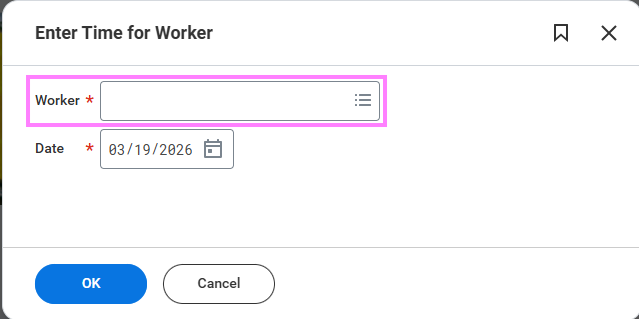
- On the Workday homepage, use the search bar to search up Enter Time for Worker.

- Enter the worker's name into the pop-up task and click "OK".
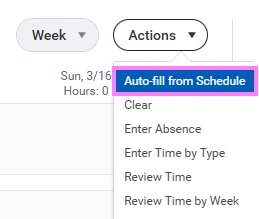
- At the top right of the time entry calendar, click the Actions button to select Auto-fill from Schedule. This will fill in all regularly scheduled hours for the week.
Note: This screen displays the employee's regular scheduled hours.
- Click OK to populate the hours into the calendar.
Note: Uncheck any stat holidays or vacation days.
- Select the portion of the day where the hours will be added (i.e. for hours worked past 4:30 p.m., select the afternoon portion of the applicable day) and update to include overtime hours worked.
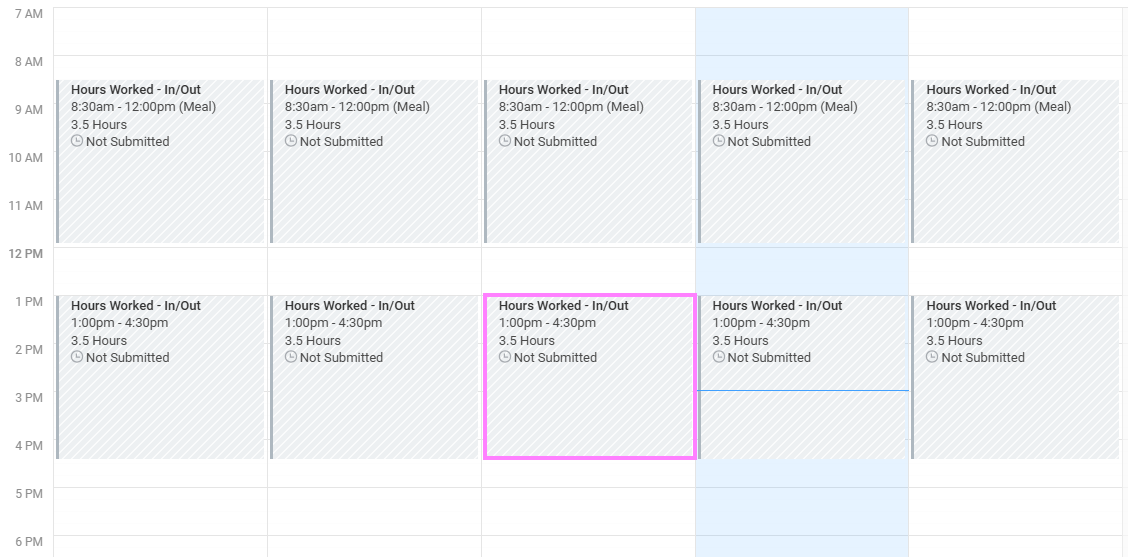
Note: Leave Payroll Flag field blank. Populating this field will result in unpaid hours.
Enter a cost center override only if these hours are not paid from the employee’s default account.
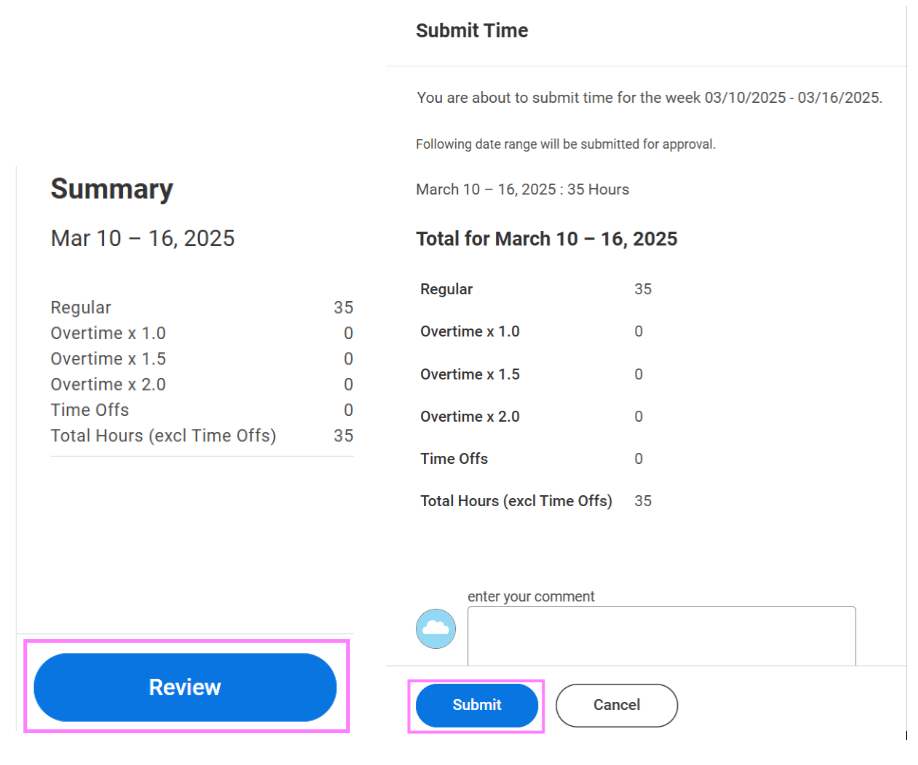
- The hours entered for the week will display in the Summary section to the right of the time entry calendar.
- Once all hours have been entered for the week, click Review to review and Submit the hours.
Video demo
Please note that the user guides are more frequently updated than the video demos.