Various tasks can be delegated in Workday, such as an entry task, inbox reviews and approvals or both. Follow the instructions below to delegate hiring tasks. A video demo is also available.
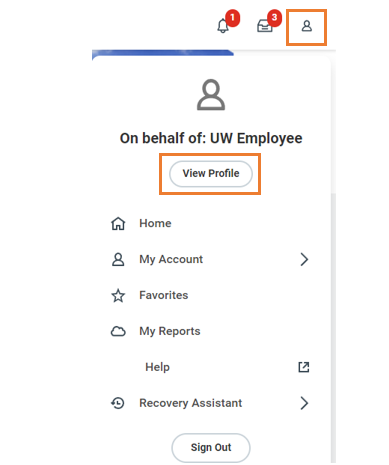
- At the top right of the Workday screen, click the profile icon and select View Profile.
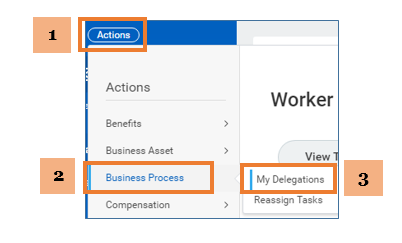
- From your Worker Profile, select Actions and hover over Business Process to select My Delegations.
- Click Manage Delegations to continue.
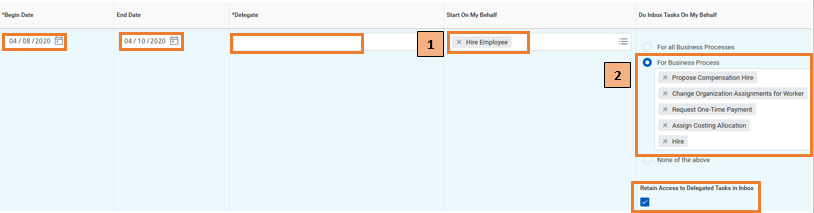
- Enter Begin Date and End Date and type the delegate's name in the *Delegate field (Note: You must select an end date).
- See the options below for next steps depending on the task(s) you want to delegate.
| If you want your delegate to... | Step 1: Start On My Behalf | Step 2: Do Inbox Tasks On My Behalf |
|---|---|---|
|
Option 1: Only initiate a hire |
Click the prompt and select By Business Process Type > Hire > Hire Employee. |
Select For Business Process and:
|
|
Option 2: Only approve a hire |
Leave the field blank. |
Select For Business Process and:
|
|
Option 3: Initiate and approve a hire |
Click the prompt and select By Business Process Type > Hire > Hire Employee. |
Select For Business Process and:
|
-
Click Retain Access to Delegated Tasks in Inbox (this will allow both you and the delegate to receive inbox tasks).
Note: If you retain access, once someone completes a task, it will disappear from both inboxes but will show in the archive section of you inbox.
- Click Submit.
Video demo
Please note that the user guides are more frequently updated than the video demos.