If a hire was submitted in error, this process can be cancelled and then resubmitted with the correct information if necessary.
The hire can be cancelled in two ways:
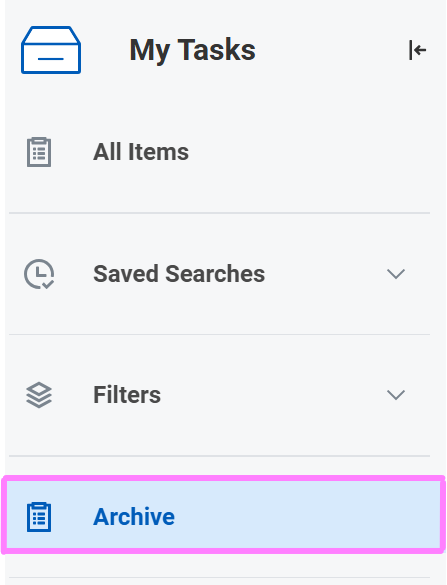
Option 1: From the Archive section of your Workday inbox
- Locate the Hire or Start Additional Job event.
-
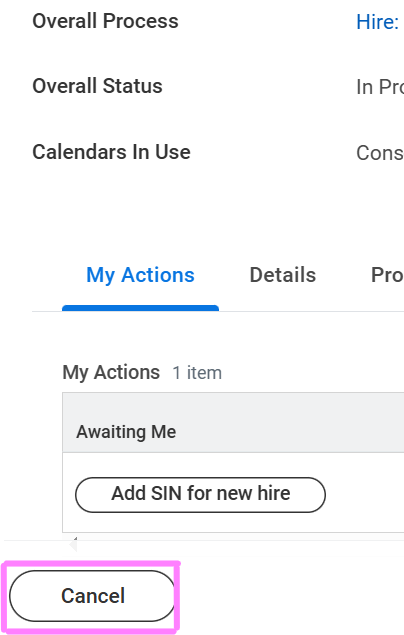
At the bottom of the screen, there will be the option to Cancel.
Note: If you need to update a hire detail such as start or end date prior to final approval of the hire, click Cancel to start over or contact the individual or team that the hire is awaiting approval with to have them send the hire back to correct and resubmit (click the Process tab to see who the hire is sitting with).
-
Scroll down to the end of the hire details to enter a comment in the comment field box and click Submit once complete.
Tip: If you cancelled and are redoing the hire, the employee created will still exist in the system as a Pre-Hire and upon re-entering the Hire Details, you will be able to select Existing Pre-Hire rather than creating them again.
Option 2: By typing the employee name into the Workday search bar
- Type the employee’s name into the main workday search bar and press enter on the keyboard.
- Select All of Workday under Categories on the left-hand side.
- Find the overall process you have initiated (i.e. for a hire/rehire – Hire: Sam Smith. For an Add Job – Start Additional Job: Sam Smith) and hover over it to bring up the related actions (3 orange dots).
- Click the related actions (3 orange dots) and hover over Business Process to select Cancel.
- Scroll down to the end of the hire details to enter a comment in the comment field box.
- Click Submit once complete.
Tip: If you cancelled and are redoing the hire, the employee created will still exist in the system as a Pre-Hire and upon re-entering the Hire Details, you will be able to select Existing Pre-Hire rather than creating them again.