Workday provides increased flexibility to update banking for up to 3 accounts. This allows you to split your pay into different accounts such as chequing and savings.
- From the Workday inbox, open the Payment Election Enrollment Event task.
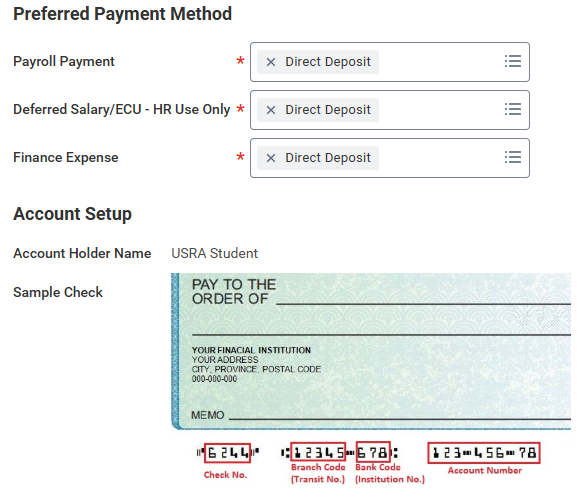
- Leave Direct Deposit as the default setting under Preferred Payment Method and enter your direct deposit information in the Account Information section below the sample cheque.
Note: Branch ID refers to Branch Code as shown on the sample cheque (3 digits).
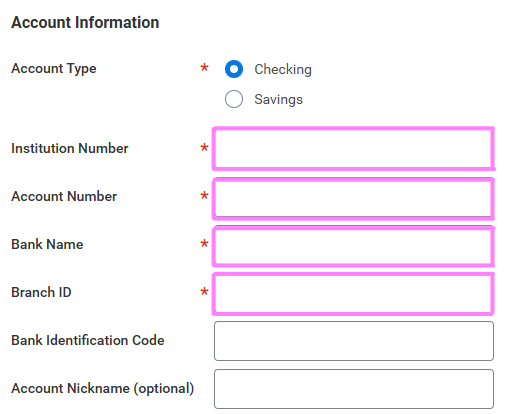
- Click OK to continue to the payment elections screen.
- If using only one account, click Submit to complete the direct deposit set up. If adding multiple accounts, see step 5 below.
- Click the Add button underneath the account information and follow the steps above to enter the additional account information.
- Click Edit in the far right column of the Payroll Payment row to split the deposit between the accounts.

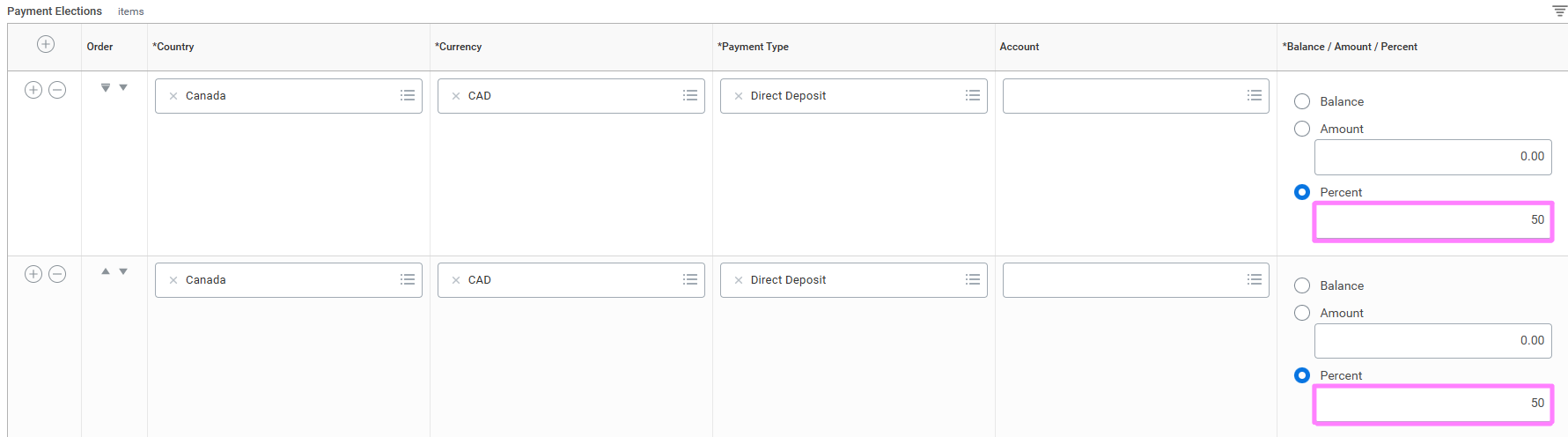
- Click the + in the table to enter the additional account information.
- Select Canada as the Country, Direct Deposit as the Payment Type and the additional account by clicking in the associated empty fields.
- Select the appropriate distribution between accounts in the far right-hand column. If an amount is allocated to an account, the remaining account must be designated as Balance. If percentages are selected, the combined total must equal 100 percent.
- Click OK and then Submit on the next screen to complete your direct deposit set up.
-
Click Open in the Up Next: Complete Federal Withholding Elections screen to continue the onboarding steps.