- From the Workday inbox find the Submit Resignation request.
- Upon review, select the appropriate Action button at the bottom of the screen – Approve, Send Back, Deny, Cancel.
After approving the employee resignation, you now need to complete the termination in Workday by following the steps below.
Note: The employee record will not be terminated if the termination task below is not complete.
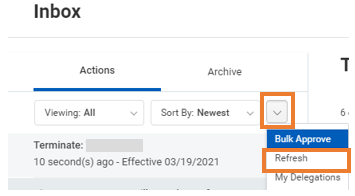
- Refresh your inbox by clicking the drop down menu caret beside Sort by: Newest or refreshing your browser screen.
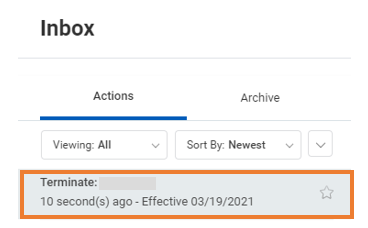
- Click on the Terminate: Employee Name task.
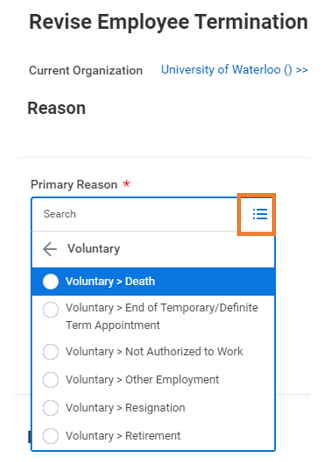
- Enter the Primary Reason for termination as Voluntary> Resignation, unless there is another more appropriate reason, i.e., if the employee is retiring, select Retirement.
- If reason is 'Resignation' or 'Other Employment', enter a Local Termination Reason.
Notes:
• Flexibility includes hours of work (early start and stops), the ability to plan days in and out of office based on personal needs.
• Work from home – Currently across UW, WFH is very limited. If employees are resigning because they are able to work from home more and they desire it, then we want to know.
- Confirm the termination dates.
Note: The dates will populate based on the resignation dates submitted.
- If the terminating employee is temporary (fixed term), check the Close Position check box.
- If the terminating a staff employee in a regular position, check the Position available for overlap check box.
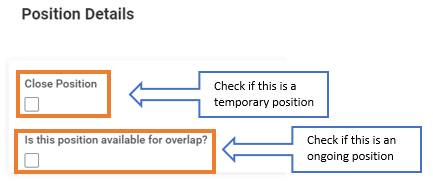
Note: Only PM positions will have the close and overlap options.
- Upload any applicable documents, i.e. resignation letter/email
- Click Submit to send for HR review.