Follow these instructions to cancel an unapproved vacation request. If your vacation/absence has already been approved, please follow the Change/cancel an approved vacation request user guide.
- On the Workday homepage, click View All Apps to go to Absence under Personal.

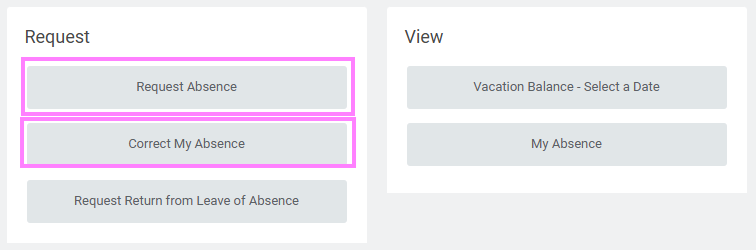
- Click Request Absence or Correct My Absence under the Request section to display the absence calendar.
- Click the time off entry you wish to correct on the calendar.
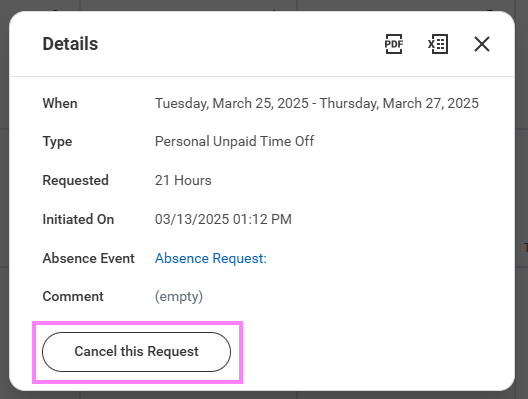
- Click Cancel this Request and enter a comment (this step is required for a cancellation).
- Click Submit, then Done. No approval is required.