If your vacation request has already been approved, follow the steps outlined below to change or remove the approved time off. If your request has not been approved (it will show as all grey without a green bar), follow the Cancel an unapproved vacation request user guide.
- On the Workday homepage, click View All Apps to go to Absence under Personal.

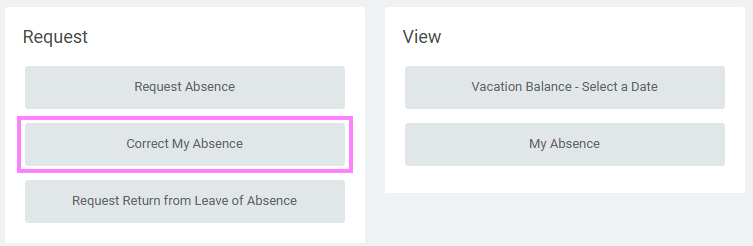
- Click Correct My Absence under the Request section.
- Click the time off entry on the calendar.
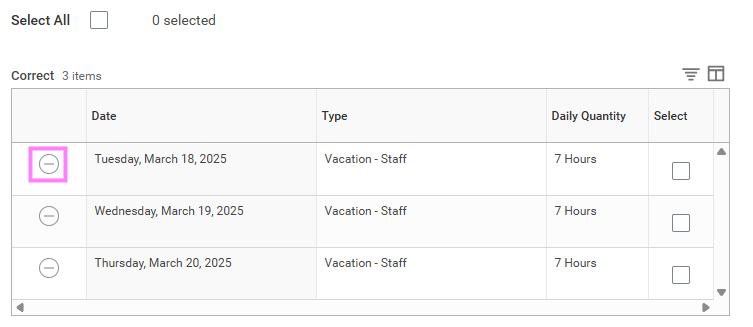
- Select the day(s) you want to correct or click the Remove Row icon to remove the days.
- Enter the Type.
- Enter an adjustment to requested hours in the Quantity per Day field.
- Click Submit.
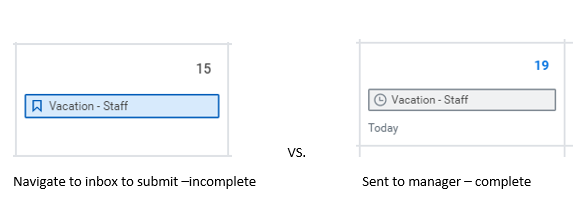
- If your vacation correction shows in blue, navigate to your inbox to confirm submission to send it for approval. Once it is sent to your manager, it will appear as grey in your calendar.
Note: If required, you will be prompted to attach documents to this correction.