Contingent workers are individuals who are not receiving payment or benefits through the University of Waterloo.
Search for employee
- Type Employee Search into the main search bar to search by employee ID, student ID or WatIAM ID to determine if the new employee exists in Workday. If no results exist, go back and enter a name (in some cases, the ID entered may not be in Workday) and try the search again, validating the IDs or email address listed in the results match your hire. Verifying IDs ensures a different person with the same name will not be hired by mistake.
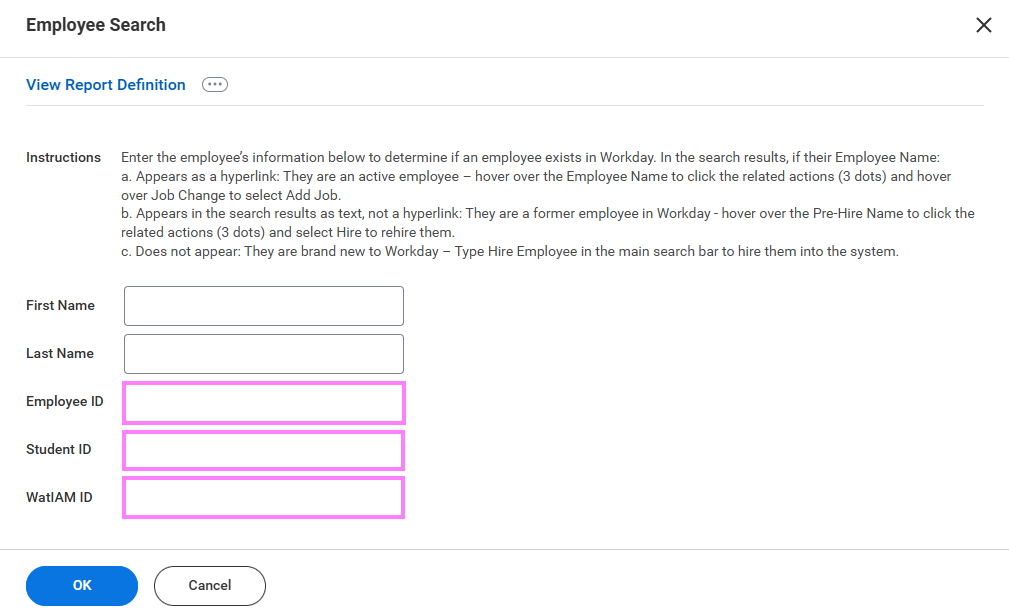
- If their Employee Name (3rd column):
a. Appears as a hyperlink:
They are an active employee – Do not proceed with this transaction. This individual should not be set up as a contingent worker.
Note: If you are a manager and this is a former employee who most recently reported to you or is a retiree, their name will appear as a hyperlink, but there will be no Add Job option. In this case proceed with option “b” below
b. Appears in the search as text, not a hyperlink:
They are a former employee in Workday - hover over the Pre-Hire Name (1st column) to click the related actions (3 dots) and select Hire> Contract Contingent Worker to rehire them and continue to step 3 below.
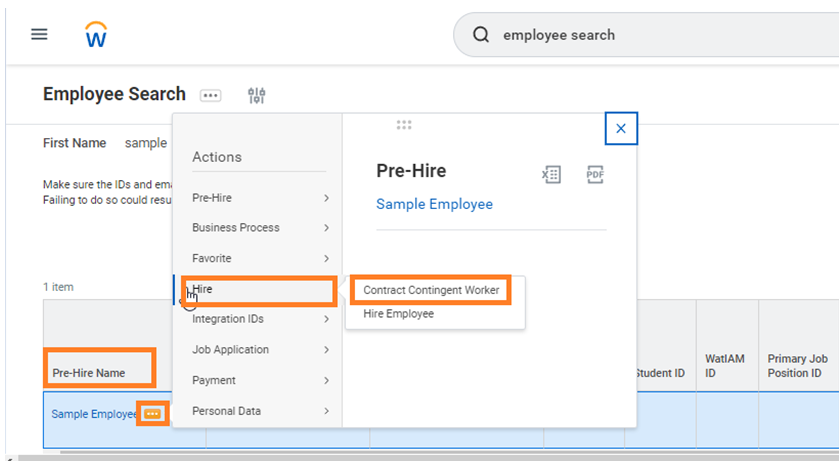
c. Does not appear (no search results):
- Type the manager name of the supervisory organization (sup org) you are hiring into, in the Supervisory Organization search field and press enter to pull up a list of available sup orgs. From the available options, select the appropriate one with 'JM' denoted in the title.
Note: JM is short for Job Management. This is used to group positions without position numbers including casual and student positions.
- If this is a rehire based off the Employee Search: Their name will now be populated in the Existing Pre-Hire field. Click OK to continue to step 7 – Enter the employee’s job details.
- If the Employee Search produced no results:
Select Create a New Pre-Hire and click OK to continue to the employee’s contact information.
Enter the Employee’s Contact Information
- Leaving the top section blank, enter the employee’s First and Last Name and select the Contact Information tab to add email address and home address.
- Click OK to continue to the job details.
Enter the Employee’s Job Details
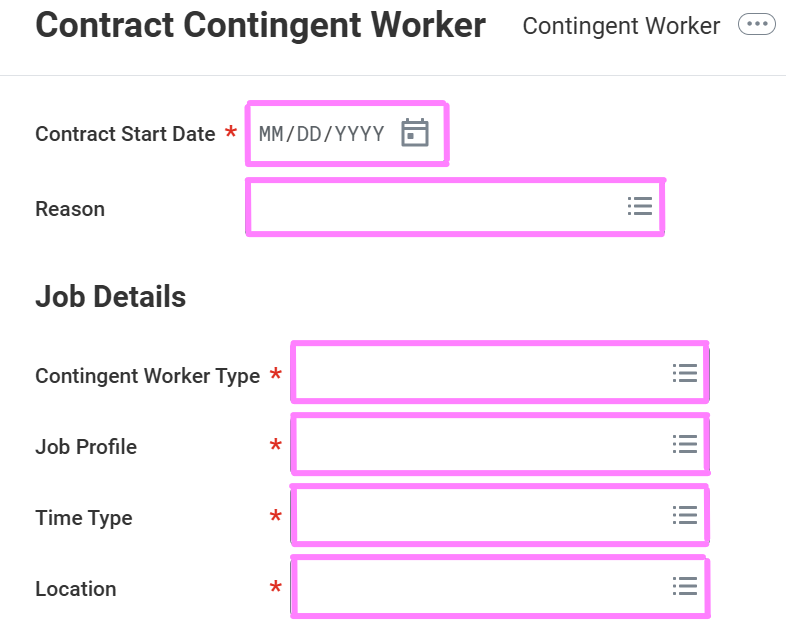
- Enter the Contract Start Date and choose appropriate Reason (New Hire if brand new, Rehire if there was a previous Workday record).
- Enter the appropriate Contingent Worker Type by selecting Contingent Worker Types and selecting one of the following options:
- Agency Temp
- Student (i.e. highschool students)
- Volunteer
- Definite (Fixed) Term
- In the Job Profile field, enter the appropriate Job Profile for the worker.
- Select the appropriate Time Type (Full time if 35 hours or greater per week and part time if less than 35 hours).
- Select the building Location for the employee from the list or type the abbreviation and press enter.
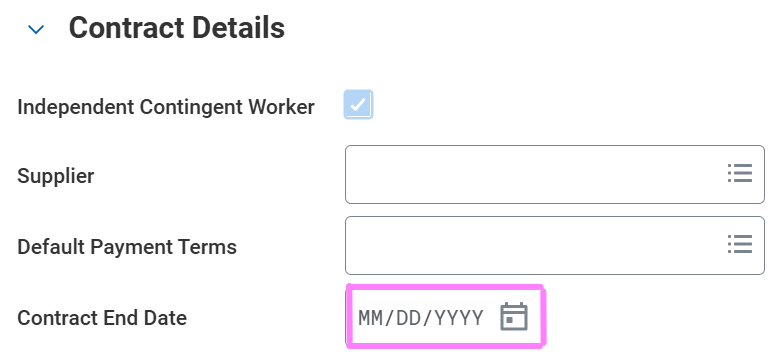
- Enter a Contract End Date and leave contract details blank.
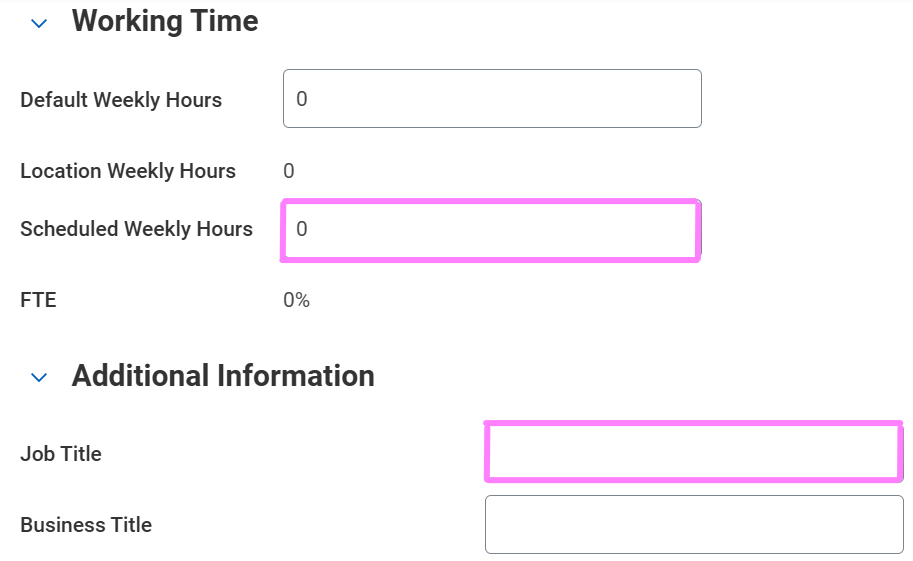
- Update Scheduled Weekly Hours with the expected number of hours per week.
- Click Additional Information to expand the fields.
- Update the Job Title to reflect what they will be doing.
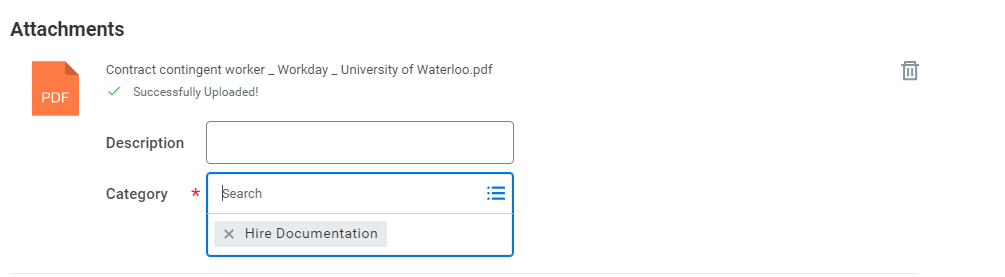
- Attach any signed appointments using document category: Hire Documentation
- Click Submit to send to HR for review.