The steps outlined below will guide you through how to initiate a graduate student job change to increase or decrease fractional load of the appointment.
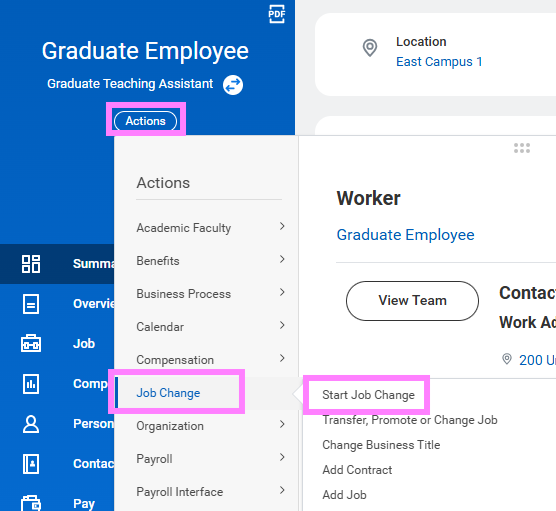
- In the Workday search bar, type ‘start job change’ to initiate the job change task OR from the Actions menu of the worker profile, hover over Job Change to select Start Job Change.
Note: Managers can also access this task from the My Team Management application on the Workday home screen.
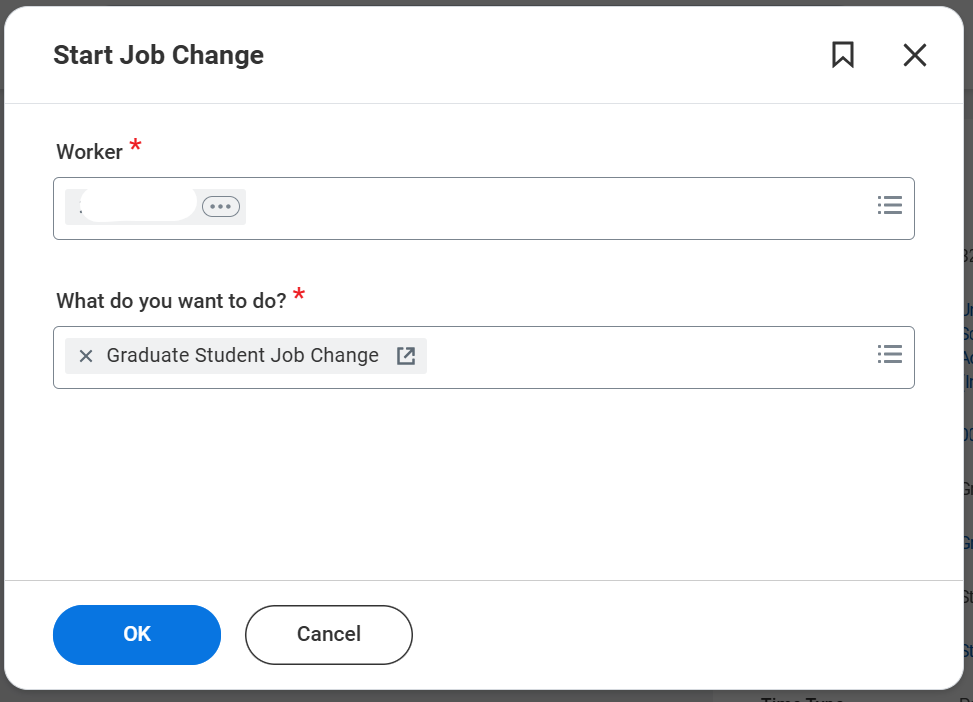
- In the Worker field, enter the Employee ID or name of the graduate employee you will be making the change for.
- In the Job field (if applicable) select the appropriate position from the menu
- In the What do you want to do? field, select Graduate Assistant Job Change and select OK at the bottom of the screen.
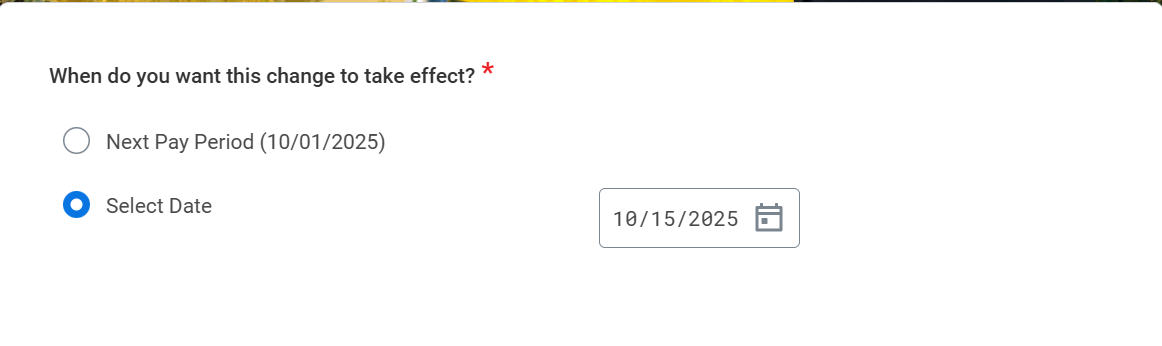
- The date will default to the start of the next pay period; leave as is or update it to when this change should take effect.
Note: If a pay rate is changed retroactively for hours that have already been paid out, a payroll adjustment will take place on the employee’s next pay.
- To change the job title or work location, enter the new information in the correct box.
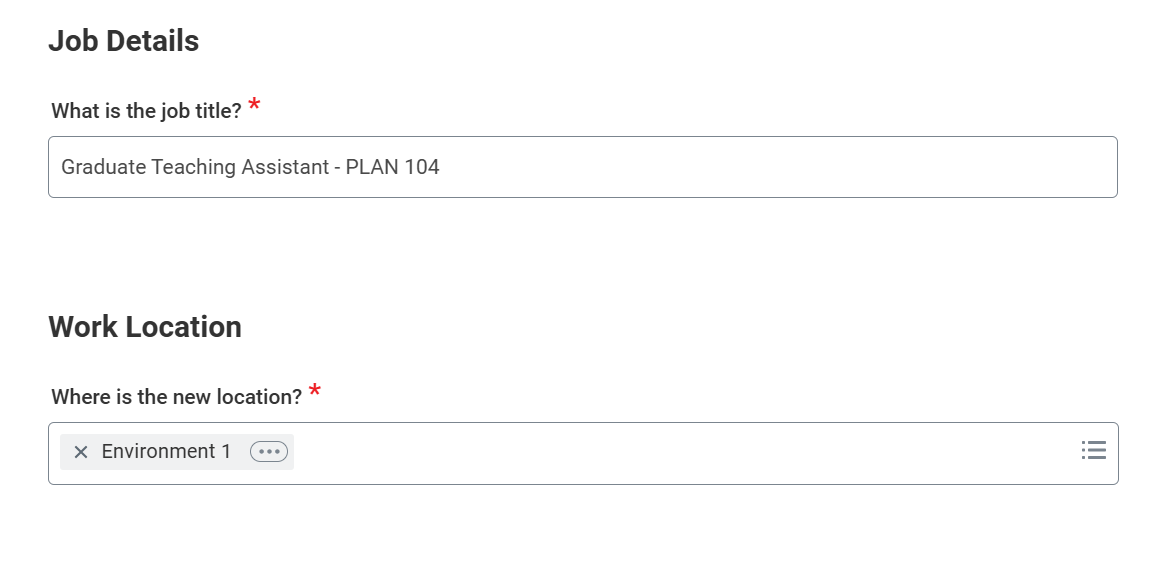
Note: Default and scheduled hours should be the same for all student hires.
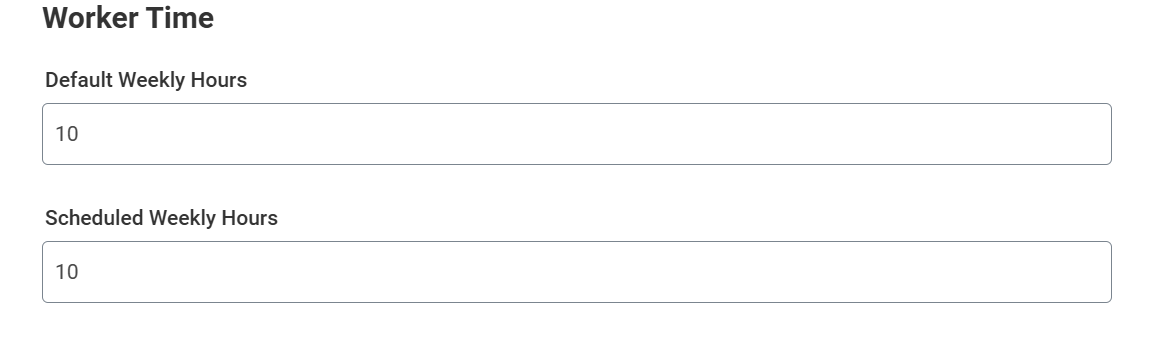
Note: You cannot change the end date for a student position using this task.
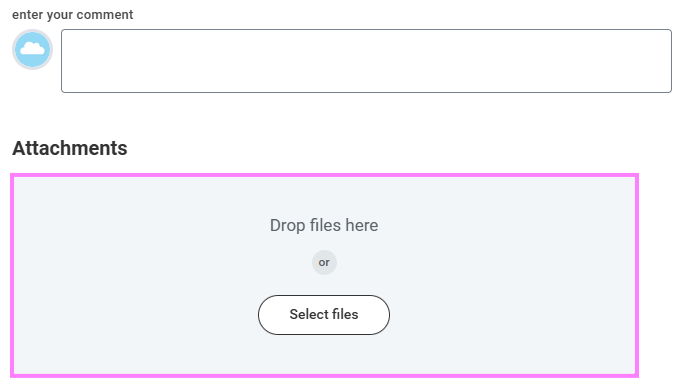
When you are finished changing the hours on this page, please attach paperwork approval indicating the change in hours and press Submit.
-
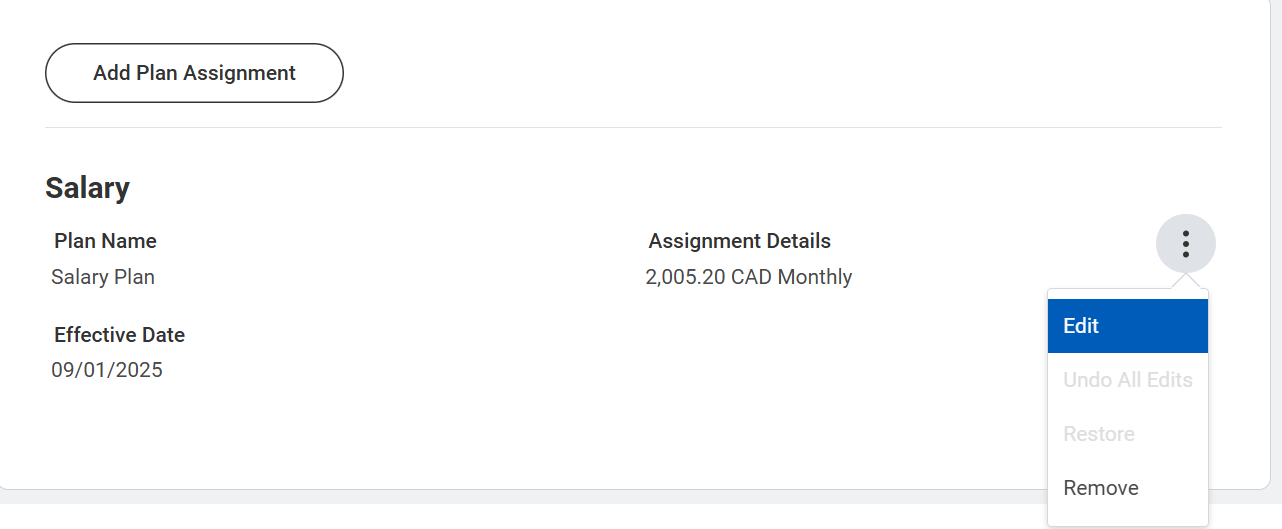
To change salary details, click on the three dots to the right of the Salary box and press Edit. To confirm the salary change, press Save.
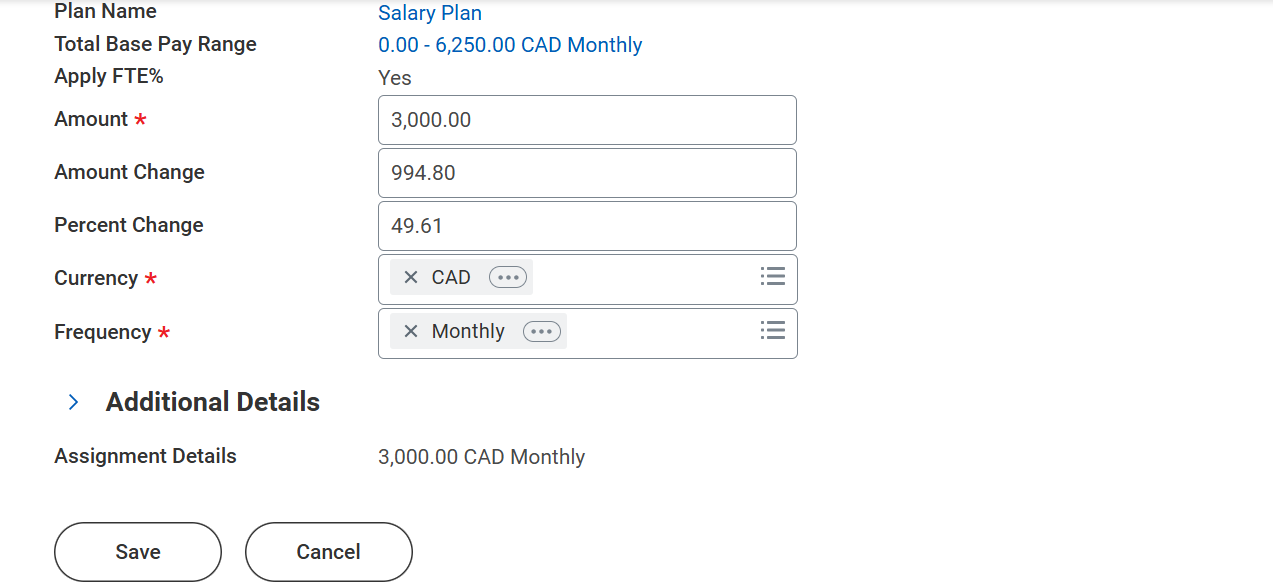
- Press Next and review the job change details on the next page. When you are finished, press Submit
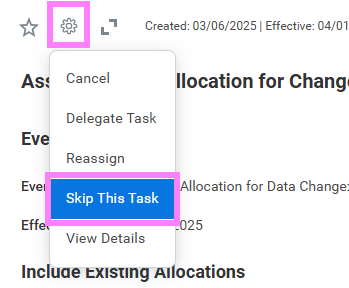
- Go to your Tasks and locate the Assign Costing Allocation for Change Job task. Click the gear icon and then Skip This Task.