Initiate hire
The steps outlined below will guide you through the process of hiring a Work Study employee in Workday.
- Type Employee Search into the main search bar and select the report to open it.
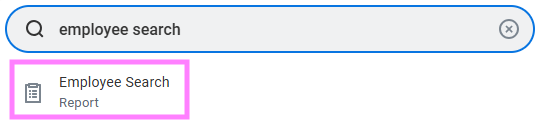
Then, search by employee ID, student ID, or WatIAM ID to determine if the person already exists in Workday. If no results appear, go back and search using their name. Make sure to validate that the IDs or email address listed match your hire if results appear for their name. Verifying unique identifiers (such as Employee ID, Student ID, or email) ensures a different person with the same name will not be hired and paid by mistake.
Note: If you are not sure if the person you want to hire is the same as an existing profile with the same name, please email hrhelp@uwaterloo.ca with all personal info you have collected and HR can compare it against the existing profile using info that only HR has access to. The most useful information to share would be unique things like birthday, SIN, or contact info.
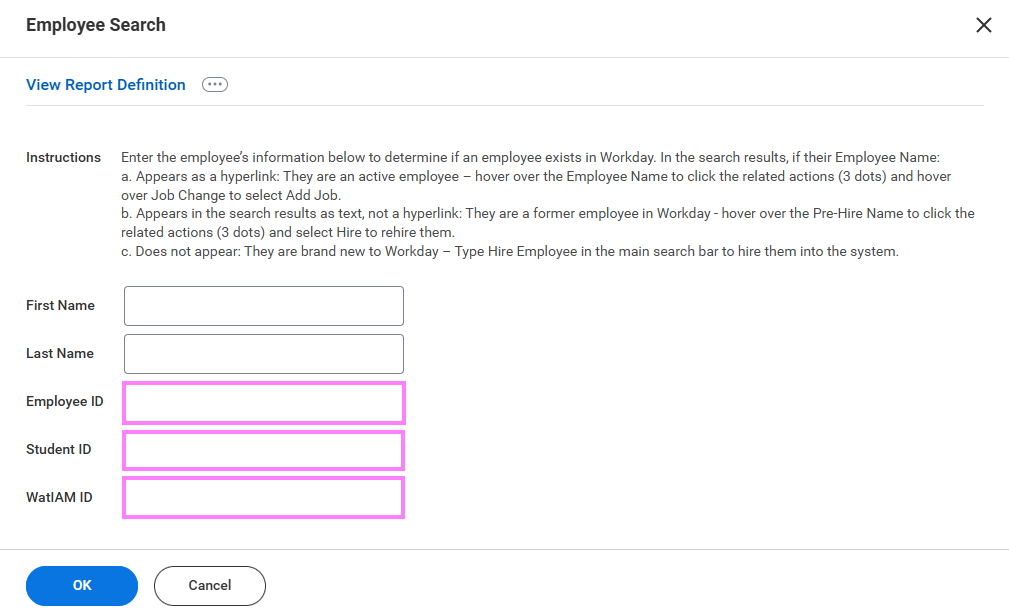
Note: The Employee Search report will look for records that include ALL inputted fields (i.e., it will use “AND” rather than “OR” conditioning). Given this, it may be best to search one ID or name at a time in case some info you collected is different than what is in Workday (like legal name and preferred name differences). Even slight spelling differences may affect results.
- If their Employee Name:
a. Appears as a hyperlink: They are an active employee – hover over the Employee Name to click the related actions (3 dots) and hover over Job Change to select Add Job and continue to step 3 below.
Note: Employees who are currently active but have a future-dated termination record in Workday will appear as a hyperlink but there will be no “Add Job” option. If the start date for the new job is earlier than the future-dated termination, email hrhelp@uwaterloo.ca so HR can undo the termination and redo it after your job is added. If the start date is after the termination, proceed with option “b” below.
Note: If you are a manager and this is a former employee who most recently reported to you, their name will appear as a hyperlink but there will be no Add Job option. In this case, proceed with option “b” below.
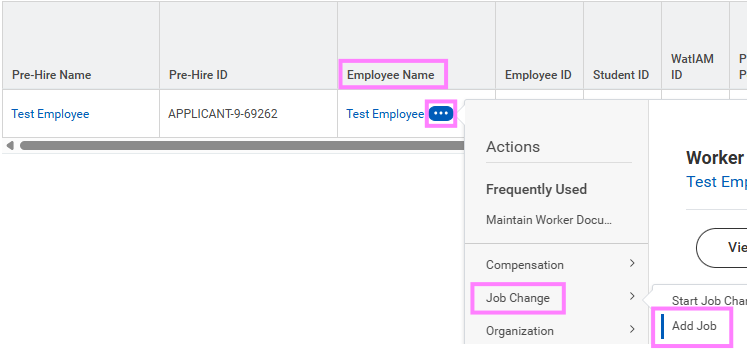
b. Appears in the search as plain text, not a hyperlink: They are a former employee in Workday - hover over the Pre-Hire Name to click the related actions (3 dots) and select Hire Employee to rehire them and continue from step 3 below.
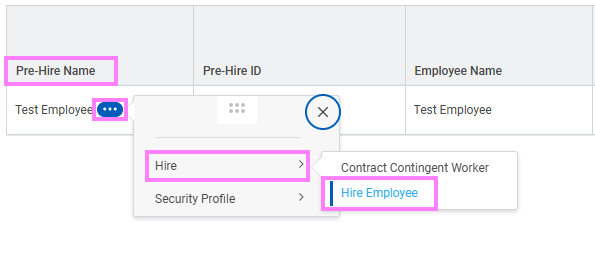
c. Does not appear in the Employee Name column but appears in the Pre-Hire Name column.
They are a former or existing contingent worker in Workday - use the Primary Job Business Title to determine if their contract is active. If the job title column is blank, their contract is not active and you canfollow the steps in option “b” above. If the job title column is not blank, please email hrhelp@uwaterloo.ca for assistance.


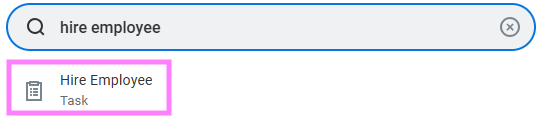
d. Does not appear at all (no results): They are brand new to Workday – type “hire employee” into the main Workday search bar and select the task to open it, then continue to step 3 below.
-
Type the manager name of the supervisory organization (suporg) you are hiring into in the Supervisory Organization field and press enter to pull up a list of available suporgs. From the available options, select the appropriate one with ‘JM’ denoted in the title.
Note:JM is short for Job Management. This is used to group positions without position numbers including casual and student hires.
If you have not performed the Employee Search, please see Step 2 before continuing.
- If the Employee Search produced no results: Select Create a New Pre-Hire and click OK to continue to the employee's contact information.
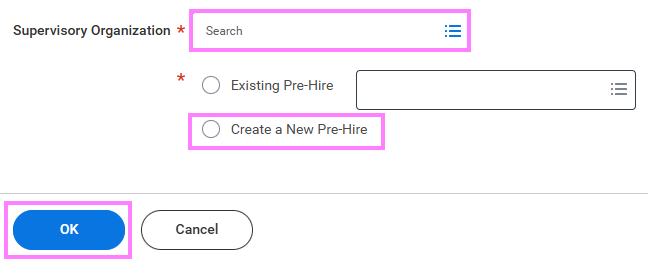
If you are hiring from the Employee Search results: Their name will be pre-populated in the Existing Pre-Hire field. Click OK and continue to step 7 below (skip steps 5-6).
Note: Do not type a name into the Existing Pre-Hire field. It will pre-populate when you use the Employee Search from steps 1-2. It’s important to use the Employee Search report rather than searching in the Existing Pre-Hire field because it will give you the chance to validate that the result has the correct IDs or email and is not just someone with the same name.
Enter the employee's contact information
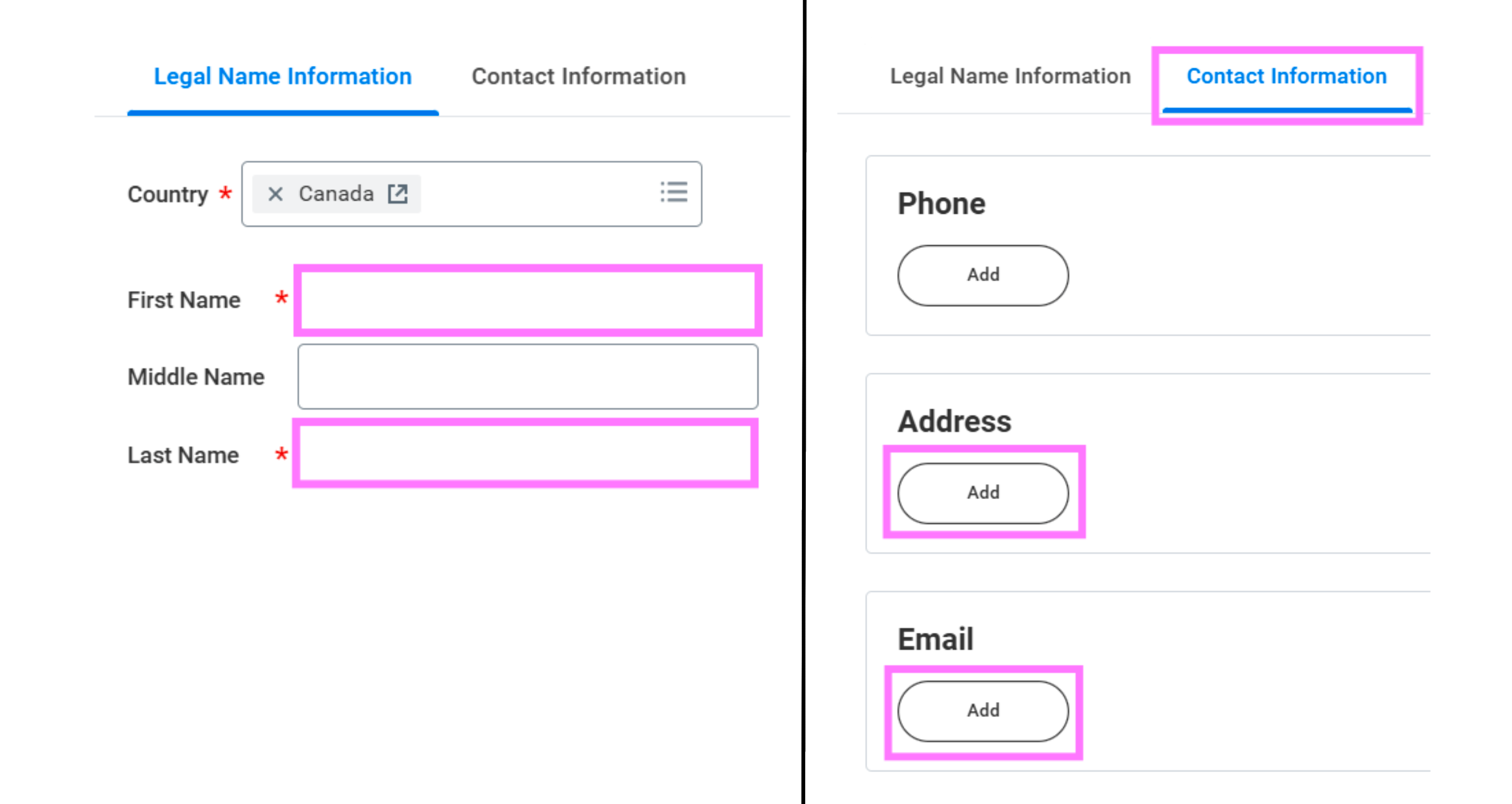
- Enter the employee’s First and Last Name under the Legal Name Information tab and then select the Contact Information tab to add a home address and an email address.
Note: Leave Source and Referred by fields at the top blank.
- Click OK to continue to the job details.
Enter the employee's job details
- Enter the Hire Date
- Choose appropriate Reasonfrom the dropdown options: Use New Hire if you created a new pre-hire or use Rehire if you used an existing pre-hire from Employee Search.
-
For Employee Type, type Casual (Fixed Term) or select it by clicking For Current Country.
-
Enter an End Employment Date for the employee.
- Select the building Location for the employee from the list of All Locations or type the abbreviation.
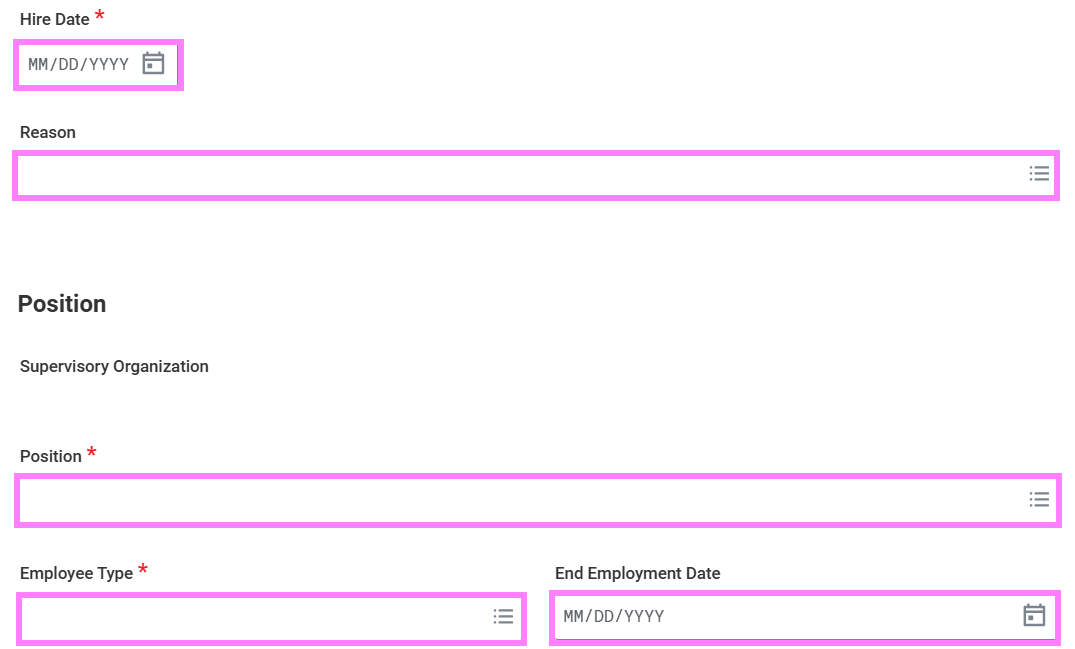
Note: If there is a Position field in this section, that means you did not select a JM Supervisory Organization for step 3 and you will need to cancel the hire and restart.
-
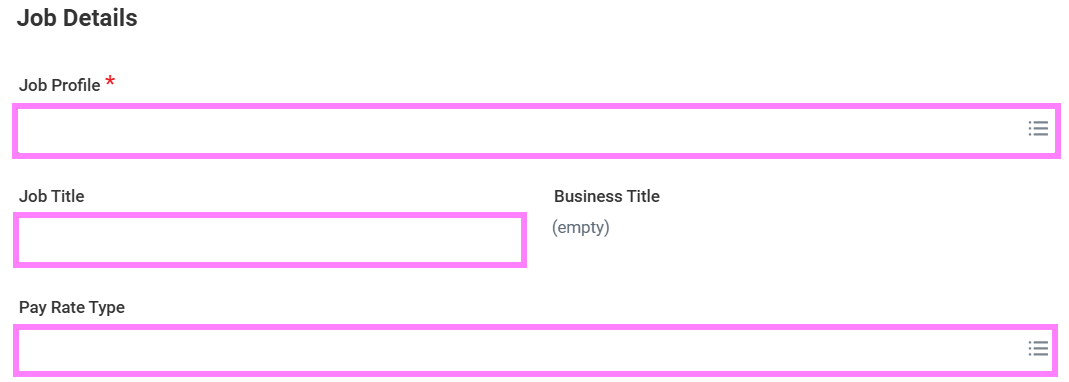
In the Job Profile field, select or type the applicable job profile: Casual – International Work Study 1518 or Casual – Ontario Work Study 1519. Pay Rate Type should auto-fill as Hourly once you select a job profile.
-
Update the Job Title to the employee’s actual title. Business Title will auto-fill to match.
Note: A unique job title ensures the correct casual position is selected when entering time for multiple casual positions.
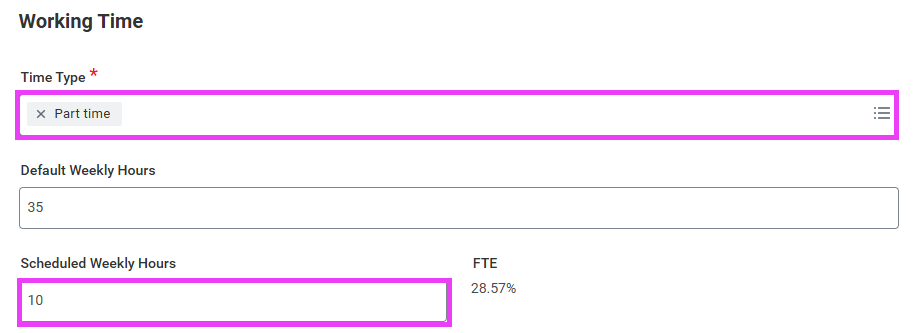
- For Time Type, select Part Time.
-
Leave Default Weekly Hours as 35 and update Scheduled Weekly Hours with the expected number of hours per week.
Note: The number inputted for scheduled weekly hours can just be an estimate for casual employees since it won’t affect their pay.
- Click Submit. If this is a new hire, the next task will be to enter their SIN. If this is a rehire, the next task will be compensation details (skipping steps 17-19).
If this is a brand new hire:
Enter Social Insurance Number
-
Click Open to add a Social Insurance Number (SIN) for the new employee if you have it OR you can click Skip and OK on the next screen to skip this task and continue to step 20.

Tip: If you clicked Open or out of the pop-up, the SIN task will be in your inbox to complete or skip from there. To skip it from your inbox, click the gear icon at the top right of the task and select Skip This Task and OK.
-
Click the + under the National IDs table to add the Canadian Social Insurance Number (SIN). Click in the empty fields to select the following:
Country – Canada
National ID Type - Social Insurance Number
Add/Edit ID - 9 digit Social Insurance Number
Issued Date - Leave blank
Expiration Date - Enter if Social Insurance Number starts with a “9”, otherwise leave blank

-
Click Approve.
Enter employee compensation information
- Click Open to go to the compensation screen.

Tip: If you clicked out of the pop-up, navigate to your Workday inbox and continue the task from there
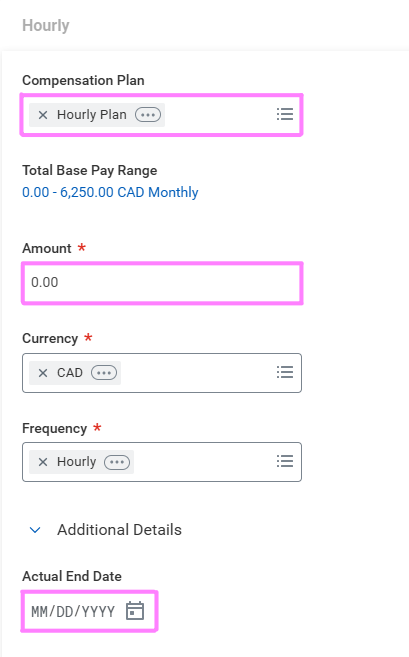
- Click the edit icon in the Hourly section.
- In the Amount field, enter an hourly rate.
- Click Submit to continue on to enter the salary account details.
Note: The Work-Study Maximum is $2000 a term, to ensure that employees do not exceed this please divide the hourly rate by $2000 to determine the maximum hours allowed. Once the maximum is reached the department is responsible to cover any outstanding amounts owed. i.e. $2000/$17.60 (minimum wage) = 113hrs
Enter change organization assignment
- Click Open to continue to update the Cost Centre.
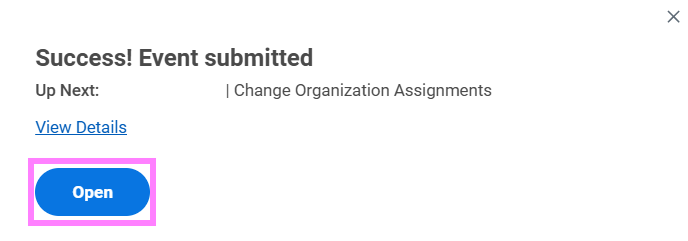
Tip: If you clicked out of the pop-up, navigate to your Workday inbox and continue the task from there.
- In the Cost Center section, click the Edit icon.
-
Enter the Work Study work order and activity for the employee (Ontario WS: 10000-10739 100 OR International WS: 10000-10706 100)
- Click Submit.
-
As there is only one applicable Cost Center, click Skip for Add Split Between Salary Accounts, then OK to send the hire to HR for review. You do not need to add a reason comment.
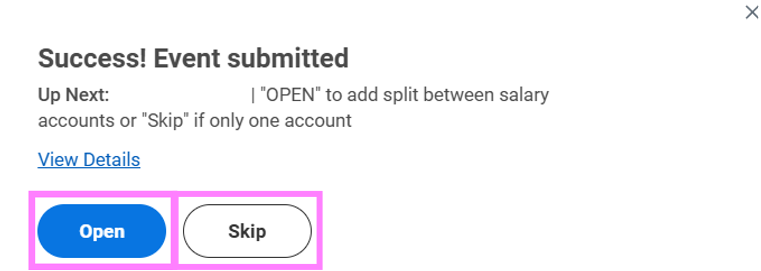
Tip: If you clicked out of the pop-up, navigate to your Workday inbox and continue the task from there.
Tip: To view the status of your hire, type the employee's name into the main Workday search bar and press enter. Make sure All of Workday is selected under Categories and click the “Hire:(employee name)” link. Click the Process tab on the resulting screen and scroll down the table to see what part of the process the hire is in; OR find the submitted Hire event in the Archive section of your Workday inbox and click the Process tab (items are archived for 30 days).