Early terminations can only be completed by the manager as listed in Workday. Campus Partners are able to end an employee contract based on the end employment date listed in Workday.
If someone other than the Workday manager will be performing an early termination (i.e. employee resigns), they will need to be delegated termination tasks by the manager.
If manager initiated:
- On the Workday homepage, click View All Apps to go to the My Team Management application.
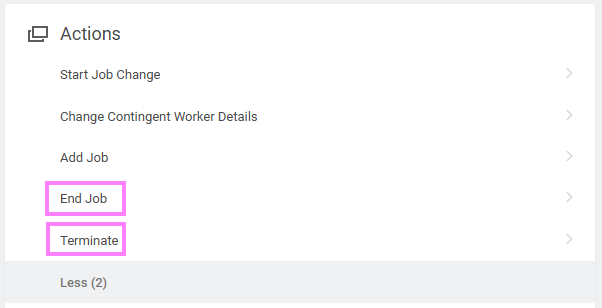
- From the application, select Terminate or End Job from the Actions menu.
- Select My Team and select the appropriate employee.
If campus partner initiated:
- Enter the employee name in the Workday search bar to navigate to the employee profile.
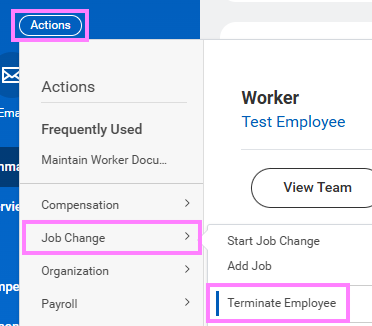
- From the Actions menu under the employee name, hover over Job Change to select Terminate or End Job (depending on the position that is ending - see note).
Note: Terminate is used to end an employee's only position in Workday (i.e. employee only has one job). End Job is used if the employee has multiple positions and you are ending one of the secondary ones (position will have a + symbol beside it if it is secondary). If the position ending is the primary job but the employee has additional jobs as well, please contact hrhelp@uwaterloo.ca for assistance.
OR
- Click in the Reason section to activate the editable fields and click the prompt in the Primary Reason field to choose the appropriate resignation reason.
Note: Campus Partners must select Voluntary> End of Temporary/Definite Term Appointment. Secondary and Local Termination Reasons may remain blank.
- If reason is 'Resignation' or 'Other Employment', enter a Local Termination Reason.
Notes:
• Flexibility includes hours of work (early start and stops), the ability to plan days in and out of office based on personal needs.
• Work from home – Currently across UW, WFH is very limited. If employees are resigning because they are able to work from home more and they desire it, then we want to know.
- Enter the employee’s last day worked as the Termination/End Job Date.
Note: Campus partners must enter the End Employment date currently in the system for the employee.
- If terminating a temporary position, select the Close Position check box. If terminating a regular position, select the Is this Position Available for Overlap check box.
- Scroll down to attach the resignation/retirement letter in the attachment field if leaving the University prior to the contract end date.
- Click Submit.