How to edit a page in the CMS
To edit a page in your course, use the following steps.
- Navigate to the CMS site here: https://cms-uwaterloo.cloud.contensis.com.
- If needed, login using your WatIAM credentials by clicking on the 'Sign In' button.
-
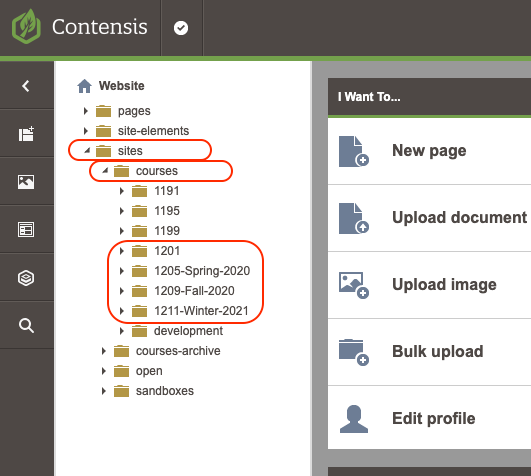
Find
your
course
in
the
navigation
tree
by
opening
each
folder: sites
>
courses
>
term-folder
>
course.
-
E.g.
open
each
folder: sites
>
courses
>
1205-Spring-2020
>
ARTS-101.
-
E.g.
open
each
folder: sites
>
courses
>
1205-Spring-2020
>
ARTS-101.
- Find the page you want to edit within your course. (You may need to open additional folders to find the file).
-
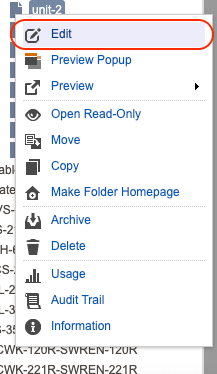
Click
on
the
filename
for
the page
you
want
to
edit
and
choose
'Edit'
from
the
menu
that
pops
up.
-
(E.g.,
click
on
the
'unit-2'
file
then
edit
from
the
pop-up
menu.)
-
(E.g.,
click
on
the
'unit-2'
file
then
edit
from
the
pop-up
menu.)
- The page will open in editor view where you can make changes. Click to place your cursor in the place you would like to make your change, and edit the text. If there are further edits you'd like to make, you can continue throughout the rest of the page.
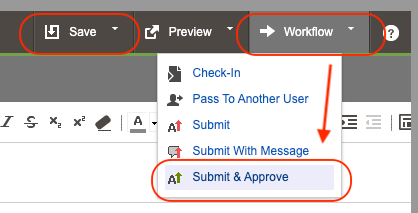
- Once you've made the changes, in the top right hand corner, click on the 'Save' button.
-
Then,
to
publish
your
changes,
click
on
'Workflow',
then
'Submit
and
Approve'.
-
Your changes have now been saved and published to the live site! Note: It may take a few minutes for changes to appear on the live version of your page.