The steps outlined below will guide you through how to initiate a casual extension and/or pay rate.
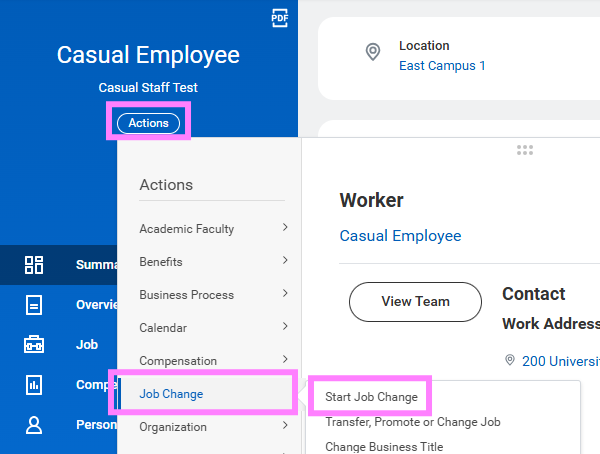
- In the Workday search bar, type ‘start job change’ to initiate the job change task OR from the Actions menu of the worker profile, hover over Job Change to select Start Job Change.
Note: Managers can also access this task from the My Team Management application on the Workday home screen.
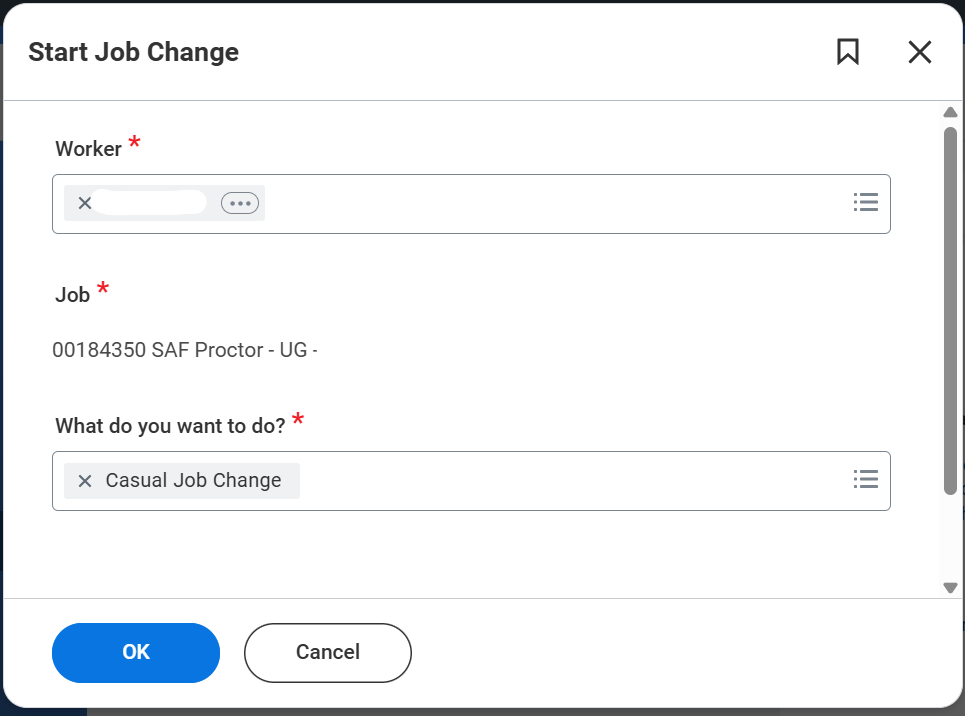
- In the Worker field, enter the Employee ID or name of the casual employee you will be making the change for.
- In the Job field (if applicable) select the appropriate position from the menu
- In the What do you want to do? field, select Casual Job Change and select OK at the bottom of the screen.
- The date will default to the start of the next pay period; leave as is or update it to when this change should take effect.
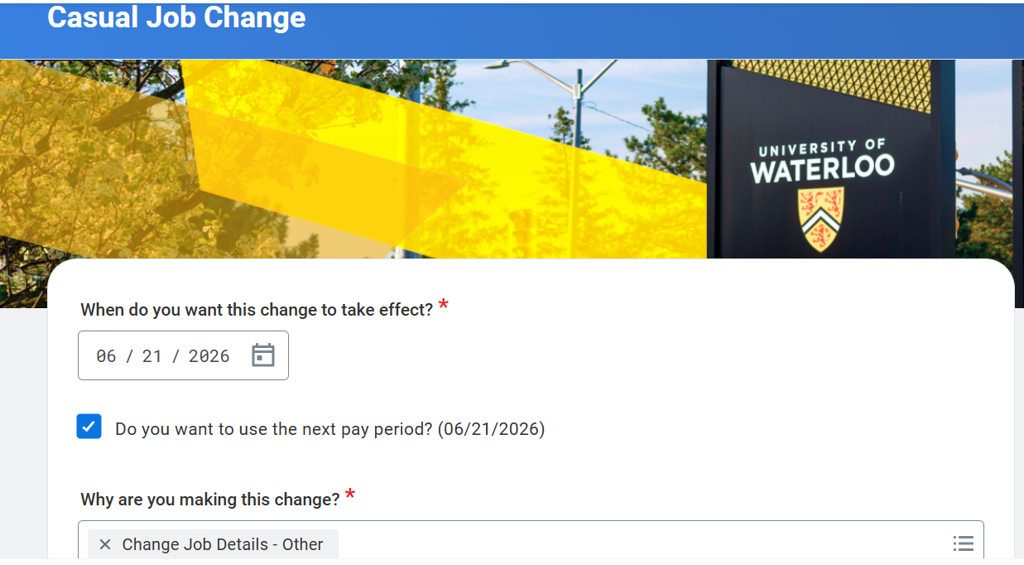
Note: If a pay rate is changed retroactively for hours that have already been paid out, a payroll adjustment will take place on the employee’s next pay.
-
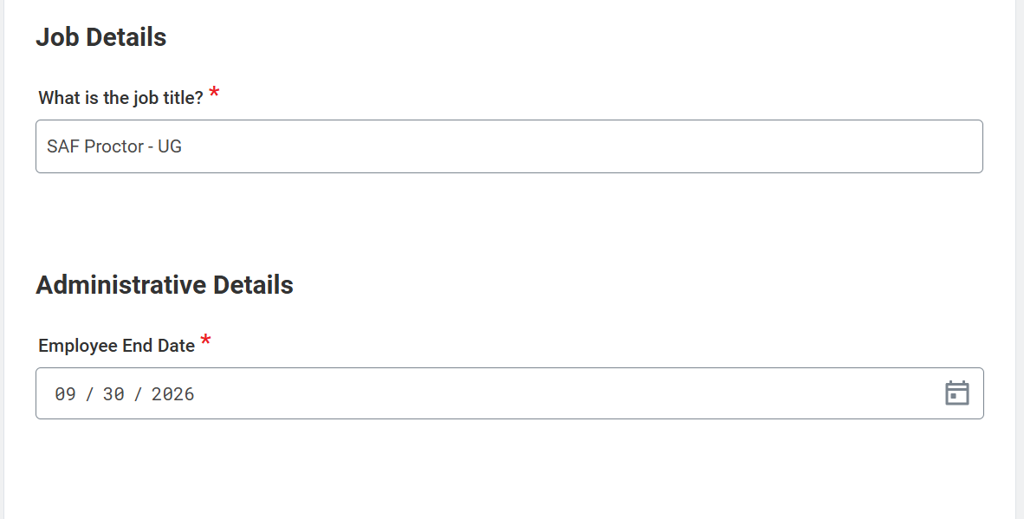
Scroll down the Job Details section to edit the Employee End Date (if applicable). This must not be earlier than the current end employment date. To end an employment relationship, please cancel this job change and initiate a termination in Workday. Press Submit when finished changing job details on this page.
Note: The first day of work field will default to the job change effective date; the overall job record will not be updated with this start date.
-
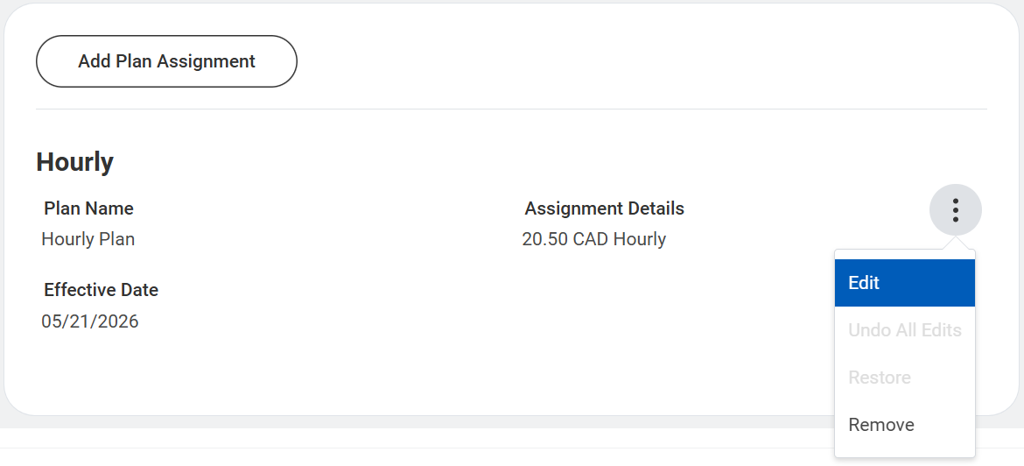
Scroll down on the Compensation page to the Hourly section and edit the Assignment Details (if applicable) and click the Edit option to enter a new rate. Press Save once completed with the Hourly section.
Note: Please add a comment to provide rationale if changing a pay rate. If this employee is paid from a research account, please provide a short description of the appointment details in the comment box at the bottom of the page for the Office of Research to review.
8. Once the end date and/or hourly rate have been updated, click Next to move onto the Review and Submit page. Press Submit after reviewing the changes made.
Note: If you are a campus partner, this will go to the employee's manager and then to the cost center signing authority for review. If you are the manager, it will go directly to the signing authority for review.