The steps outlined below will guide you through the process of entering a one-time payment in Workday and should be used for non-UW employees who are receiving the following types of payments:
- Award
- External guest speaker/lecturer
- External reviewer/examiner/assessor
- External Prize
- Honourarium of $500 or less
- Research participant payment of more than $300
Individuals who qualify for the above payments will need to be hired into Workday as casual employees as per the process outlined below. If the payee is external but does not fall into one of the categories listed above, or if they are active in Workday, reference the Payment Types Chart (PDF) to determine how to proceed. Questions regarding payment types can be directed to payroll@uwaterloo.ca. Payments to active employees should be completed on the One Time Payment Request Form (PDF) .
Any payments that are to be made in a foreign currency must be submitted on the Foreign Fund Request Form (PDF) , along with a Wire transfer form (if applicable) and sent to Payroll in EC1.
Initiate hire
- Type Employee Search into the main search bar to search by employee ID, student ID or WatIAM ID to determine if the new employee exists in Workday. If no results exist, go back and enter a name (in some cases, the ID entered may not be in Workday) and try the search again, validating the IDs or email address listed in the results match your hire. Verifying IDs ensures a different person with the same name will not be paid by mistake.
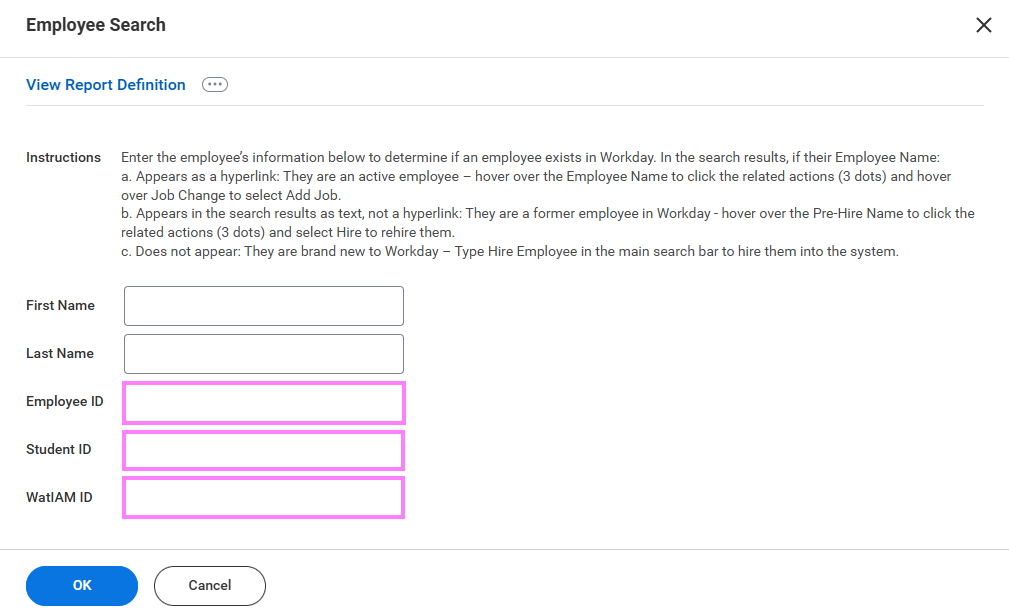
- If their Employee Name:
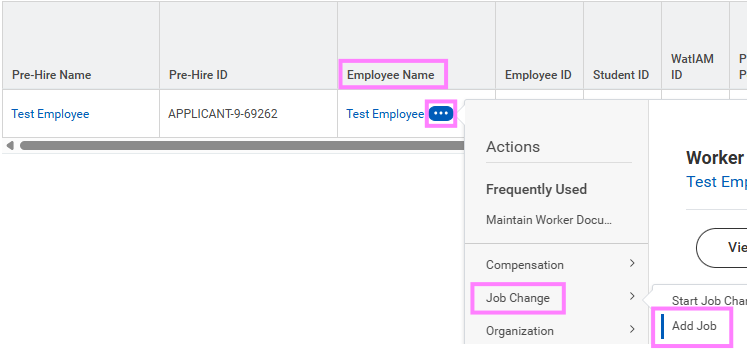
a. Appears as a hyperlink: They are an active employee – this payment should not be entered into Workday. Submit the One-time payment request form to payroll.
Note: if you are a manager and this is a former employee who most recently reported to you, their name will appear as a hyperlink but there will be no Add Job option. In this case, proceed with option “b” below.
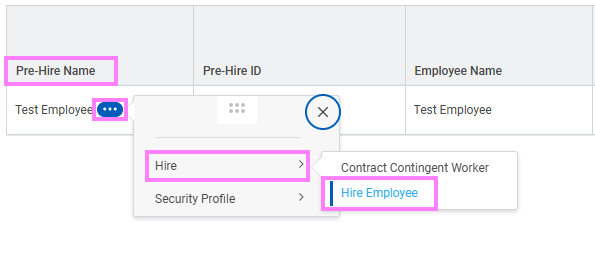
b. Appears in the search as text, not a hyperlink: They are a former employee in Workday - hover over the Pre-Hire Name to click the related actions (3 dots) and select Hire to rehire them and continue from step 3 below.
c. Does not appear: They are brand new to Workday – Type Hire Employee in the main search bar to hire them into the system and follow the steps below.
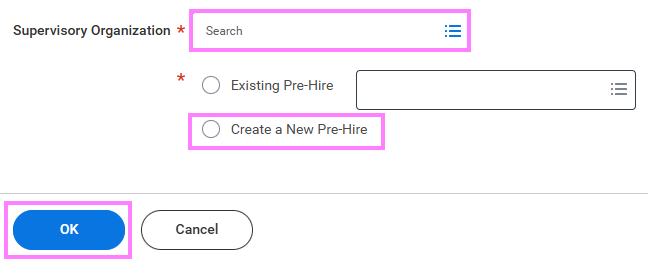
- Type the manager name of the supervisory organization (sup org) you are hiring into, in the Supervisory Organization search field and press enter to pull up a list of available sup orgs. From the available options, select the appropriate one with 'JM' denoted in the title.
Note: JM is short for Job Management. This is used to group positions without position numbers including casual and student employees.
If you have not performed the Employee Search, please see Step 2 before continuing.
- If the Employee Search produced no results: Select Create a New Pre-Hire and click OK to continue to the individual's contact information.
If this is a rehire based off the Employee Search: Their name will now be populated in the Existing Pre-Hire field. Click OK to continue to Step 7 - Enter the employee's job details.
Enter the employee's contact information
- Enter the employee’s First and Last Name and then select the Contact Information tab to add contact information.
Note: If this employee will not be logging into Workday to provide direct deposit information, leave the email address blank. If blank, they will not receive a watIAM email to create a user name for Workday. Address is required for these types of payments.
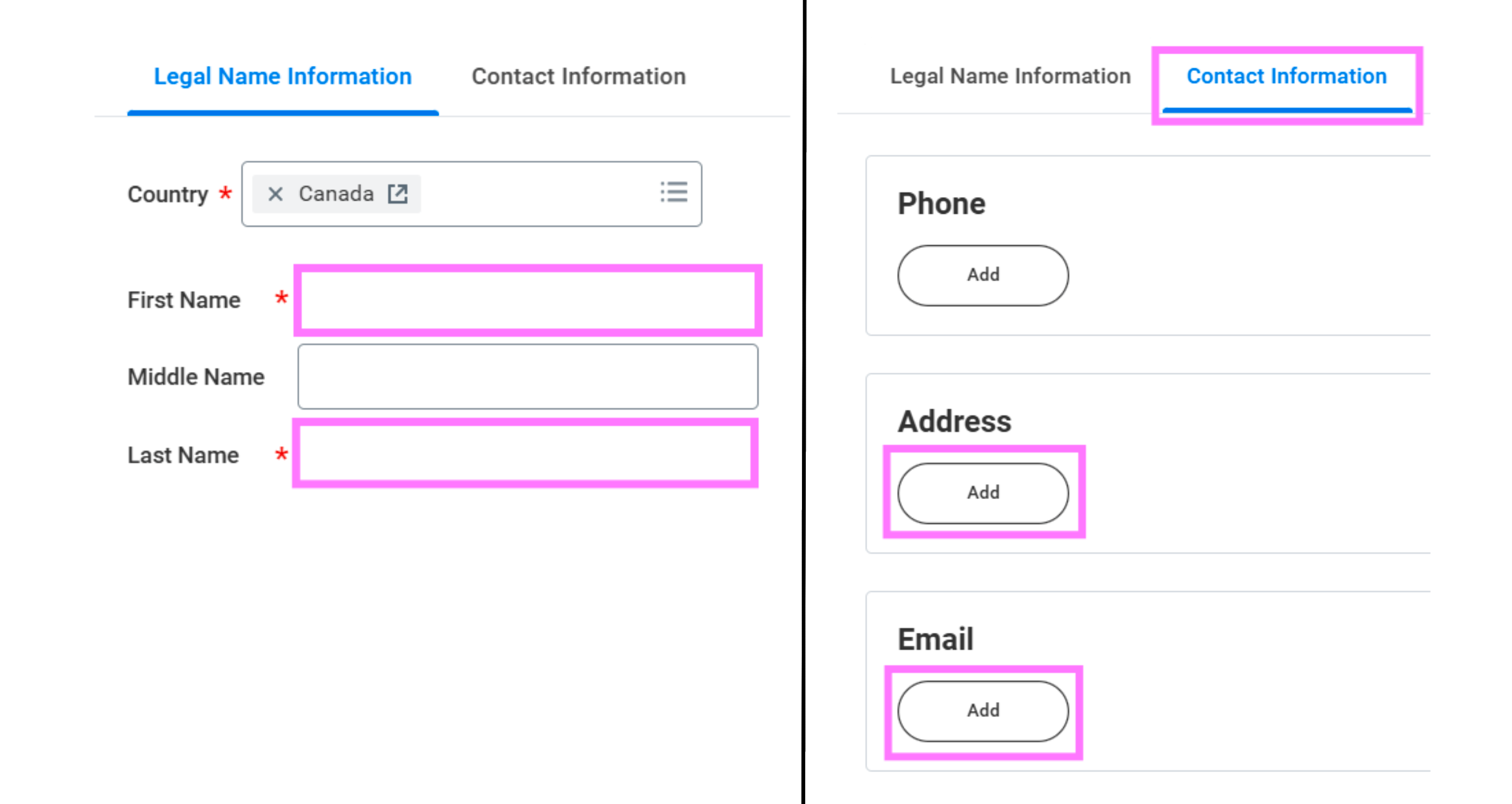
- Click OK to continue to the job details.
Note: Leave Source and Referred by sections blank.
Enter the employee's job details
- Enter the Hire Date and
- Choose the appropriate Reason(New Hire if brand new, Rehire if there was a previous Workday record).
- Enter an End Employment Date within the current pay period.
Tip: The end date should be within the current pay period to allow time for the payment to be processed prior to the termination date.
- In Employee Type, select For Current Country then select Casual (Fixed Term), or type "Casual (Fixed Term)" in the empty search field.
- Select the building Location for the employee from the list or type in the abbreviation.
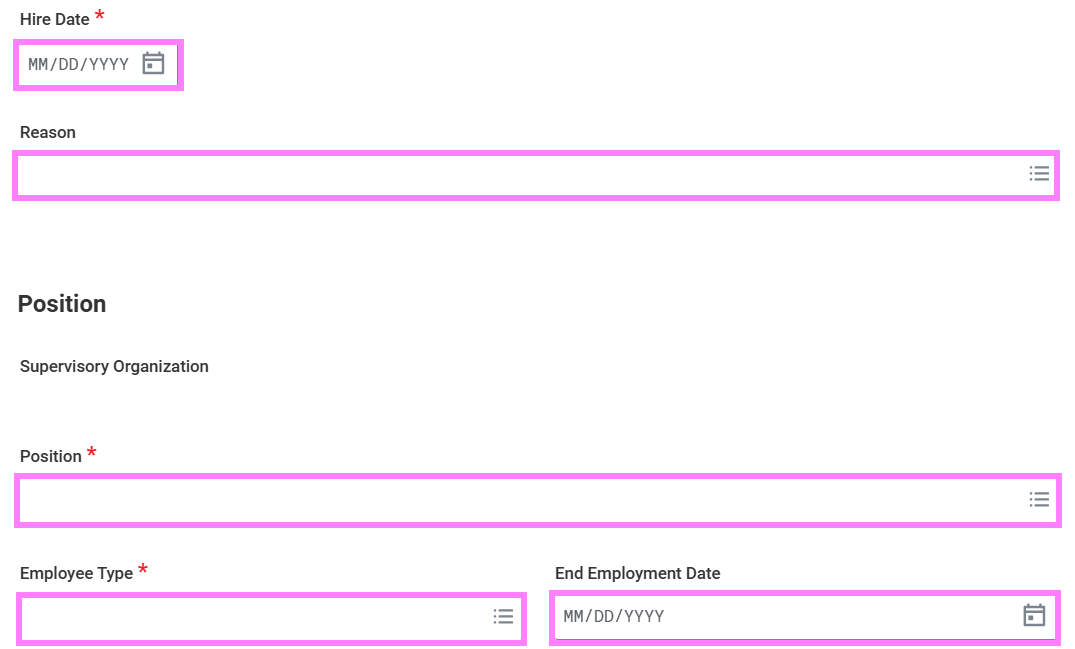
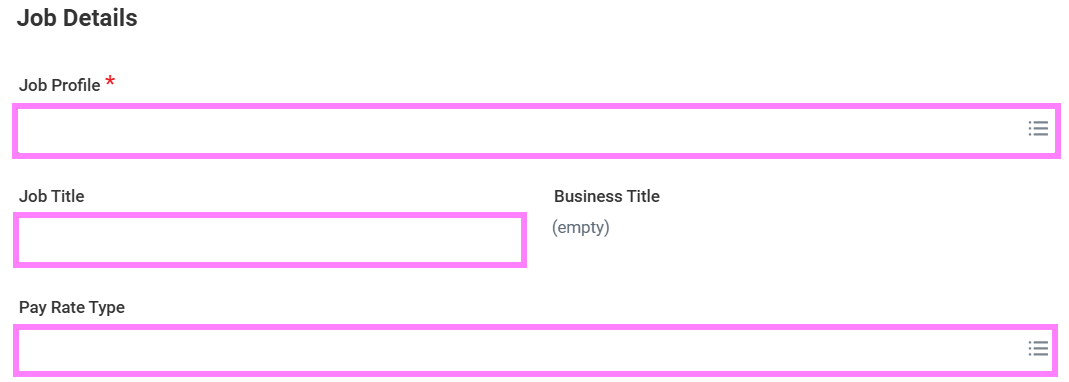
- For Job Profile, select or type One-Time Payment Recipient 9400.
- Update the Job Title to reflect what this payment is for.
- Pay Rate Type should be hourly.
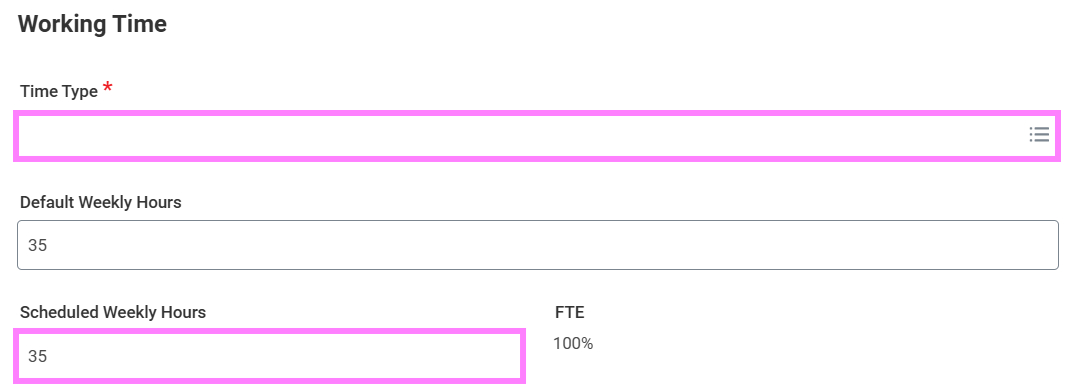
- For Time Type, select Part Time.
- Update Scheduled Weekly Hours to align with the payment and leave Default Weekly Hours at 35 hours.
- If this one-time payment will be paid from a research account, please provide a short description of the appointment details in the comment box at the bottom of the page for the Office of Research to review.
Tip: If you are rehiring an existing record and need to update contact information, use the comment field to provide the new mailing address and this will be updated prior to payment being issued.
- Click Submit to continue to enter SIN if this is a new hire (step 19) or to enter compensation details if this is a rehire (step 21).
Enter Social Insurance Number (SIN)
- Click Open to add a Social Insurance Number (SIN) OR click Skip and OK on the next screen to skip this step if this is not a Canadian Resident and continue to step 21.

Tip: If you clicked Open or out of the pop-up, the SIN task will be in your inbox to complete or skip from there. To skip it from your inbox, click the gear icon at the top right of the task and select Skip This Task and OK.
If entering a SIN:
- Click the + under the National IDs table to add the Canadian Social Insurance Number (SIN). Click in the empty fields to select the following:
- Country - Canada
- National ID Type - Social Insurance Number or International Tax Number (ITN) (if receiving non-employment income only)
- Add/Edit ID - 9 digit Social Insurance Number
- Issued Date - Leave blank
- Expiration Date - Enter if Social Insurance Number starts with a "9", otherwise leave blank
- Click Approve.

Enter the One Time Payment
- Click Open to enter the payment details.
Tip: If you clicked out of the pop-up, navigate to your Workday inbox and continue the task from there.
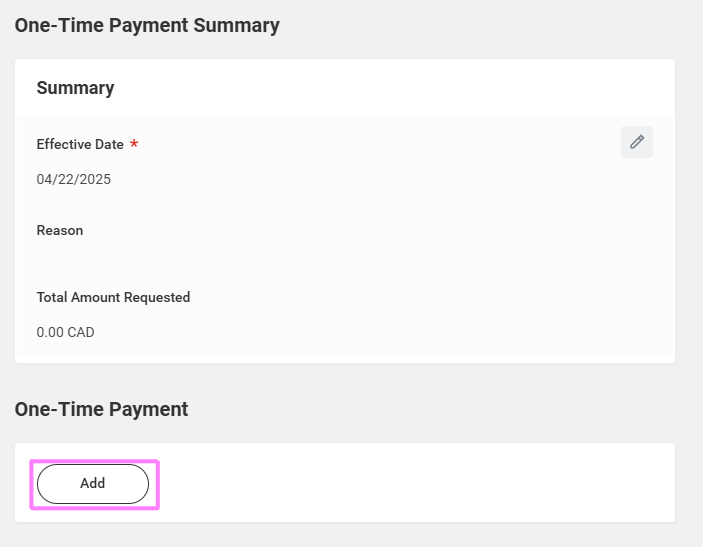
- In the Effective Date field, enter today's date or a future date if this payment is to be future-dated.
- Leave other fields in this section blank.
- Click the Add button in the One-Time Payment section below.
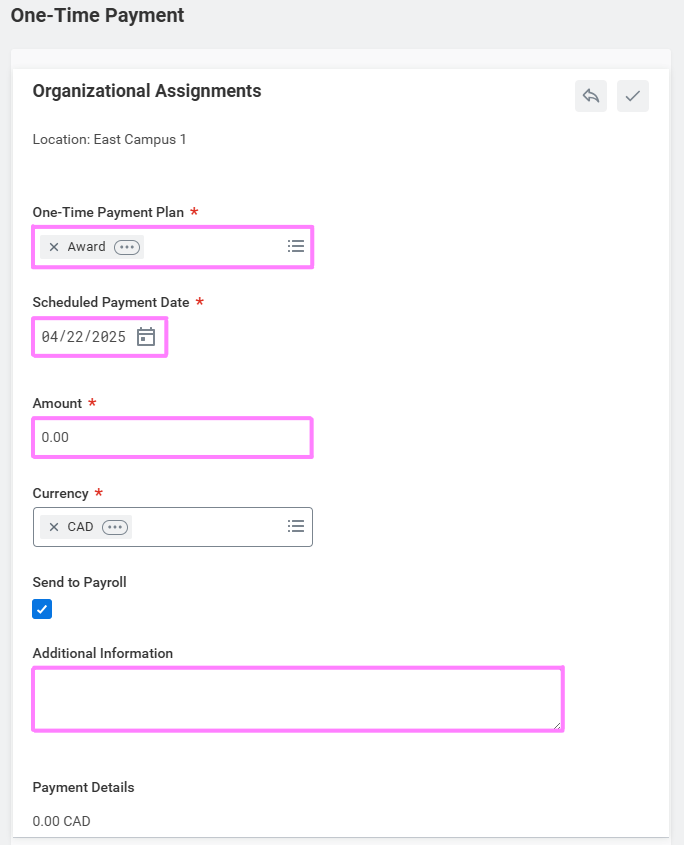
- In the One-Time Payment Plan, select All Plans and then the appropriate payment type.
- For Scheduled Payment Date, enter today's date.
- Enter the payment amount.
- Leave Send to Payroll checked on.
- Enter a description in the Additional Information section, providing details of what the payment is for.
- Click Submit.
Enter change organization assignment
- Click Open to continue to update the Cost Centre.
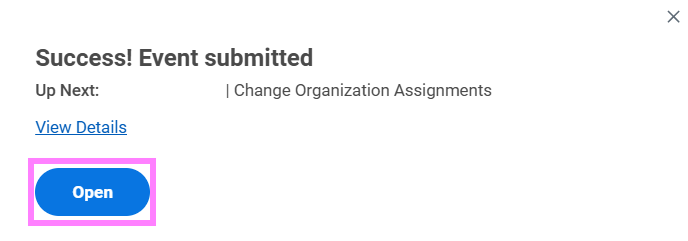
Tip: If you clicked out of the pop-up, navigate to your Workday inbox and continue the task from there.
- Click the Edit icon in the Cost Center section.
- Enter the Cost Center for the employee.
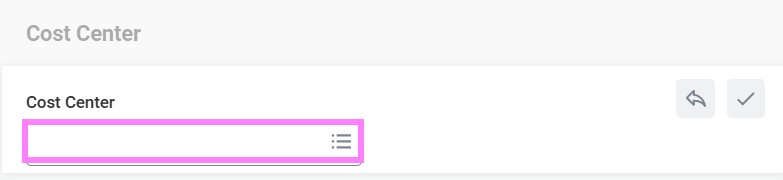
- Click Submit.
- If there is only one applicable Cost Center, click Skip for Add Split Between Salary Accounts, then OK to send the hire to HR for review. If there is more than one cost center, click Open and see the steps below.
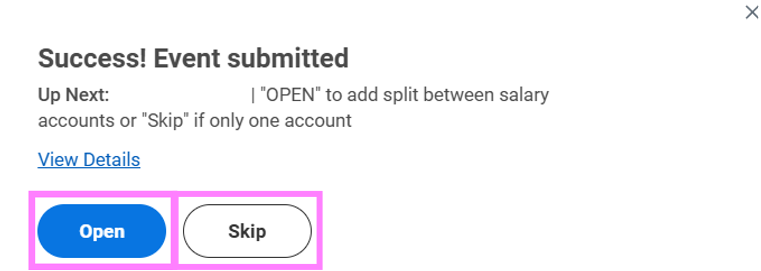
Tip: Leave the reason field blank for skipped fields. If you clicked Open or clicked out of the pop-up instead of Skipping, navigate to your Workday inbox and select the gear icon (task actions) in the top right of the Assign Costing Allocation inbox item and click Skip This Task and then OK on the next screen to skip.
If there is more than one Cost Centre:
- Click Open to enter additional salary accounts.
- Select Worker and Position for the Costing Allocation Level.
- Click Add.
- Select the + button to add an additional row and enter the additional Cost Centre to the Worktags field.
- Enter the appropriate Distribution Percent.
- Click Submit and Done. The initiation of this hire is now complete and will go to HR for review.
Tip: To view the status of your hire, type the employee's name into the main Workday search bar and press enter. Make sure All of Workday is selected under Categories and click the Hire:(employee name) link. Click the Process tab on the resulting screen and scroll down the table to see what part of the process the hire is in; OR find the submitted Hire event in the Archive section of your Workday inbox and click the Process tab (items are archived for 30 days).