Follow the instructions below to learn how to log in and navigate Workday.
Logging into Workday
1. Go to Workday.
2. Enter your WatIAM username and password.
3. The Workday home page will appear.
4. You can also download the mobile app (available in the App Store and Google Play) and access using the Organization ID: uwaterloo
Navigating Workday
The Workday home page provides relevant tasks, applications, and announcements personalized to you.
The chart below describes the functions available from the home page.
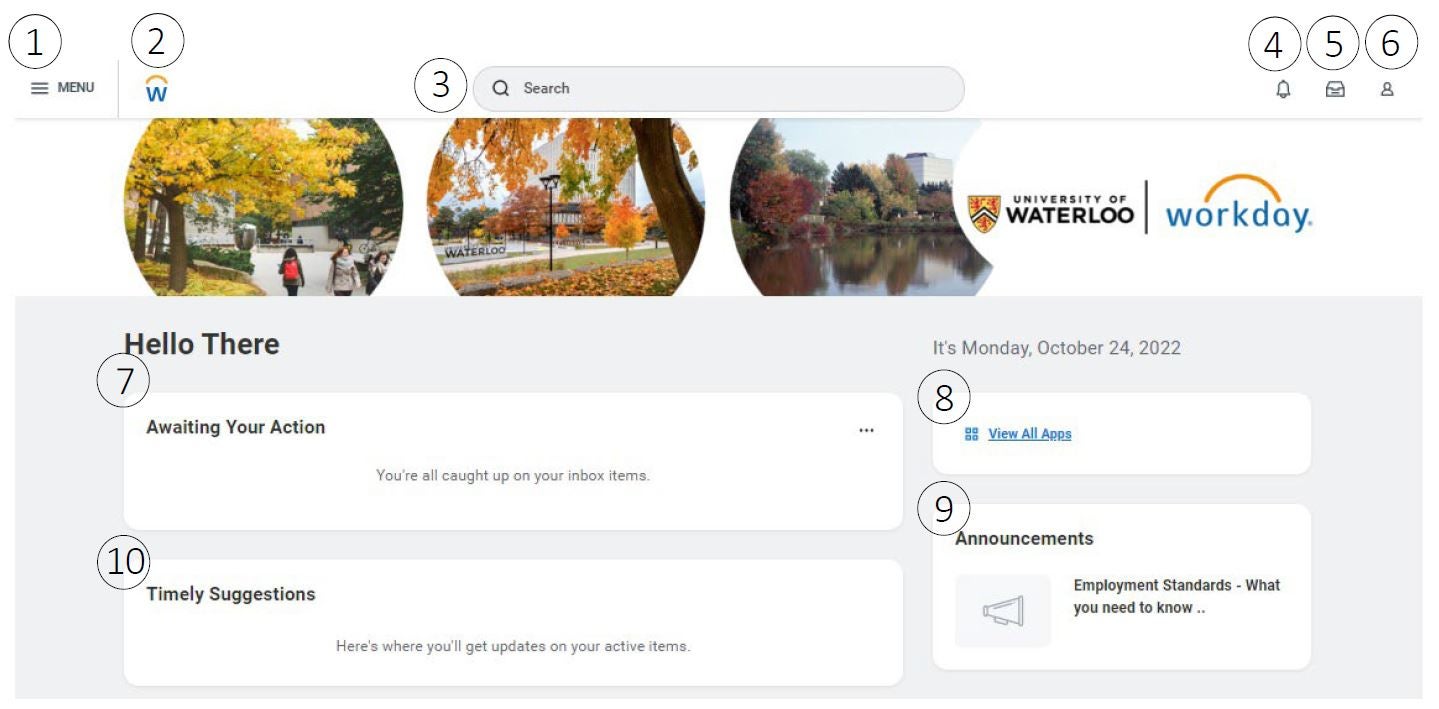
| Number | Name | Description |
|---|---|---|
| 1 | Global navigation | Click the navigation icon to access applications and shortcuts from any screen in Workday. |
| 2 | Workday logo |
Click on the Workday logo to navigate back to the home page from any screen. |
| 3 | Search |
You can perform searches on targeted areas of Workday. Categories display most relevant results. For more details, view the Search Preferences user guide. |
| 4 | Notifications |
Notifications may be reminders, messages, or actions that you should be aware of. |
| 5 | Inbox |
Your Inbox contains tasks awaiting your action and an archive of past actions, including processes initiated by you. |
| 6 | Profile |
Click on the profile icon to:
|
| 7 | Awaiting your action |
Tasks awaiting your action are housed here and can be actioned by clicking on a task. |
| 8 | View all apps |
Click View all apps to view the applications you have access to. Applications provide quick access to frequently used data and tasks common to a specific functional area. Note: The applications that appear will vary depending on how you use the system and your security access. |
| 9 | Announcements | Announcements are housed here to provide reminders and important information. |
| 10 | Timely suggestions | Relevant, timely tasks and reminders will be displayed here, such as upcoming absences. |