The instructions below will guide you through the probation review process.
REVIEW THE TASK NOTIFICATION
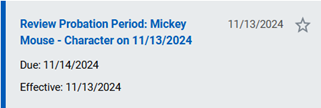
Managers will receive a task in “My Tasks” in Workday 60 days before the end of their employee’s probation.
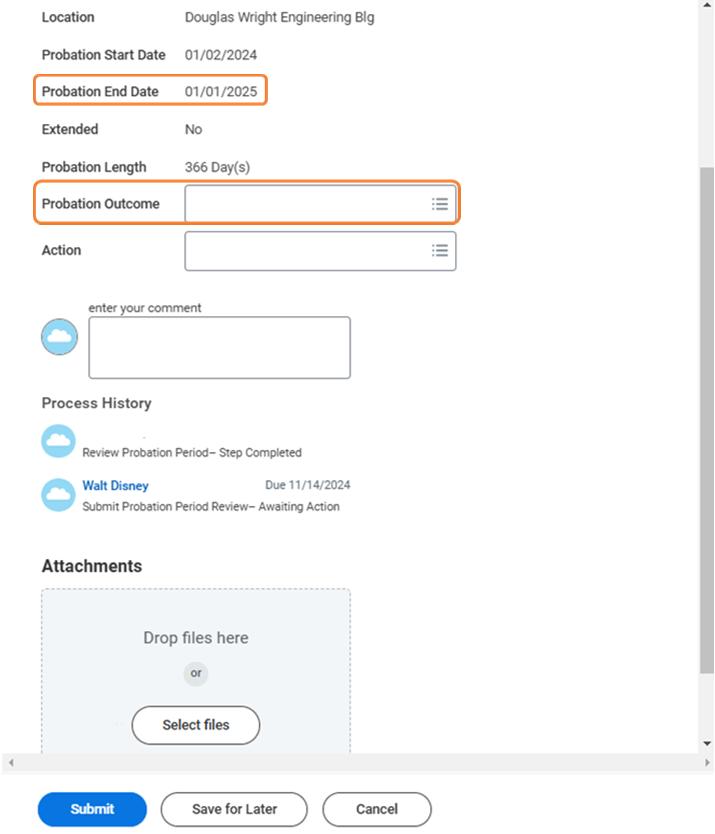
Please review the probation end date provided and select the appropriate probation outcome based on your employee’s performance in the position.
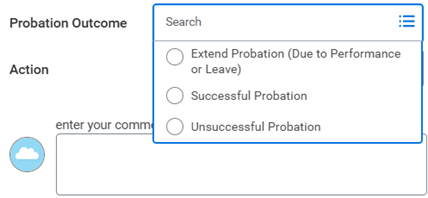
There will be three possible probation outcomes to select from:
If you require assistance determining the appropriate Probation Outcome, please review the Human Resources website: Hiring Manager Support or contact your HR Partner.
A Successful Probation outcome means that the employee is meeting the expectations and accountabilities outlined in the job description. You can follow the steps outlined in the Successful Probation Process section of this guide any time, even before the probation end date.
An Extend Probation (Due to Performance or Leave) outcome means that you would like more time to evaluate the employee, either due to a leave (per Policy 18 or the applicable Collective Agreement) or if there are performance concerns related to the expectations and accountabilities outlined in the job description. You will need to connect with your HR Partner to draft a probation extension letter based on your reason for the extension. Once the extension letter is signed by the employee, you can follow the steps outlined in the Extend Probation Process section of this guide.
Lastly, an Unsuccessful Probation outcome means that the employee has not demonstrated the ability to meet job expectations and accountabilities. You will need to discuss this outcome with your HR Partner because termination would be the next step. Once your HR Partner agrees upon this outcome, you can follow the steps outlined in the Unsuccessful Probation Process section of this guide.
SUCCESSFUL PROBATION PROCESS
1. Select “Successful Probation” from the Probation Outcome options. This will auto-fill the Action box with “No Action Needed”.
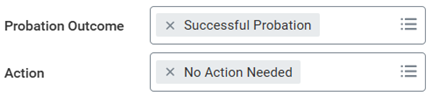
2. You have the option to add any comments or attach any documents.
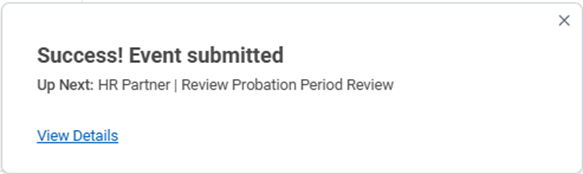
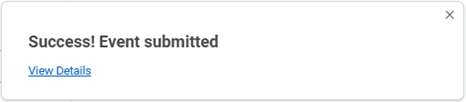
3. Click Submit. You will see a confirmation that your submission was successful.
NOTE: Please ensure to communicate the successful passing of probation to your employee.
EXTEND PROBATION PROCESS
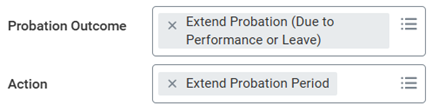
1. Select “Extend Probation (Due to Performance or Leave)” from the Probation Outcome options. This will auto-fill the Action box with “Extend Probation Period”.
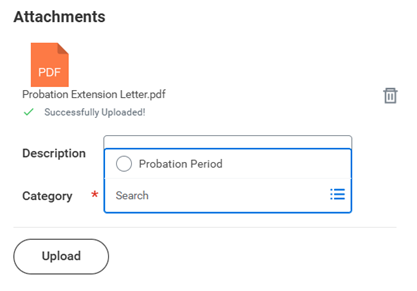
2. Attach the completed probation extension letter. This letter will be drafted with your HR Partner and must be signed by the employee. You can drag the file into the Attachments box or click “Select Files” to browse your computer for the file. Once the file loads, select “Probation Period” as the attachment Category—it should be the only choice. You have the option to add a description too.
3. You have the option to add a comment to provide additional details to your HR Partner.
4. Click Submit. You will see a confirmation that the event was submitted. Your HR Partner will receive your submission for review and can take the action of extending the probation period.
NOTE: 60 days before the extended probation end date, you will receive a new Review Probation Period task in your inbox to complete.
UNSUCCESSFUL PROBATION PROCESS
1. Select “Unsuccessful Probation” from the Probation Outcome options. This will auto-fill the Action box with “Terminate for Review Probation Period”.
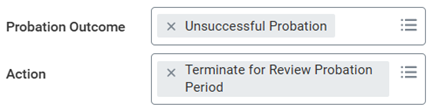
2. You have the option to add comments or attachments to provide details to your HR Partner.
3. Click Submit. You will see a confirmation that the event was submitted. Your HR Partner will receive your submission for review and can take the action of terminating the employee based on their unsuccessful probation.