
Too many emails clogging your cloud storage? Here’s how to archive them locally and lighten the load.
⚙️ Step 1: Turn Off Cached Exchange Mode (Important)
🕒 Time: 2–3 minutes
Some emails won’t show up for export if Cached Mode is on. Disable it first:
-
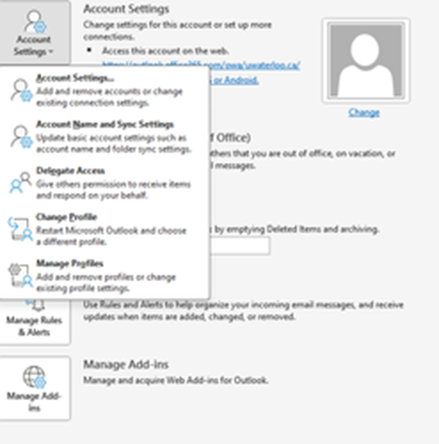
In Outlook, go to File > Account Settings > Account Settings
-
Select your email account and click Change
-
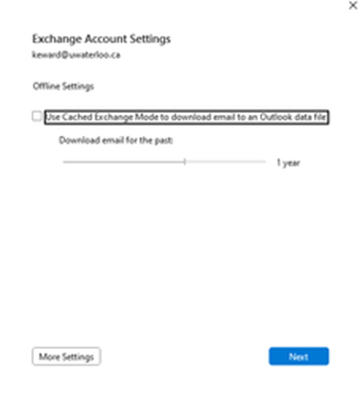
Uncheck Use Cached Exchange Mode
-
Click Next > Finish, then restart Outlook
⚠️ Cached Mode helps with speed, but we need it off temporarily to make sure all emails are accessible.
Note: Turning off Cached Mode might slow things down temporarily—you can turn it back on after the export.
📁 Step 2: Create a Local Archive (PST File)
🕒 Time: 2–4 minutes
-
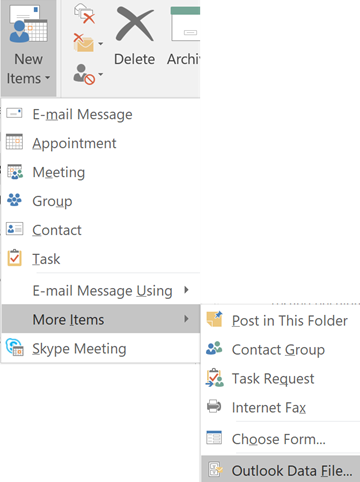
Go to New Items > More Items > Outlook Data File
-
Name the file something clear like
Archive_March2025.pst -
Choose a location on your hard drive (not a network folder)
-
Click OK
Tip: Keep PST files under 20GB to avoid performance issues.
Step 3: Move Emails to Your PST Archive
🕒 Time: Varies – allow 10+ minutes depending on volume
-
In your mailbox, select emails to archive
-
Drag and drop them into the new PST folders
→ Start with a few hundred emails at a time -
Confirm emails were copied over successfully
-
Once verified, delete them from your inbox
Tip: Small batches help prevent Outlook from freezing up.
💾 Step 4: Back Up Your Archive
-
Close Outlook
-
Locate your
.pstfile on your drive -
Copy it to an external USB drive or secure network location
🔍 After copying, open the backup to ensure it works. Corrupt PSTs are real—and annoying.
📉 Step 6: Check Mailbox Size
-
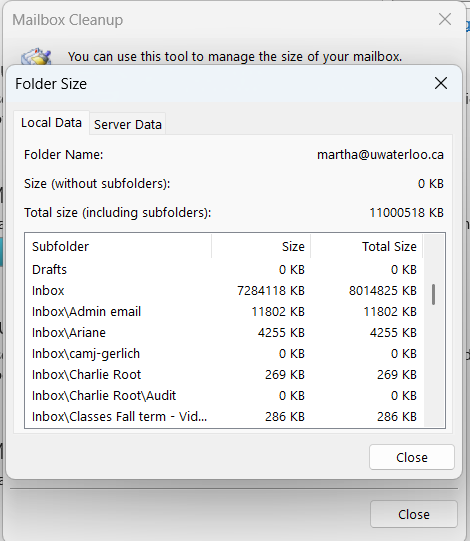
Go to File > Tools > Mailbox Cleanup
-
Click View Mailbox Size
-
Celebrate your slimmed-down inbox 🎉
🗂️ Bonus: Open a PST File Later
Need to check archived emails down the road?
-
In Outlook, go to File > Open & Export > Open Outlook Data File
-
Find your
.pstfile and click Open -
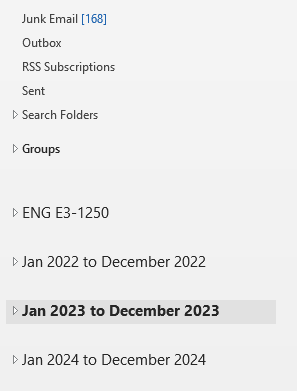
It’ll appear in your folder list as “Outlook Data File”
❌ To remove it later, right-click the archive in your folder list and choose Close.
📌 When Should You Archive?
-
You’re running out of space
-
You haven’t cleaned your inbox in over a year
-
You’ve got thousands of old emails you might need, but don’t want clogging up cloud storage
🛠️ Troubleshooting & Tips
Can’t see your archive after importing it?
→ Restart Outlook and check the left-hand folder list
PST file won't open? Says it's corrupted?
→ Use Microsoft’s ScanPST tool
Accidentally deleted something important?
→ Check your Deleted Items or the Recoverable Items folder