Phishing is still the number one way attackers get in. At Waterloo, these scams are getting harder to detect. They’re no longer filled with typos; today’s phishing emails mimic real people, use real systems like Quest or Workday, and often come from compromised @uwaterloo.ca accounts. Many of these scams now use Artificial Intelligence (AI) to mimic trusted language and make fake messages look real.
Pause before you click. Report anything suspicious.
What is phishing?
Phishing is when attackers pretend to be someone you trust to get you to share passwords, download malware, and/or reveal personal or financial info.
Red flags
- Suspicious or unfamiliar sender addresses
- Pressure to act quickly (e.g., “your account will be suspended”)
- Unexpected attachments or links
- Requests for login info, gift cards, or wire transfers
- Generic or inconsistent language
Verify the sender
- Review the display name: It may show the suspicious email address, not an actual name
- Hover your cursor over the email display name: You may then need to hover over the envelope icon
- View the sender contact information: Click the (circle) icon beside the sender’s display name and view their contact card
Protect yourself
Learn how to identify suspicious emails
You've got email...from the President! (or is it?)
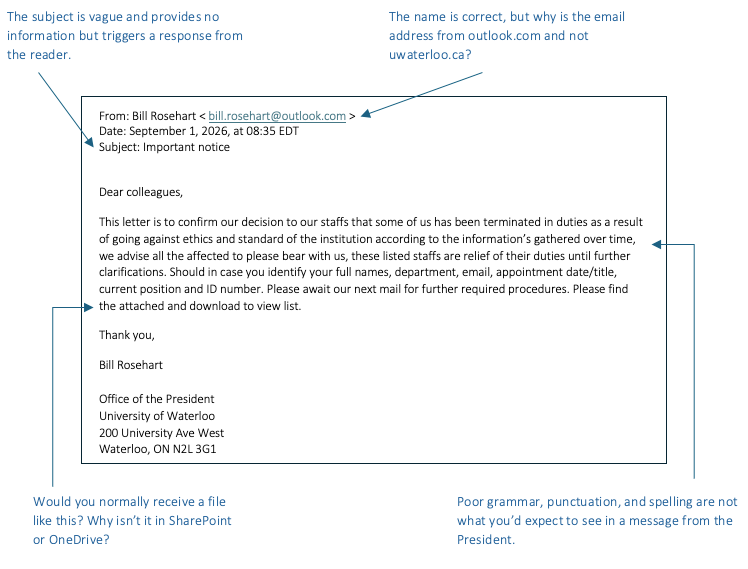
Targeted phishing (Spear, Clone, Whaling)
Some attacks are tailored just for you. AI tools let attackers scan public info and create realistic messages, without the spelling mistakes and strange formatting we used to rely on.
Types of targeted phishing
- Spear phishing: Personalized messages referencing your role, department, or projects.
- Clone phishing: A legitimate university email is copied, but links or attachments are swapped out for malicious ones.
- Whaling: High-stakes phishing aimed at executives or decision-makers (e.g., deans, directors), often requesting sensitive data or fund transfers.
These scams appear credible because they reference real people, systems, or events, and often use real logos or language pulled from campus sites.
Examples
- A fake email from your professor about a grade dispute
- A spoofed Quest login link in an IT-branded message
- A warning about visa documents with a forged reply-to
- A salary update from Human Resources copying a real message format
- A payment request sent to a department head
Real account, real risk: Business Email Compromise (BEC)
Some of the most convincing phishing messages come from real @uwaterloo.ca addresses. In a BEC attack, a legitimate account is compromised and used to target others, making the message appear fully authentic.
Warning signs
- The tone feels “off” for the person
- An unexpected or unusual urgency (e.g., “I need this wire transfer now”)
- The reply-to address doesn’t match the sender
- Requests for login credentials, files, or changes to payroll/payment info
Because these emails come from real accounts, standard warning signs may be missing. Always verify strange requests through another method (e.g., a call or in-person check), and report anything suspicious.
Credential Harvesting: Fake logins that steal your password
Some phishing scams don’t send malware or ask for gift cards, they just want your login.
Credential harvesting uses fake login pages (like ADFS lookalikes or Google Forms styled with UW logos) to trick you into entering your username, password, and Duo code. Once you do, the attacker can log in as you, often within minutes.
Watch for
- Links that take you to a login screen outside of official UW domains
- Slight misspellings in URLs (e.g., uwater1oo.ca or uwaterloo-security.com)
- Web forms asking you to “confirm your credentials” or “verify your Duo setup”
Protect yourself
- Always check the URL before logging in
- Don’t enter credentials in Google Forms or email forms
- Use a password manager — it will only autofill on trusted sites
- Never share your password or Duo code with anyone, including UW staff
MFA Fatigue: Repeated prompts are the attack
If an attacker has your password, they may spam you with MFA prompts until you approve one out of habit, confusion, or frustration. That’s MFA fatigue, and it works.
What MFA fatigue looks like at Waterloo
At Waterloo, most campus systems, like Workday, LEARN, and Microsoft 365, use Duo 2FA (two-factor authentication) for MFA to help protect your account. This is the extra security step after entering your password, such as entering a code from the Duo app, tapping a registered security key (like a YubiKey), or in some cases, approving a push notification.
What MFA Fatigue looks like in Duo
- Repeated push notifications
- Unexpected code requests
- Security key prompts when you're not logging in
Outside Duo (But Still Risky)
Some platforms don’t use Duo or Single Sign-On. You might see:
- Google or Microsoft Authenticator codes
- 2FA codes sent by text or email
- Prompts via personal login tools like Google or Apple

Other phishing types to know
Phishing doesn’t just happen by email. Be aware of these related threats:
- Angler phishing: Social media scams from fake or compromised accounts
- QR Phishing: Fake QR codes in posters or emails leading to credential-harvesting sites
- Pop-up phishing / Malvertising: Fake update pop-ups tied to malicious ads
- SEO Phishing: Fake login sites ranked high in search results
- Smishing: Scam texts with suspicious links
- Vishing: Phone scams impersonating authorities
What to do if something feels off

PAUSE before you click, open an attachment, or approve a login.

Check the URL before clicking a link. If it looks strange, don't click.

Ignore and deny 2FA prompts and/or requests unrelated to your role (e.g., an invoice request if you don't handle finances).

Never share your UW credentials. You will never be asked to share your username or password, or a 2FA code.

Verify requests, info, and contacts by visiting the official site, contacting the sender directly, or with your local IT Rep.

Be suspicious of urgent requests, especially those of a financial nature, even if they appear to come from leadership.

Don't open attachments from unknown senders or if they seem out of context.

Report it to Security Operations Centre (SOC) right away. Follow these reporting steps.
Not sure what to do next, already clicked, or think you may have been scammed? Visit Responding to Phishing at Waterloo.