Students registered with AccessAbility Services (AAS) must activate their accommodations at the beginning of each term. To activate your accommodation(s), please follow the steps listed below.
Log into the AccessAbility Services Online System
1. Navigate to the AccessAbility Services webpage.
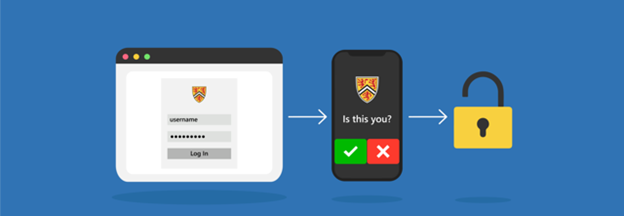
2. Click on the button, “ACTIVATE AND MANAGE YOUR ACCOMMODATIONS: Log into the AAS Online System” and enter your WatIAM username and password. Note: You may be prompted to provide two-factor authentication (2FA) to securely access your account.

Complete E-Form Agreements
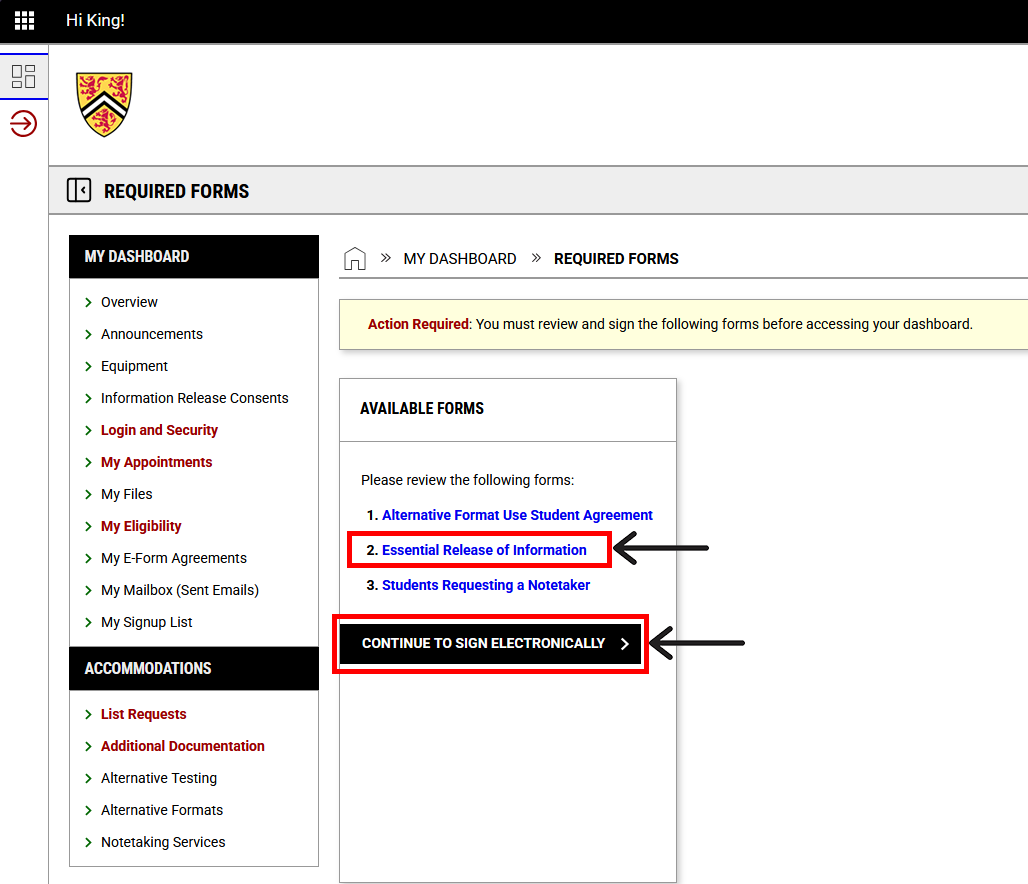
Once logged in, you will be prompted to complete E-Form Agreement(s) required for your accommodation(s) before you can access your dashboard.
1. Click on any of the agreement(s) then click “CONTINUE TO SIGN ELECTRONICALLY”. Scroll down, ensuring you read each agreement form in its entirety.
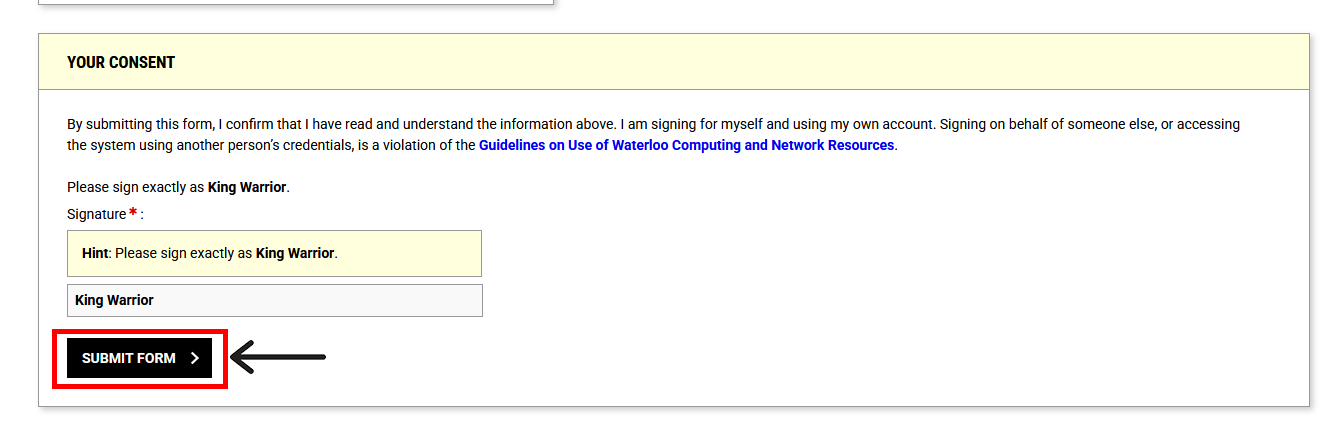
2. To complete your E-Form Agreement(s), scroll to the bottom of the page and type your full name into the signature field under the YOUR CONSENT heading. Click the button, “SUBMIT FORM”.
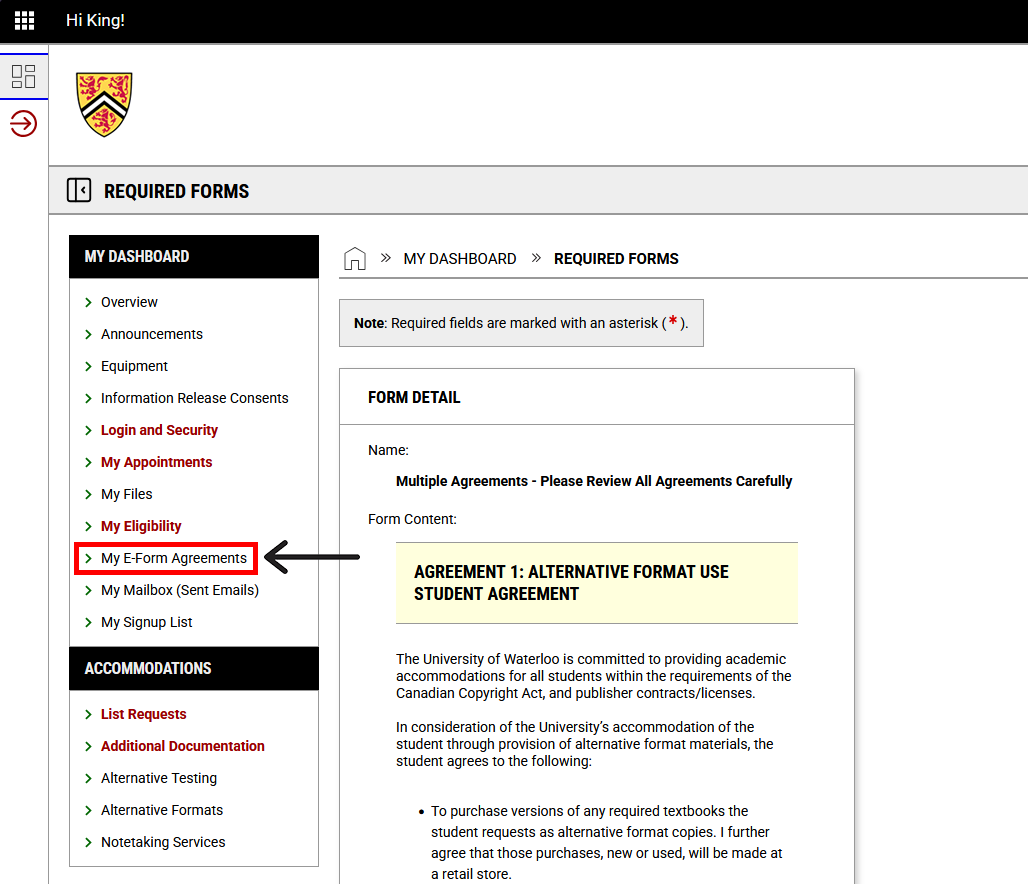
3. If at any time you need to review your E-Form Agreement(s), you can find these by navigating to the left menu bar under MY DASHBOARD and click on “My E-Form Agreements”.
Activate Term Accommodations
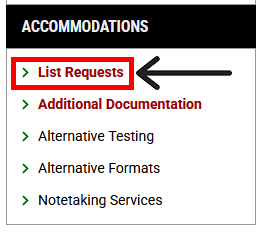
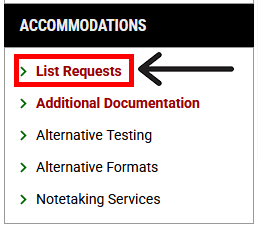
1. Navigate to the left menu bar. Under the heading ACCOMMODATIONS, select “List Requests”.
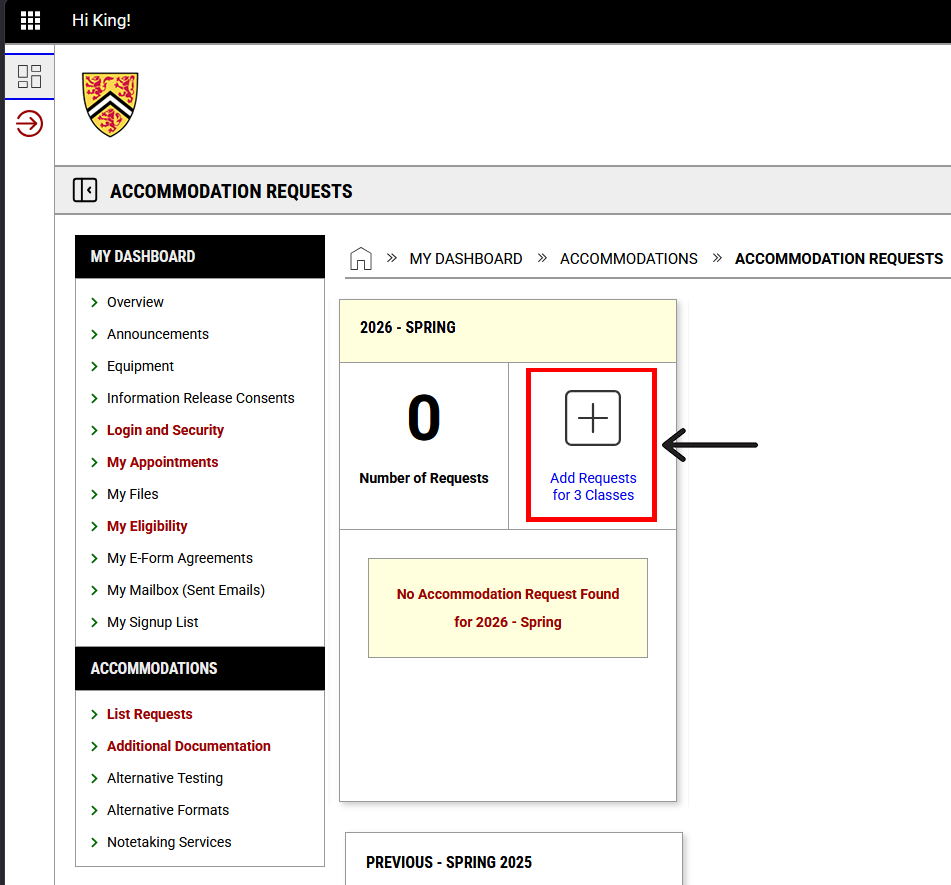
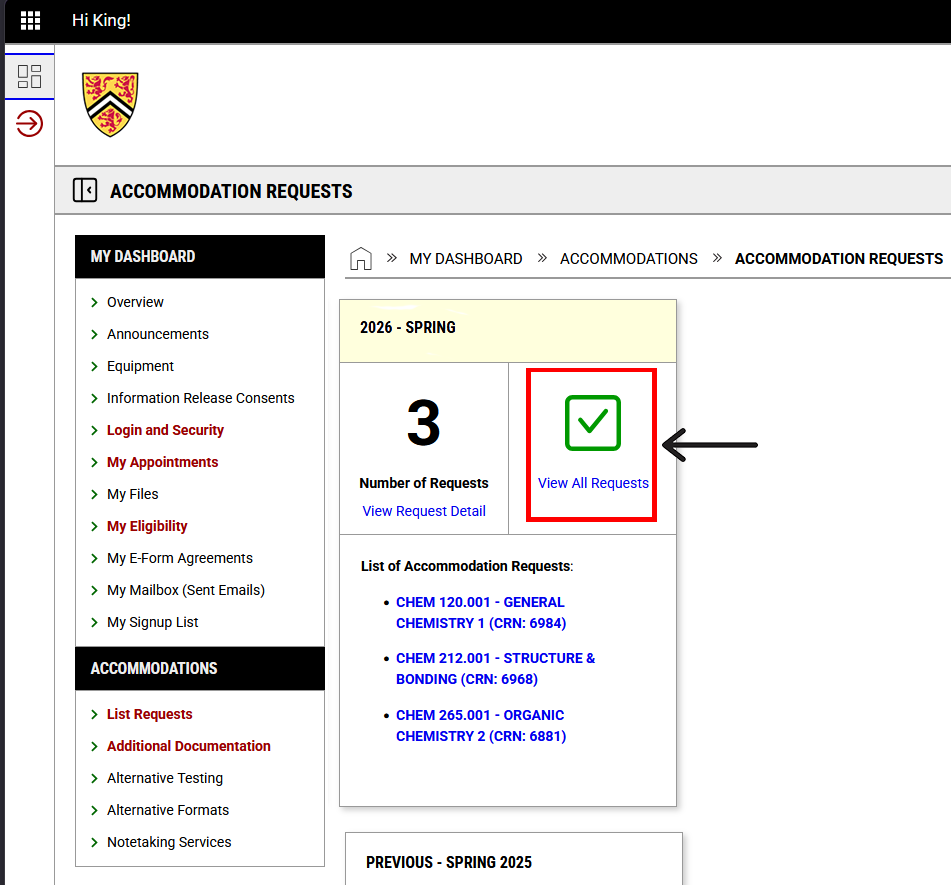
2. Select “Add Requests” in the box for the current term. Note: If you have already requested accommodations for the term, this will say “View All Requests”.
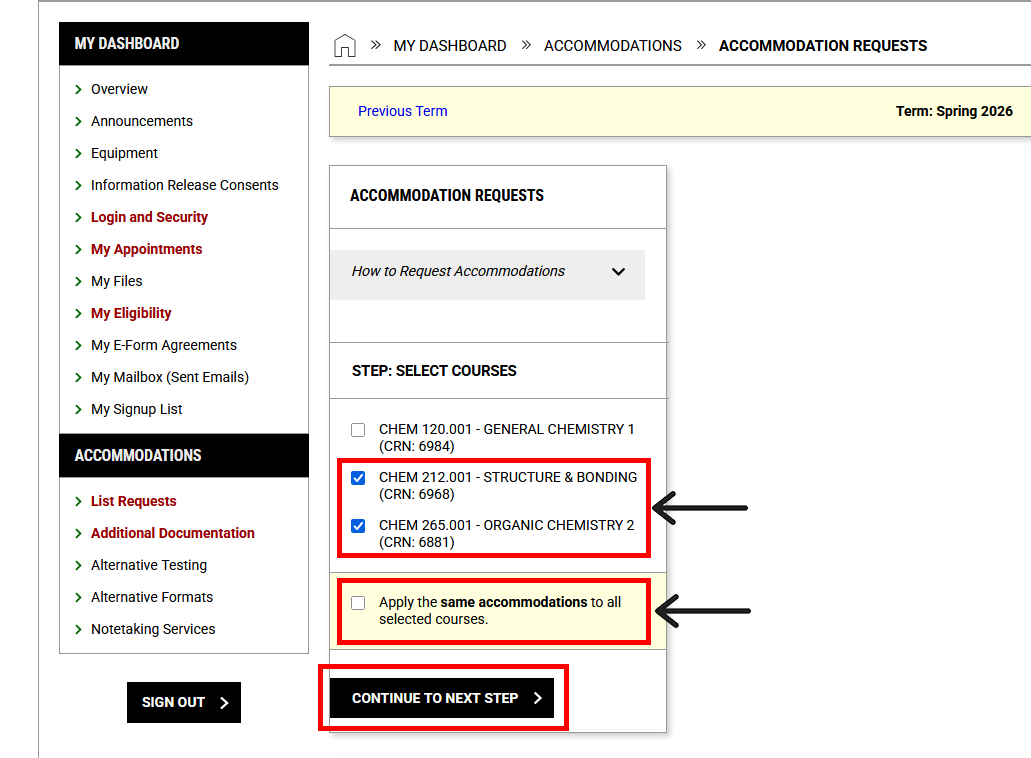
3. Select each course you are wanting to activate accommodations for. If you know that you will require the same accommodations for each course, select “Apply the same accommodations to all selected courses.” If you require different accommodations for each course, leave this box unchecked and click “CONTINUE TO NEXT STEP”.
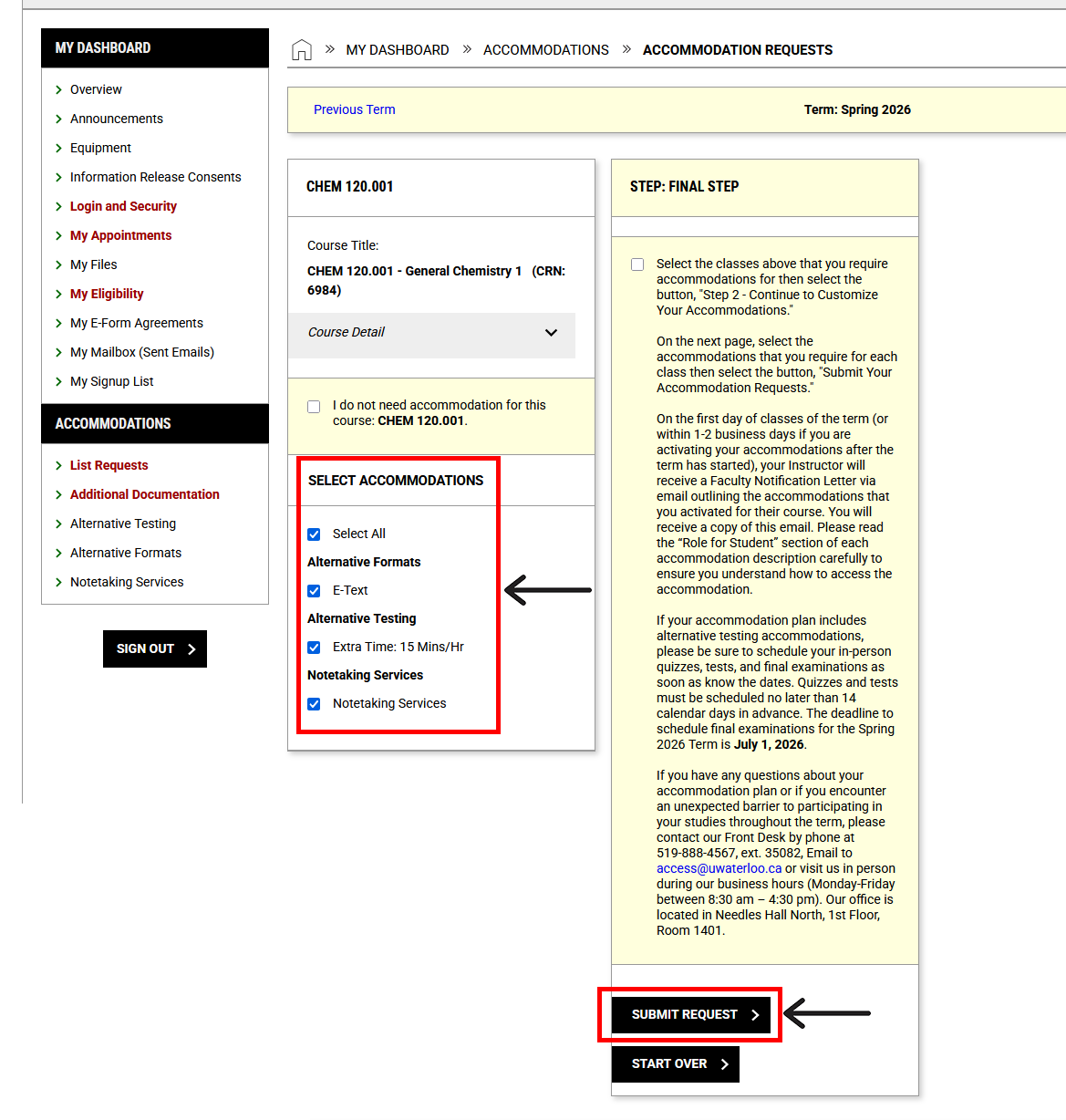
4. Select the accommodation(s) you require for each course by checking the individual boxes beside each accommodation OR by checking “Select All” to apply all accommodations to that course. If you do not require accommodations for a particular course, check the box beside “I do not need accommodation for this course”.
5. Once your selection is complete, click the “SUBMIT REQUEST” button.
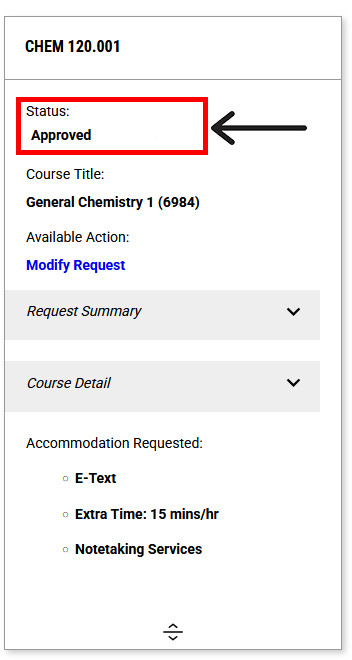
6. Once you have submitted your request(s), the status will say “Approved” or “Pending Changes” if the request needs to be reviewed by AAS.
Learn How to Use Your Accommodations
To learn how to use your accommodations, review the descriptions for each of your accommodations. These descriptions explain how each accommodation works, how to access it and your responsibilities in participating and engaging in the accommodation facilitation process.
To learn how to use your accommodations:
1. Navigate to the left menu bar under MY DASHBOARD and select the “My Eligibility” button.
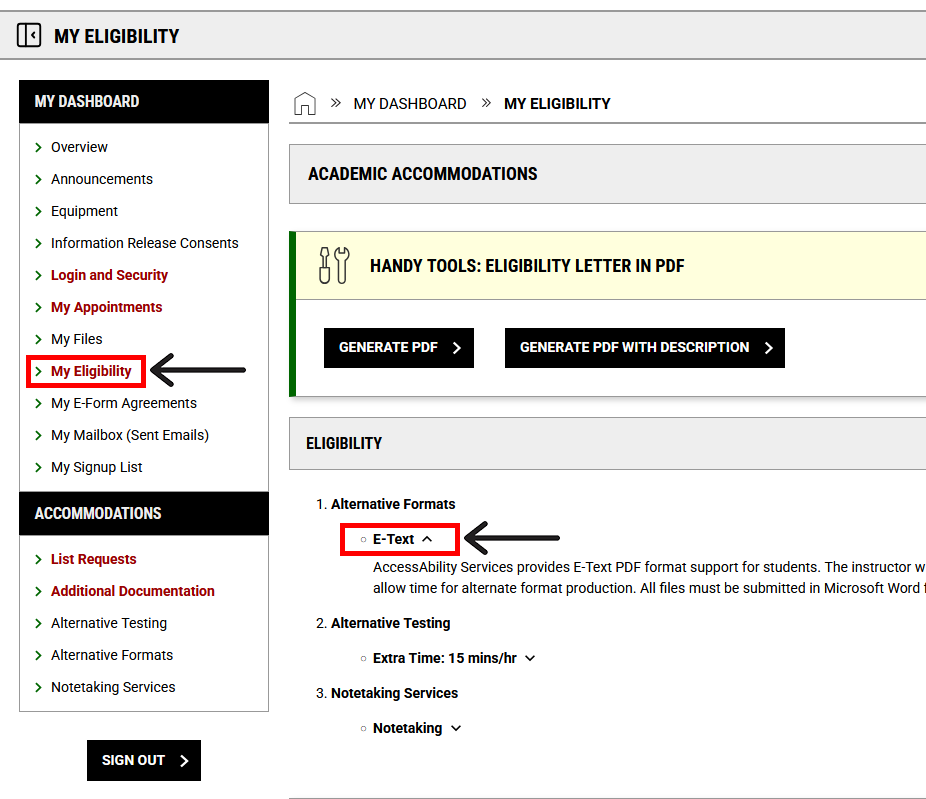
2. Review your accommodations and their descriptions
For more information about your responsibilities as a student receiving accommodations, review the Student Academic Accommodation Guidelines.
Modify Accommodation Requests (If Needed)
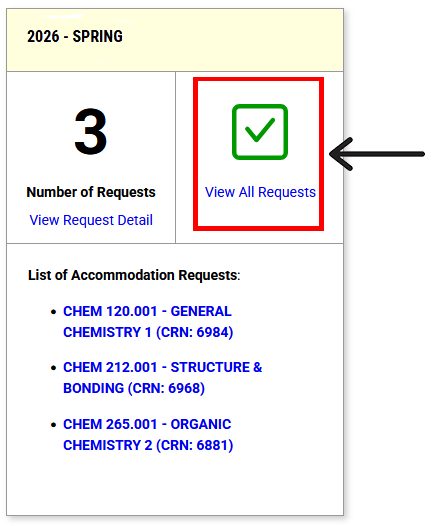
1. To change your accommodation requests for a course, navigate to the “List Requests” page from the left menu bar and then click “View All Requests” for the current term.
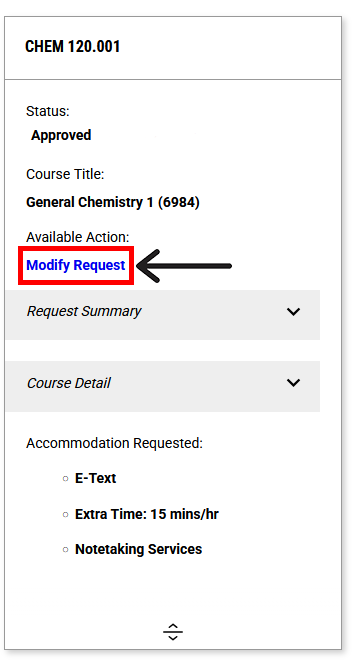
2. Click “Modify Request” for the course you need to change.
3. Under the heading, ACCOMMODATIONS, you will see a list of your eligible accommodation(s) for the course. Any accommodations with a checked box beside them were already included in your previous request. Any accommodations without a checked box were not previously included. Check and uncheck boxes as needed to customize your accommodation selection for the course and then click the “UPDATE REQUEST” button.
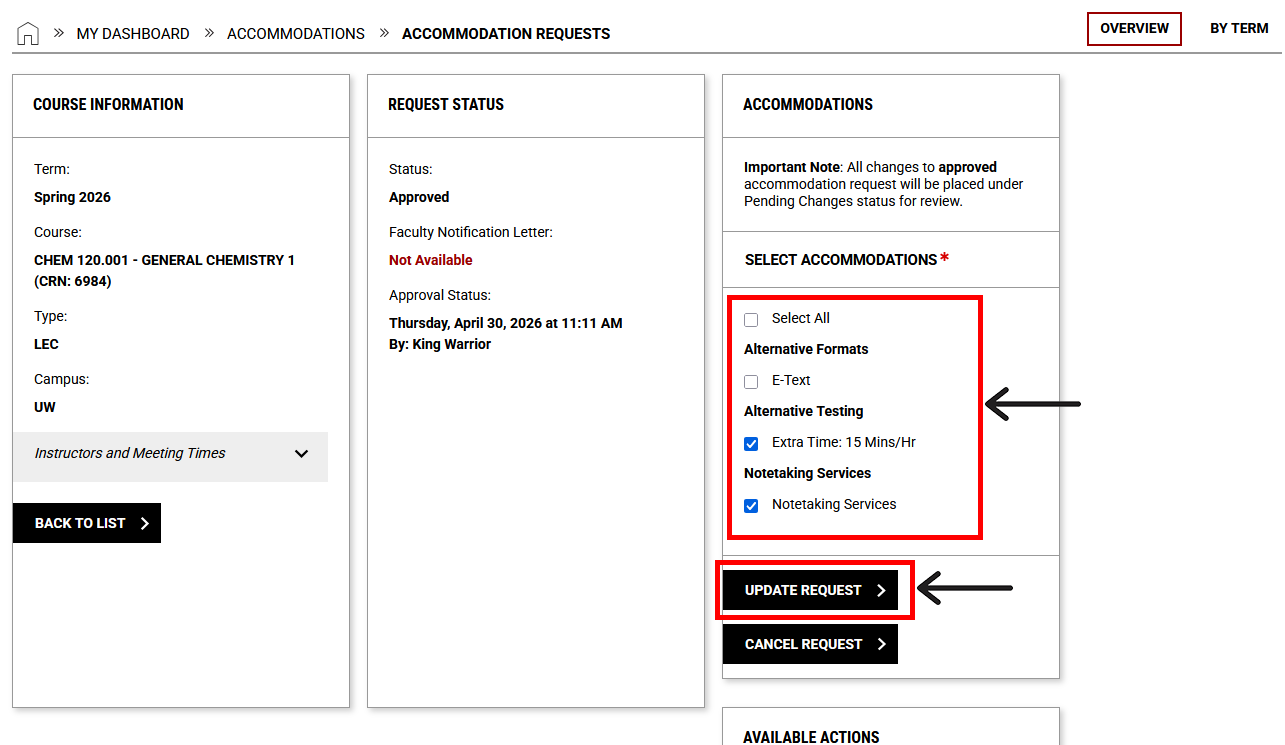
Note: Any changes to an existing accommodation request will be automatically set to “Pending Changes”. Please allow 1 business day for pending changes to be processed.
Next Steps
If you have any questions or concerns about requesting your term accommodations, please contact AccessAbility Services by phone: 519-888-4567 ext. 35082, email: access@uwaterloo.ca, or in-person: Needles Hall North, First Floor, Room 1401.