If you require course textbook(s) and/or courseware packages in an alternative format as part of your academic accommodation plan, you must activate your alternative format accommodation (E-Text) and provide proof of purchase to support your alternative format request. Note that official proof of purchase (receipt) must include the book title, the location of purchase including online vendors (i.e., WStore, Amazon, etc.) and the purchase price paid. You may send your proof of purchase via email attachment to altformat@uwaterloo.ca or upload your receipt(s) to the AccessAbility Services Online System by following the steps listed below.
Log into the AccessAbility Services Online System
1. Navigate to the AccessAbility Services webpage.
2. Click on the button, “ACTIVATE AND MANAGE YOUR ACCOMMODATIONS: Log into the AAS Online System” and enter your WatIAM username and password. Note: You may be prompted to provide two-factor authentication (2FA) to securely access your account.


Activate Alternative Format Accommodation
Once logged in, ensure that you have included Alternative Format: E-Text accommodation in your list of selected accommodations for the course(s) that require alternative format.
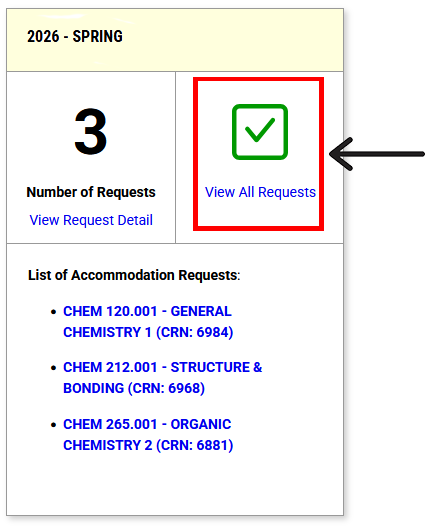
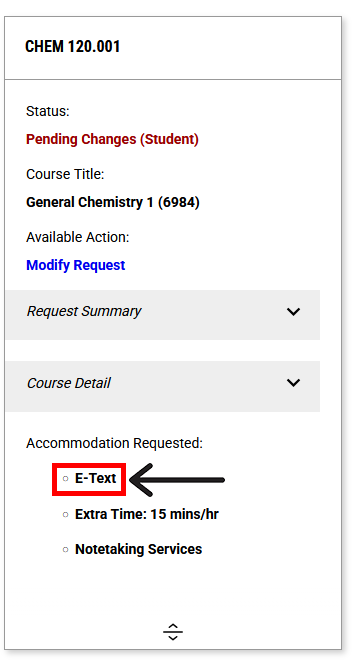
1. Navigate to the left menu bar under the heading ACCOMMODATIONS and click “List Requests”. Then, click “View All Requests” for the current term. Ensure that E-Text is listed under “Accommodation Requested”.
To review the process for activating or updating term accommodations, please visit the Activating Your Term Accommodations webpage.

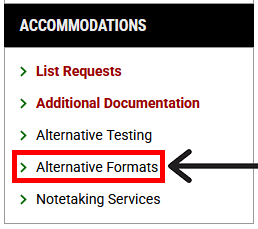
2. Next, navigate to the left menu bar under the heading ACCOMMODATIONS and click “Alternative Formats”.
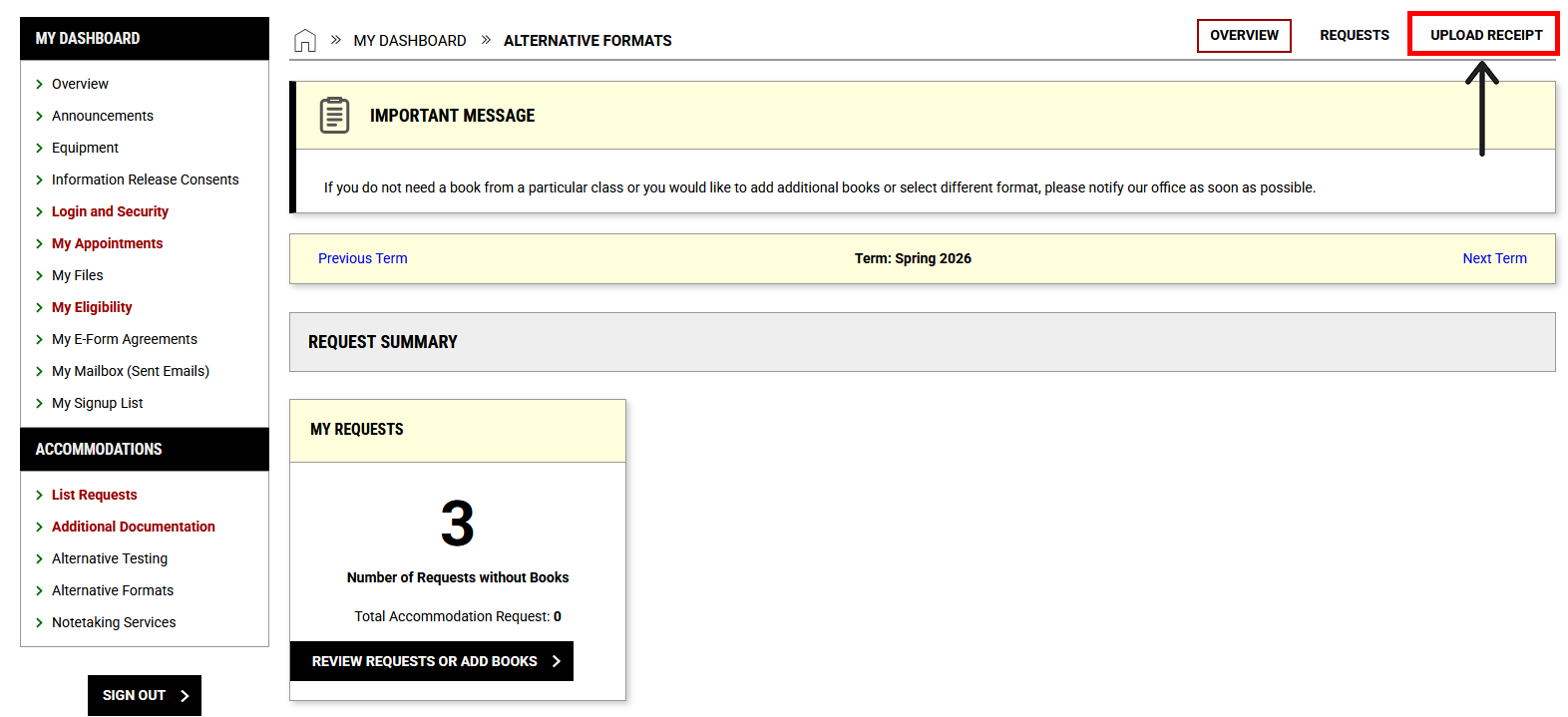
The ALTERNATIVE FORMATS OVERVIEW page will show the number of courses where E-Text accommodation has been applied under REQUEST SUMMARY and more detail under LIST REQUESTS FOR ALTERNATIVE FORMATS.
Upload Your Receipt(s)
1. To submit your proof of purchase, click UPLOAD RECEIPT in the top right corner.
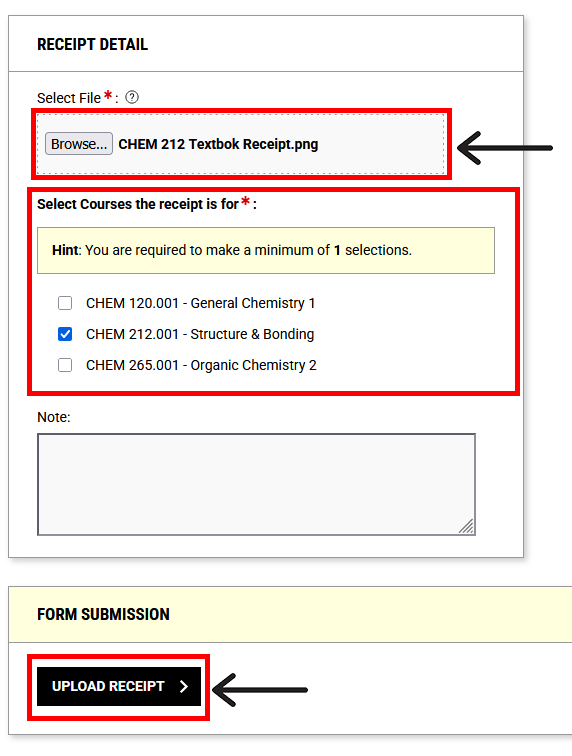
2. Under RECEIPT DETAIL click the “Choose File” button to browse files saved on your device. For a list of acceptable file types, click on the question mark (?) beside “Select File*”.
3. Check the box beside the course that requires alternative format.
4. Optional: Type any additional information you want to share with AAS in the “Note” field. Under FORM SUBMISSION, click “UPLOAD RECEIPT”.
5. Once your receipt has been uploaded, a confirmation checkmark will appear at the top of the page.

6. If you have multiple courses that require alternative formats, please repeat this process for each course/receipt. If you upload an incorrect file by mistake, simply upload the correct file and include a “Note” to AAS (e.g., “Disregard previous upload. This is the correct receipt for CHEM 265.”). Note: You may upload a maximum of 10 receipts per term.
7. To view a list of your uploaded receipts, scroll to the bottom of the page under UPLOADED RECEIPTS.

8. Once your receipt has been verified by AAS (usually within 2 business days), the Verified column will indicate “Yes”, and a request for the book title will be generated by AAS.

9. From the ALTERNATIVE FORMATS OVERVIEW page, you can check on your request status by clicking “REVIEW REQUESTS OR ADD BOOKS” or by clicking “REQUESTS” in the top right corner of the page.
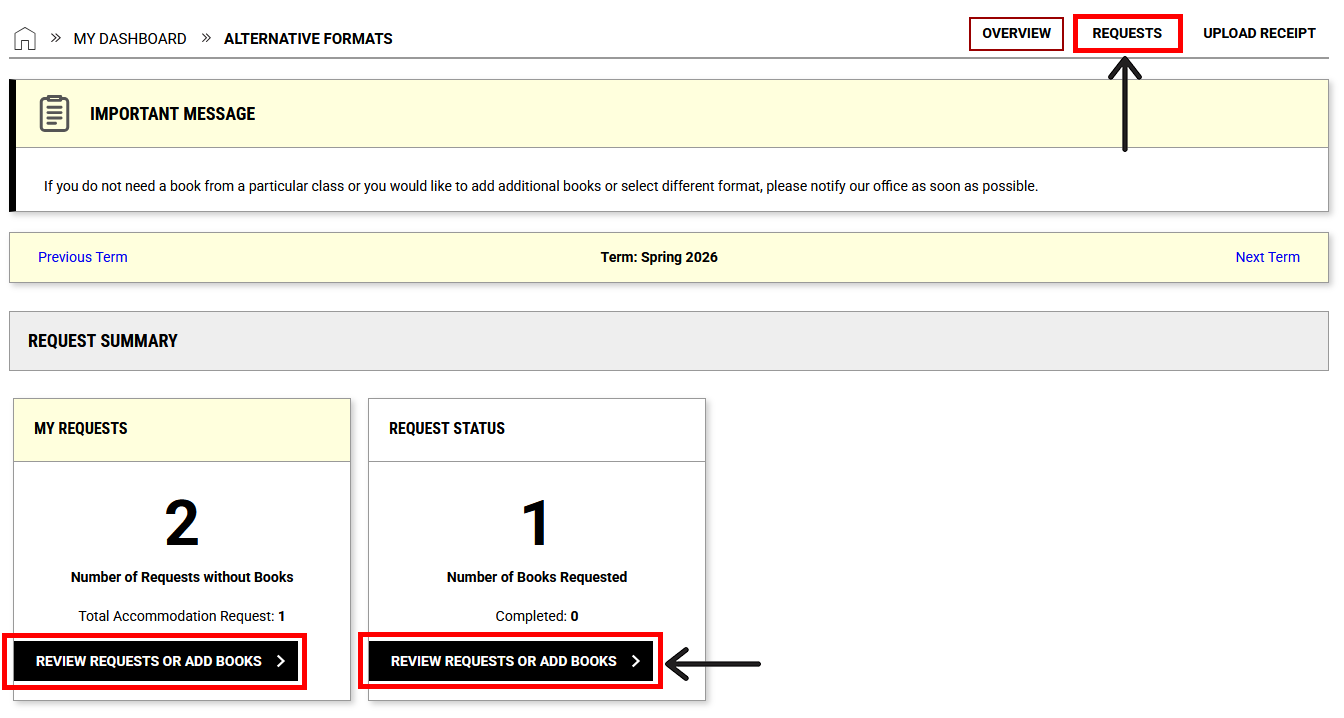
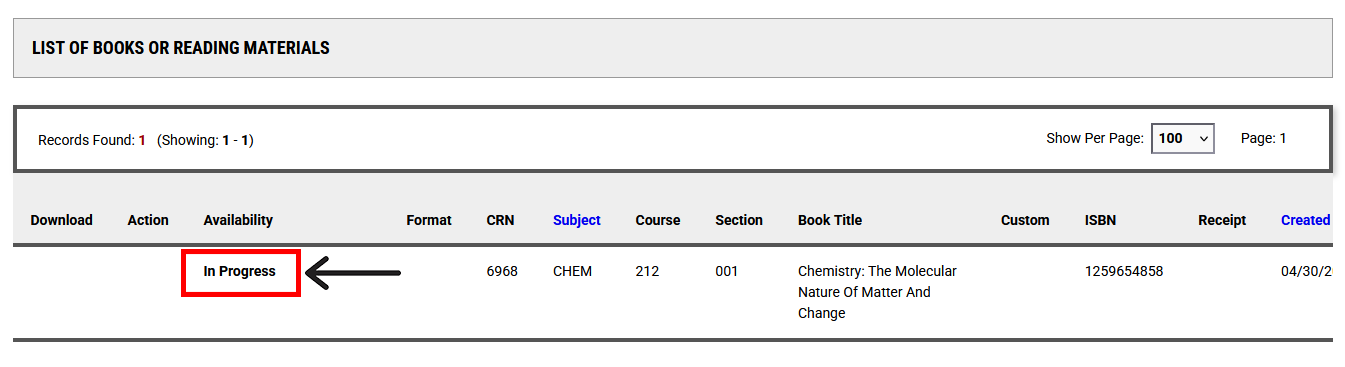
On the REQUESTS page, you will see a list of your request(s) and their current status under “Availability”.
Next Steps
If you have any questions or concerns about requesting your alternative format accommodations or uploading your receipts, please contact altformat@uwaterloo.ca.
Alternatively, you may contact us by phone: 519-888-4567 ext. 35082 or in-person: Needles Hall North, First Floor, Room 1401.