If you require your alternative testing accommodations for your in-person quizzes, term tests, midterms and final exams, you must complete both of the following steps at the beginning of each term.
1. Activate your alternative testing accommodations for every course (including both in-person and online courses).
2. Schedule your in-person assessments in the AcessAbility Services (AAS) Online System.
Important Reminders:
- Do not schedule online assessments in the AAS Online System.
- For online quizzes, tests, or exams, your instructor is responsible for applying your approved accommodations (such as extra time and/or time‑stopped breaks).
Before your online assessment:
- Check that your extra time has been applied (for example, in LEARN).
- If you have any questions or concerns about how your accommodations are being applied for an online exam, contact your instructor.
Log into the AccessAbility Services Online System
1. Navigate to the AccessAbility Services webpage
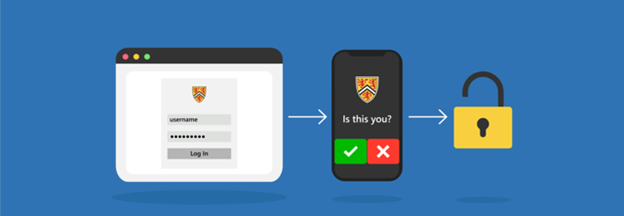
2. Click on the button, “ACTIVATE AND MANAGE YOUR ACCOMMODATIONS: Log into the AAS Online System” and enter your WatIAM username and password. Note: You may be prompted to provide two-factor authentication (2FA) to securely access your account.

Activate Alternative Testing Accommodations
To schedule tests, you must first activate your alternative testing accommodations for each course where you intend to use them. Detailed, step‑by‑step instructions are available on the Activating Your Term Accommodations webpage.
3. Once logged in, ensure that you have included the Alternative Testing accommodation in your list of selected accommodations for the course(s) that require alternative testing.
4. You can review your list of approved accommodations for each course by navigating to the left menu bar under the heading ACCOMMODATIONS and selecting “List Requests”. Then, select “View All Requests” for the current term. Ensure that Alternative Testing is listed under “Accommodation Requested”.
Schedule In-Person Assessments in the AAS Online System
1. Navigate to the left menu bar. Under the heading ACCOMMODATIONS, select “Alternative Testing”.
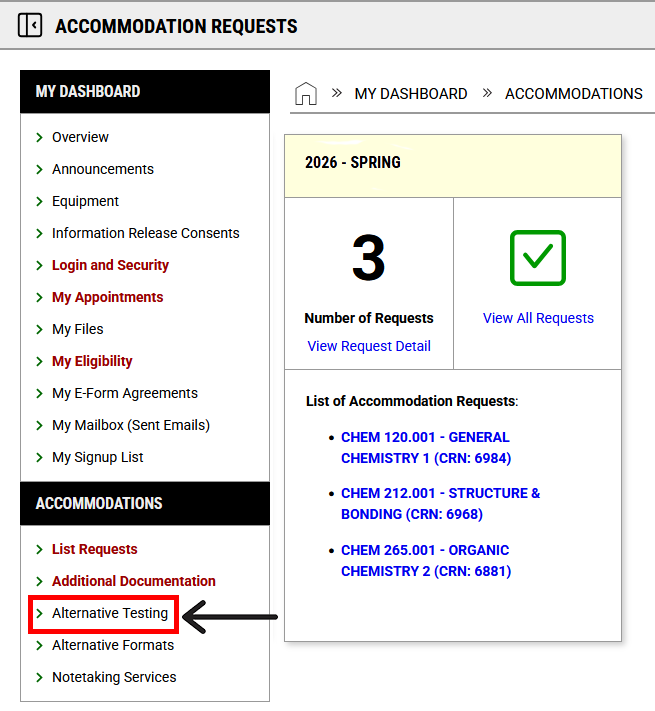
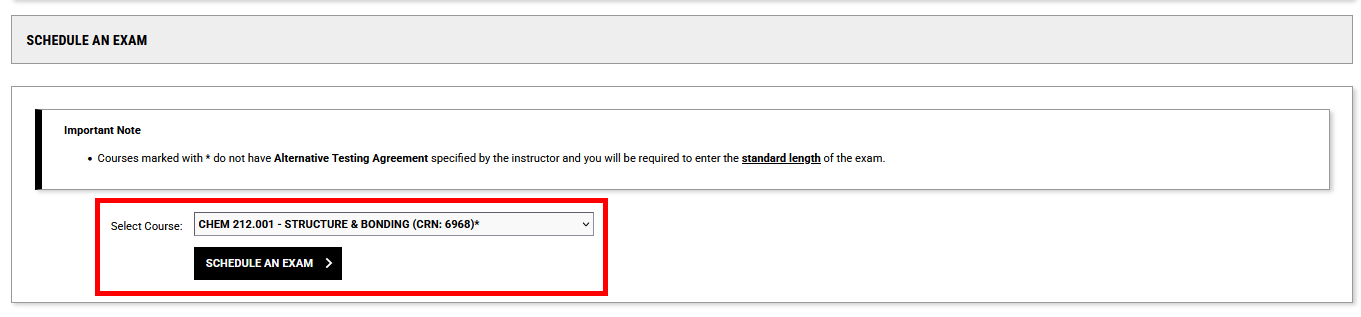
2. Navigate to the drop-down menu in the SCHEDULE AN EXAM section and select the class you wish to schedule a test for. Then select “SCHEDULE AN EXAM”.
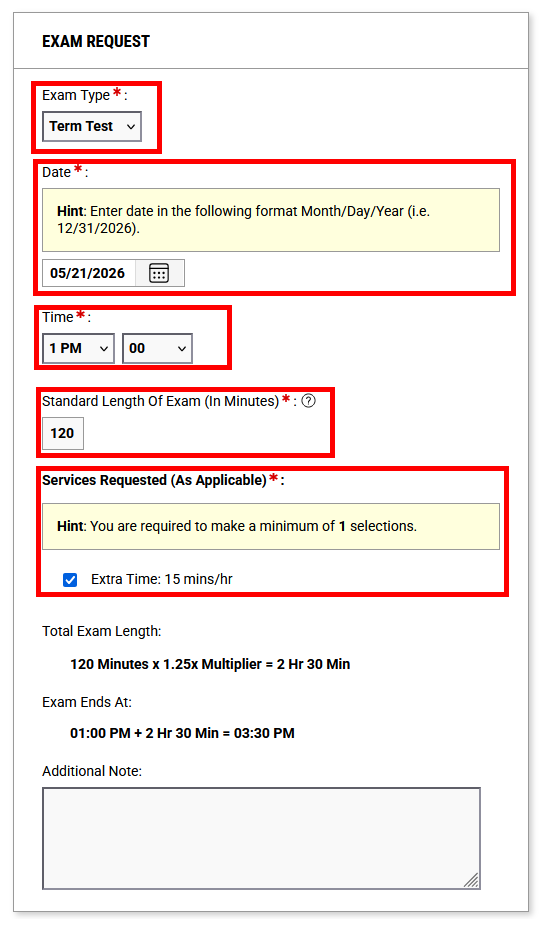
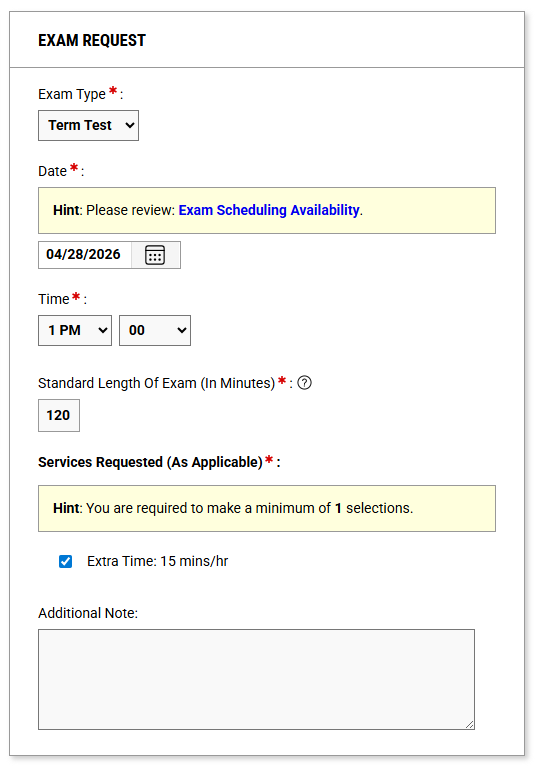
3. Fill in the following sections:
- Exam Type
- Quiz, Term Test, Final
- Date
- Date of the Test
- Time
- Time the test is being written by the rest of the class
- Standard Length of Exam
- Enter the duration of the test (This will only appear if your course instructor has not already completed their testing agreement)
- Services Requested
- Select all accommodations you wish to use
The system will then automatically calculate and display the duration and time of the test or exam.
4. After all selections are made, select “ADD EXAM REQUEST”.
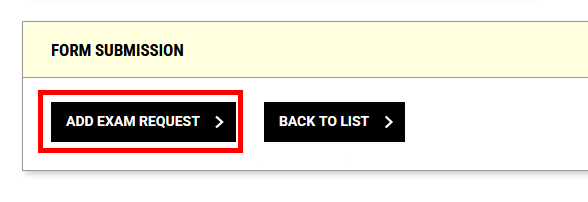
After you have successfully scheduled your assessment, a confirmation checkmark will appear at the top of the page.

5. To review your testing request(s), navigate to the menu bar on the left side of your user profile and click on “Alternative Testing”and scroll down to UPCOMING EXAMS SCHEDULED. The blue arrows can be used to review details of the scheduled tests.
Modifying or Cancelling Alternative Testing Requests
1. To modify or cancel a request to write with AccessAbility Services click "View" under UPCOMING EXAMS SCHEDULED.
Note: Alternative Tresting requests can only be modified if an instructor has submitted a testing agreement. If no agreement has been submitted, you will have to cancel and submit a new request.

2. To cancel an exam request, click the arrow to expand the cancel exam request field.
3. Select the reason for cancelling the exam request.
4. Select "CANCEL EXAM REQUEST".
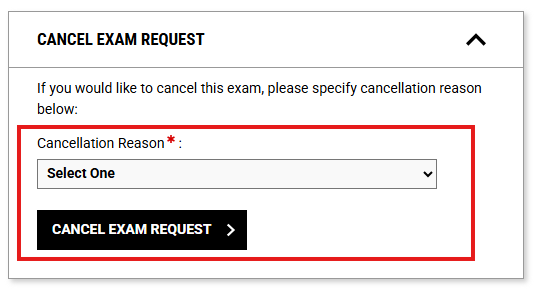
5. To modify requests, change the Exam Type, Date, Time, Standard Length of Exam or Services Requested in the EXAM REQUEST box.
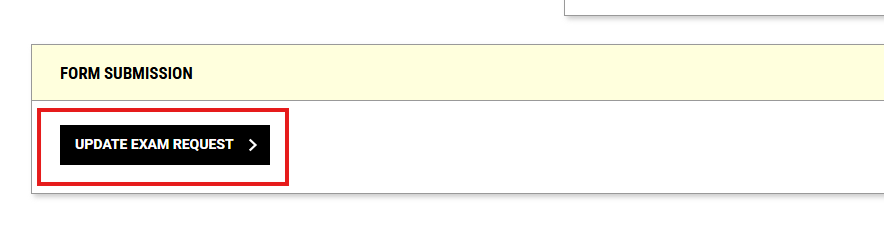
6. Click "UPDATE EXAM REQUEST" at the bottom of the page.
Next Steps
If you have any questions or concerns with completing the above steps, please contact AccessAbility Services by phone: 519-888-4567 ext. 35082, email: access@uwaterloo.ca, or in-person: Needles Hall North, First Floor, Room 1401.