Users with agendas-specific access will see the Agendas option in the left navigation panel and be able to create or edit agendas. The Agendas functionality provides a method for quickly and easily compiling, sharing, reviewing, and approving proposals as part of the curriculum cycle.
Consider an agenda as a committee's table of contents for curriculum items.
There is no limit to the number of agendas a user can create.
Agendas are not user-specific – all users with access can see/edit all agendas. Respect others by:
- only modifying own agendas, and
- providing a clear title to outline ownership (i.e., use specifics, not generalizations).
Agendas can be archived (and unarchived) but cannot be deleted. Note: Senate Undergraduate Council (SUC) Subcommittee agendas should only be archived by the SUC secretary.
- Select Agendas on the left navigation panel.

- Select the + New Agenda button in the top right corner.

- In the Agenda Page Title field, add a title and be as specific as possible. Note: The title will be the subject line of the email generated in Kuali Curriculum Management (CM) (if that functionality is used).
- Example 1: Engineering Faculty Council for May 24, 2024 - MC
- Example 2: ENV UGSC Dec 8/23
Refer to the naming conventions for agendas for Senate-level committees and Faculty-level committees.
- All fields are optional – if populated, Date and Time will appear on the Agenda database page.
-
In the Proposals fields (specific to Courses, Programs & Plans, and Regulations), add the proposal(s) that will be reviewed together. Start typing in the box and all proposals that have an Under Review state will be available to be selected.
Notes:-
The typeahead box will show the Curriculum Management (CM) Code and Title.
-
For courses, the CM Code is the Subject+Number (no spaces).
-
For programs/plans and regulations, the CM Code is the unique identifier determined by system admins. The CM Code will display as "undefined" if it is a proposal for a new program/plan or regulation and the system admin team was not asked to create the CM Code (default is to create after all approvals).

-
-
- Once proposals have been added, they can be reordered in their database group by clicking on the hamburger icon on the left and dragging and dropping the proposal in the desired order (within the same field). Proposals can be removed from the agenda page by using the trash can icon. Note: Added proposals will show the type (based on the form) and will show the workflow step they are in.

- When done, select Save and Exit.

Existing or newly created and saved agendas have the following options in the right navigation panel.
| Option | Description |
|---|---|
| Edit | Make changes to an agenda. An agenda can be edited as many times as necessary. |
| Duplicate | Make a copy of the existing agenda (including archived agendas), creating a new draft to edit. |
| Send | Send an email notification of the agenda to all email addresses (including mailing lists) inputted. This feature allows the committee members to access the individual proposals via the agenda without having to navigate to find them in Kuali CM. See below for further instructions. |
| Comments | Comments can be added to agendas. |
| Archive | When an agenda no longer has use, it should be archived. Select Archive to do this. This action can be undone by selecting Unarchive (option only appears for archived agendas). Archived agendas can be found by selecting "Archived" under Search Options. |
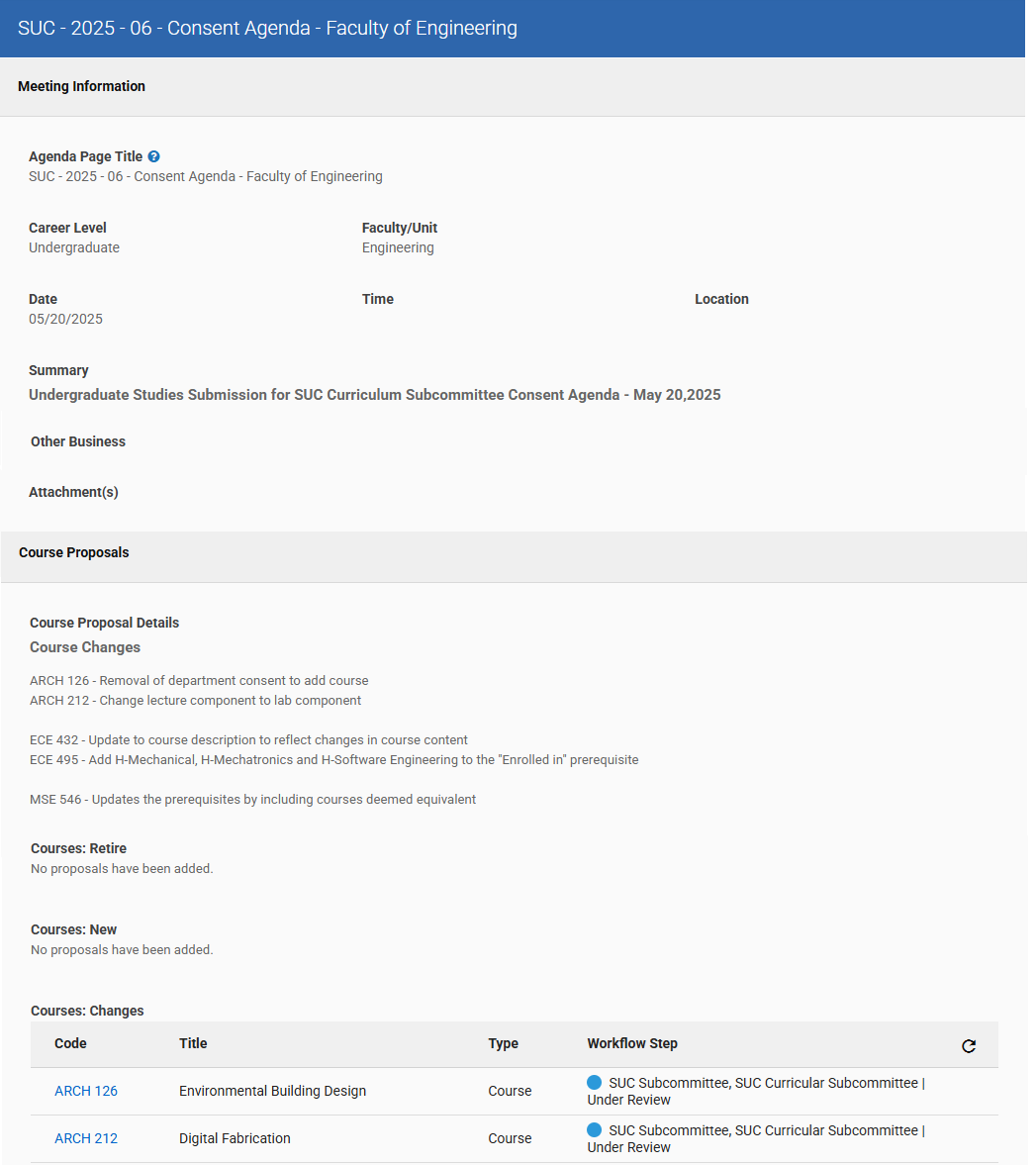
For Senate Undergraduate Council (SUC) Curriculum Subcommittee, items should be divided into consent and regular items which should be submitted via separate agenda pages.
The following items go under a consent agenda:
- All course proposals (i.e., retires, new, and changes)
- Minor program/plan modifications
The following items go under a regular agenda:
- Program/plan retires (inactivations)
- New programs/plans
- Major program/plan modifications
- Regulation revisions
- Anything considered controversial that SUC and/or Senate should discuss
Being able to search and sort through active and archived Agenda pages within the shared data base will only be possible if everyone follows a shared naming convention.
Senate-level committees
SUC Curriculum Subcommittee – [YYYY-MM of submission deadline] – [Regular or Consent] Agenda – [Submitting Unit(s)]
SUC – [YYYY-MM-DD of meeting] – [Regular or Consent] Agenda – [Submitting Unit(s)]
Examples:
- SUC Curriculum Subcommittee – 2024-05 – Consent Agenda – Faculty of Health
- SUC Curriculum Subcommittee – 2024-06 – Consent Agenda – Faculties of Engineering and Mathematics
- SUC Curriculum Subcommittee – 2024-10 – Regular Agenda – Office of the Registrar
- SUC - 2024-09 – Consent Agenda – Faculty of Mathematics
Faculty-level committees
[Faculty] – [Name of Committee] – [Date] – [Regular or Consent] Agenda (if applicable)
Examples:
- Engineering – FUGS - April 26, 2024
- Science – SUSC – 2024-06
- Mathematics – Faculty Council – 2024-05 – UG Agenda
The goal is to be consistent with the naming convention and to remember to archive any Agenda pages that are no longer active.
What to include in the Summary and/or Details boxes will depend on what level of governance the Agenda is being prepared for, but will assist committee members on what and how to focus their review. Use the Summary box for a high level overview and the proposal Details box(es) for a summary of the specific type of proposals, closer to where the proposals are discussed.
Some ideas of what might be helpful:
- What courses are cross-listed and should be reviewed together
- How some proposals impact other proposals
- Grouping like changes together (e.g., large-scale description changes)
- Summarizing high volume changes (e.g., Subject Code changes)
An example:
Course Proposal Details description:
- AE 100 - Change units to 0.75 from 0.50.
- AE 300 - Change units to 0.75 from 1.00
- BET100, BME 386: Revise course description:
- BME550 & 551: Removing department add consent:
- BME 186 - Revise course description & remove laboratory component.
- BME 361 - Revise course description & title.
- BME 362 - Revise course description & remove SYDE 362 as an anti-requisite.
- BME 400 - Revise course description & remove DRNA coding.
- MSE 446 - Remove ECE 306 as a pre-requisite.
- STV 202 - Remove SYDE 261 as anti-requisite.
- PD19 & 20: Add department drop consent.
- Adding TST component to: AE 100, AE/CIVE/ENVE/GEOE 123, AE 125, CHE 120, CHE 180, CHE 181, CIVE/ENVE/GEOE 115, ECE 105, ECE 106, ECE 108, ECE 124, ECE 140, ECE 150, ECE 190, ECE 192, GENE 123, ME 100, ME 101, MSE 100, MSE 121, MSE 131, MTE 100, MTE 121, NE 109, NE 110, NE 140
Other business, like information items or non-Kuali content, can be described under the Other Business box and/or uploaded via the Attachment(s) field.
- Select Send.

- A pop-up window titled Send Email appears.

- In the field titled Enter additional email addresses... type an individual email address and select the green +. The email recipient can be a mailing list (e.g., mailman) and does not have to have access to Kuali CM to receive the email but should have access to Kuali CM to view the agenda and proposals within the system. The entered email address appears in a list in the upper part of the pop-up window.

- Repeat step 3 for as many email addresses as needed. Alternatively, the agenda builder can send/forward the agenda from their usual mail client (e.g., Outlook) to a larger pre-existing recipient list in Outlook.
- To remove email addresses added in error, select the red x next to the email address.
- Once all agenda recipient email addresses have been entered, select the SEND button.