(for undergraduate studies proposers)
- Navigate to the desired database in Kuali Curriculum Management (CM): Courses, Programs & Plans, or Regulations.
- Type in the Search bar to locate the record.
- Open the record by clicking on the record's row in the database.
- Verify there is not already a proposal drafted or submitted. The absence of a View My Proposal or a View Current Proposal in the right navigation menu generally indicates a user can proceed. If either link is present, STOP and do not proceed with selecting Propose Changes. [Caveat: Neither link will be visible if another proposer started a Draft and that Draft has not yet been submitted. In order to prevent duplication, it is recommended to also verify if a Draft exists in the Proposals database.]
 "View My Proposal" link is present. Do not proceed with changes.
 "View Current Proposal" link is present. Do not proceed with changes.
 - Within the record, select Propose Changes in the right navigation menu.

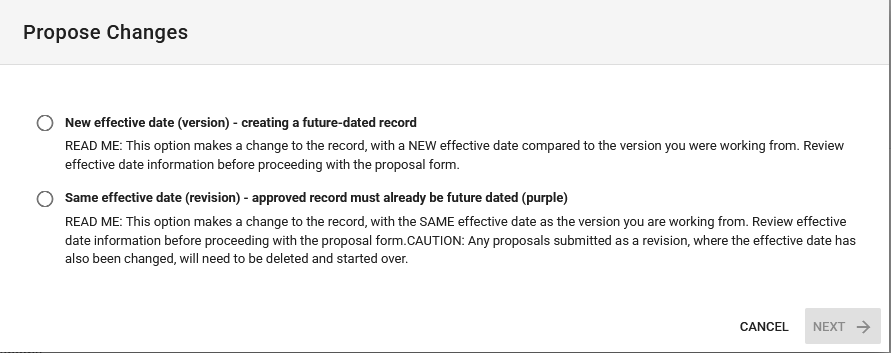
- In the Propose Changes pop-up window that appears, select the appropriate option (i.e., new version or revision, dependent on the effective date the record needs to be retired), then select NEXT. An editable proposal form for the record will open (Draft state). Important note: If the wrong selection is made, the correction is to delete the proposal and start again.
- Under the Status field, use the pull-down menu to select Retired.

- Effective Term and Year:
- If Revision was selected when proposing changes, do not update the Effective Term and Year field.
- If New Version was selected when proposing changes, read the Important! information regarding Effective Term and Year on the form, and ensure those guidelines are followed when updating the Effective Term and Year field.
- In the Proposal Type field, select Retire.

- Complete all required fields (designated by a red asterisk) under the Proposal Details and Workflow Information sections of the form. No other fields need to be updated, as the record is being retired.
- When changes are complete, or you are leaving the form, select Save and Exit.
- When the proposal is ready for workflow, select Submit for Approval.
Learn how to follow the proposal through the governance approval process and about proposer actions that can be taken after proposal submission.
Reminder
Be sure to save often. If an error is made, select Cancel to go back to the previous saved state or Delete Proposal to start again.