All users that have access to create agendas in Kuali Curriculum Management (CM) are also given access to the Faculty of Engineering's Kuali Agenda Package Generator online tool. The Kuali Agenda Package Generator creates a single HTML document, which can be saved as a PDF document, of all proposals listed in a given Kuali Agenda page.
- This is the method that must be used to submit for inclusion to Senate Undergraduate Council and Senate Graduate Council when PDF versions are required.
- Overall caveat: Should there be any discrepancies between a generated document and what is in Kuali CM, the Kuali CM version is the version that is approved.
Access
If additional users (i.e., non-agenda builders) need access to the tool, submit a help request for consideration.
Troubleshooting
The tool was created and is maintained by the Engineering Computing Office. If a problem is found, or an enhancement is desired, contact Pankaj Bains directly.
- In a desired browser, go to the tool website: https://ecserv2.uwaterloo.ca/kuali_docs/public/manage_production/.
- Sign in with your WatIAM credentials.
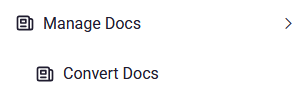
- From the left-navigation menu, go to Manage Docs, then select Convert Docs.
- Find the Agenda page URL in Kuali Curriculum Management, copy it, and paste it into the Enter Agenda URL box.
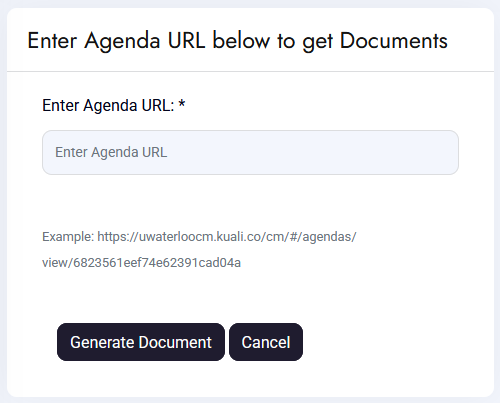
- Select Generate Document. A green "working..." status bar will appear below the page title. Depending on the size of the agenda package that is being generated, this process can take up to 10 minutes.

- The generated HTML document will open in a new browser tab/window. Note: If it is the first time, you will need to grant permission for pop-ups from the site.
- The document will have the date it was generated in the top left corner below the University's branding. Example:
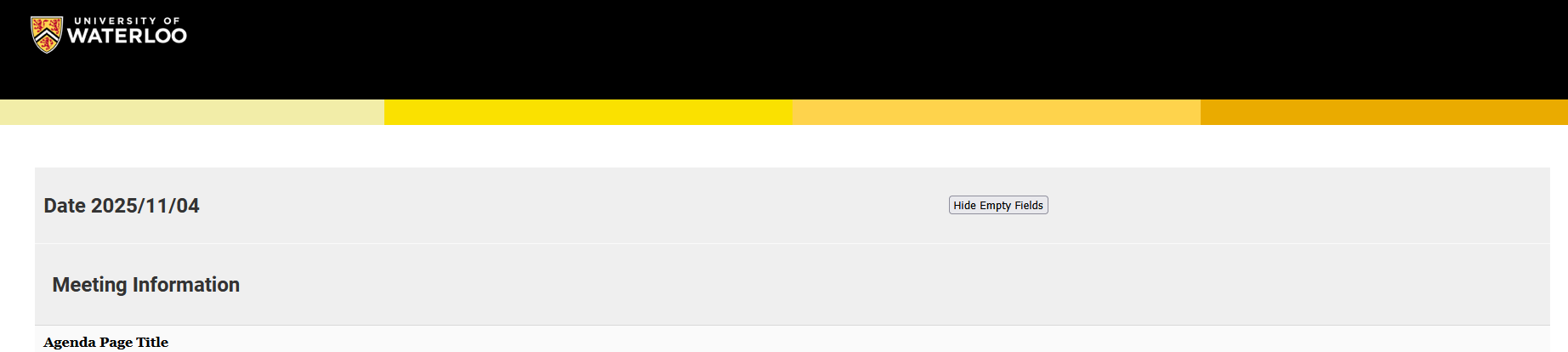
- It includes all content on the Kuali CM Agenda page and all listed proposals in the order they were presented on the Agenda page.
- On the Agenda page portion, all links to the individual proposals act like anchors to each proposal.
- At the top of each proposal, a Top link can be used to navigate back to the Agenda page portion where the proposal is listed. For example:

- All the data from Kuali will be part of each proposal, however, it may display a bit differently than it would online.
- Colour is visible for comparison boxes (yellow and blue) and changes to rules (green boding and red strikeout).
- View Course/Program links under Dependencies will bring a user back to Kuali CM.
Option 1: Share the link to the HTML document
Although only agenda builders have access to generate the HTML file, the resulting HTML file can be viewed by anyone the link is shared with. Copy and paste the URL of the generated document and share it via the preferred method.
Option 2: Save the file as a PDF
Using the browser's Print function, save the file as a PDF and share it.
- The default is to show all Kuali CM form fields, including those that are automatically hidden by the Kuali CM system. Always select the Hide Empty Fields button in the top-right corner to hide those, which will match the online experience more closely and reduce white space in many cases.
- You can toggle back to Show Empty Fields if desired.
- This setting is not saved if sharing only the HTML document URL.
- Ensure the correct browser's print settings are set:
- Enable Background graphics (or browser equivalent). Without this selection, the following will not be visible and the document will be harder to navigate.
- UW branding.
- Blue proposal colour bar.
- Blue/yellow compare boxes.
- For Senate-level committees:
- Disable Print headers and footers. This ensures footer information won't conflict with other footers when compiling PDFs.
- Scale should be set to 80%. This will reduce the volume of pages overall and still ensure readability.
- Enable Background graphics (or browser equivalent). Without this selection, the following will not be visible and the document will be harder to navigate.