Last month, we published tips for avoiding the five most common errors on course proposals.
This month, we continue to reflect on the proposals submitted in the first year of using Kuali CM, and have identified six areas of the programs and plans proposal form that are most often completed incorrectly, or missed. To help ensure your program/plan proposal has all the necessary information and to minimize the need to withdraw a proposal after submission to the workflow, we have compiled a list of these errors and tips to avoid them.
- Incorrect selection of Revision/New Version when proposing changes to an existing program/plan record
- Incorrect Effective Term and Year fields
- Rationale and Background field is not descriptive enough
- Incorrect Course Requirements field option is used (units/no units)
- Errors in plan requirement lists
- Incorrect or incomplete Workflow Information fields
Incorrect selection of Revision/New Version when proposing changes to an existing program/plan record
When you select Propose Changes to modify/change a record, a pop-up window appears offering a choice of creating a new version (new effective date), or creating a revision (same effective date). It is crucial to make the correct choice in this scenario, as the only way to fix an incorrect selection is to delete the proposal and start a new draft.
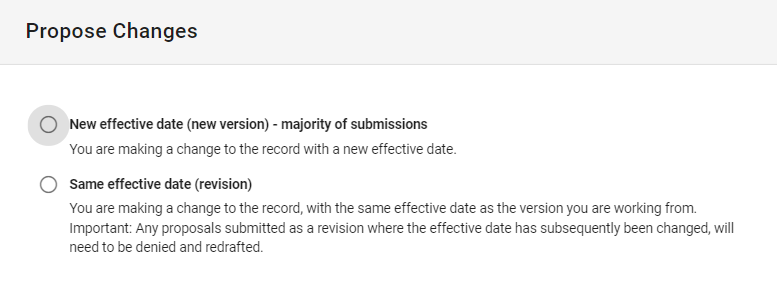
Selecting New effective date (new version) allows you to create a proposal and select a new effective date. This is the correct option for the majority of submissions, especially early in the proposal year. Upon selecting new version, the effective date must be manually selected in the Effect Term and Year fields.
Selecting Same effective date (revision) will create a proposal with the same effective date as the version of the record you are working from (i.e., the version of the record you had open when you selected Propose Changes). This option should only be selected if there is already a record for the effective date that applies to your new changes, and only if submissions are still being allowed for that effective date. Super important: Do not change the effective date, as – if approved that way – it would overwrite the existing version you were working from (which we can't allow).
Unsure of which option to select? Reach out to the Office of the Registrar via the support portal.
Effective Term and Year fields
When completing the Effective Term and Year fields on a proposal form, careful consideration should be taken.
- Did you begin your proposal by selecting Propose Changes > Same effective date (revision)? If so, do not change the Effective Term and Year.
- For all other proposals (new version, or a completely new course proposal), follow the Important! instructions that appear on the draft proposal form when selecting your effective date. For example:

Unsure which effective term and year to use? Reach out to the Office of the Registrar via the support portal.
Rationale and Background field is not descriptive enough
When completing the Rationale and Background for New Program/Plan field (for new proposals) or the Rationale and Background for Change(s) field (for changing or retiring proposals), it is crucial to provide enough information for governance committee members to review the proposal at all approval levels. The suggested length of the rationale will vary depending on what is happening to the proposal and how many fields are changing; use the field description and help text (blue question mark) on the proposal form to aid in your response, and consult the guidelines for composing rationales on the Academic Calendar & Curriculum Management Resources site.


Incorrect Course Requirements field option selected (units/no units)
There exists several fields that can house undergraduate plan requirement lists, each with a different purpose:
- Course Requirements (units): Displays an automatic calculation of units required, based on the courses and rules used; the list of pre-programmed rules available to be used is limited.
- Course Requirements (no units): Does not display an automatic calculation of units; more pre-programmed rules are available to be used.
- Required Courses (Term by Term): Used only by degrees that are required to progress termly (i.e., Engineering-owned major plans and the Bachelor of Medical Sciences).
- Course Lists: To be used when displaying a list of courses in addition to "Required Courses" (i.e., a list of electives that must be given a reference name, e.g., "Approved Courses", "List 1").
To determine whether to build your plan requirement list with units or no units:
- Consult your faculty/affiliated institution representative to confirm if your faculty/Affiliated and Federated Institution of Waterloo (AFIW) has a preferred format – for example, some faculties have decided to only use the no units field.
- If your faculty/AFIW allows plans to be built with units displayed:
- Do the rules you need exist in the list of reprogrammed "units" rules, and
- Will the rules and courses used result in the accurate number of units displayed?
If the answer is "no" to either, it is recommended to use the no units field; if "yes" to both, you can proceed with building your plan within the units field.
Need further assistance with determining which field to use? Reach out to the Office of the Registrar via the support portal.
Errors in plan requirement lists
When building or making changes to the list(s) of courses in a program/plan form, it is important to review the guidelines for building rules. As a quick reminder:
- All cross-listed courses must be listed (unless an exception has been or is to be approved and noted on the form).
- Within a rule, all courses must be listed in alpha-numerical order by subject code and course number.
- Creating a list: The proposer is responsible for placing the courses in the correct order.
- For changes to a list: When lists are short, proposers should be correcting the alpha-numerical order; when lists are long, it is acceptable to place newly added courses at the end and the Office of the Registrar will reorder the list during the post-approval work.
When uncertain how to use a rule, or which rule to use, review the How to build plan requirement lists page, and reach out to the Office of the Registrar via the support portal.
Incorrect or incomplete Workflow Information fields
The Workflow Information fields are crucial to complete accurately in Kuali CM before the proposal is submitted, as they are used to determine which pre-programmed workflow will be used. The selections made on the Workflow Path field and Faculty/AFIW Path(s) for Workflow field determines the workflow path that your proposal is sent to; that is, editorial or committee approval, and which faculty(ies) or AFIW will receive your proposal and be able to action and approve it.
Workflow Path field
When completing the Workflow Path field, it is important to be able to distinguish whether your proposed changes are editorial in nature or require committee approval. Review the guidelines on approval vs editorial to help determine which path you should select.
Important: Editorial submissions must still be future dated, unless communication with the Office of the Registrar, via the support portal, occurred prior to the submission.
Faculty/AFIW Path(s) for Workflow field
While the Faculty/AFIW Path(s) for Workflow field is not marked as required on the proposal form – as not every course is governed by a faculty or an affiliated institution of Waterloo – if your proposal is for a faculty or AFIW, this field is required for you.
Important: Multiple faculties and AFIW can be added to this field. When might you need to do this?
- If your proposal needs to be submitted for review by two (or more) faculties, because it is co-owned by two faculties (e.g., Bachelor of Sustainability and Financial Management = Arts and Environment; Neuroscience Minor = Arts, Health, and Science).
- If your proposal is owned by an AFIW and the Faculty of Arts.