Employee Self-Service with Approvals
Employee as Self - Submit Hybrid Work Arrangement Request
1. Search for the task:
-
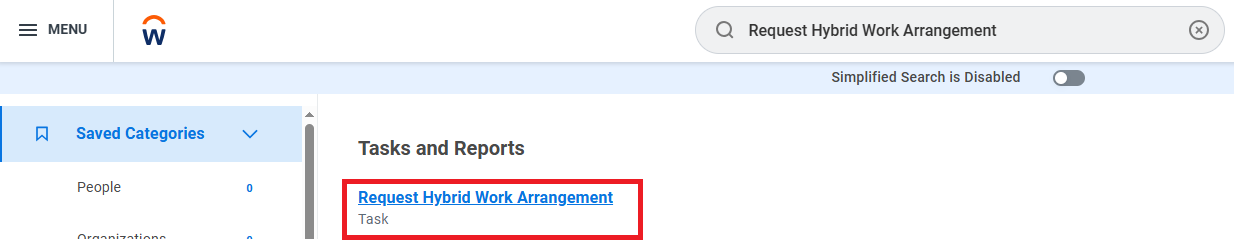
Type Request Hybrid Work Arrangement into the Workday global search bar and select the task from either the dropdown menu or the hyperlinked search result.
- Access the task from the dropdown: Click the Request Hybrid Work Arrangement option that appears in the dropdown.

- Access the task as a search result: Click the blue hyperlinked task name to open the Request Hybrid Work Arrangement task.
2. Complete the task details:
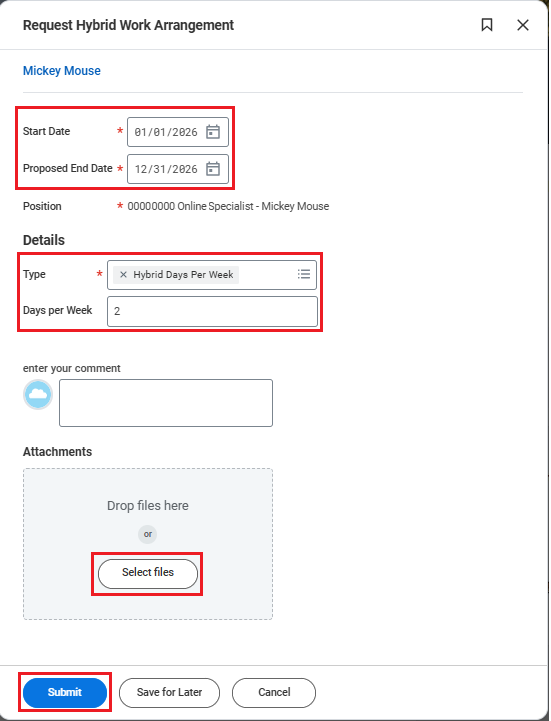
- Enter the start and end dates: Use January 1, 2026 as the start date (or, if you were hired after this date, enter your hire date instead) and December 31, 2026 as the end date.
- Fill in the details section: Select Hybrid Days Per Week as the request type, then enter the number of days you have discussed with your manager, ensuring it is within the allowable amount set by University policy.
- Upload the completed rationale: In the Attachments section, click Select files and upload your Hybrid Work Request Rationale. This document may be a Word file or a PDF and should contain a brief written explanation of why you are requesting a hybrid work arrangement for your manager’s review.
3. Attachment details:
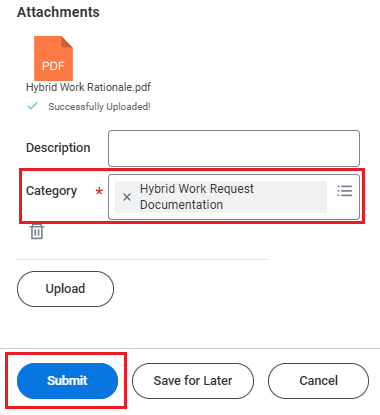
- When uploading your completed form, select Hybrid Work Request Documentation as the attachment category before submitting the task.
Manager - Submit Questionnaire and Approve
4. Manager's review
-
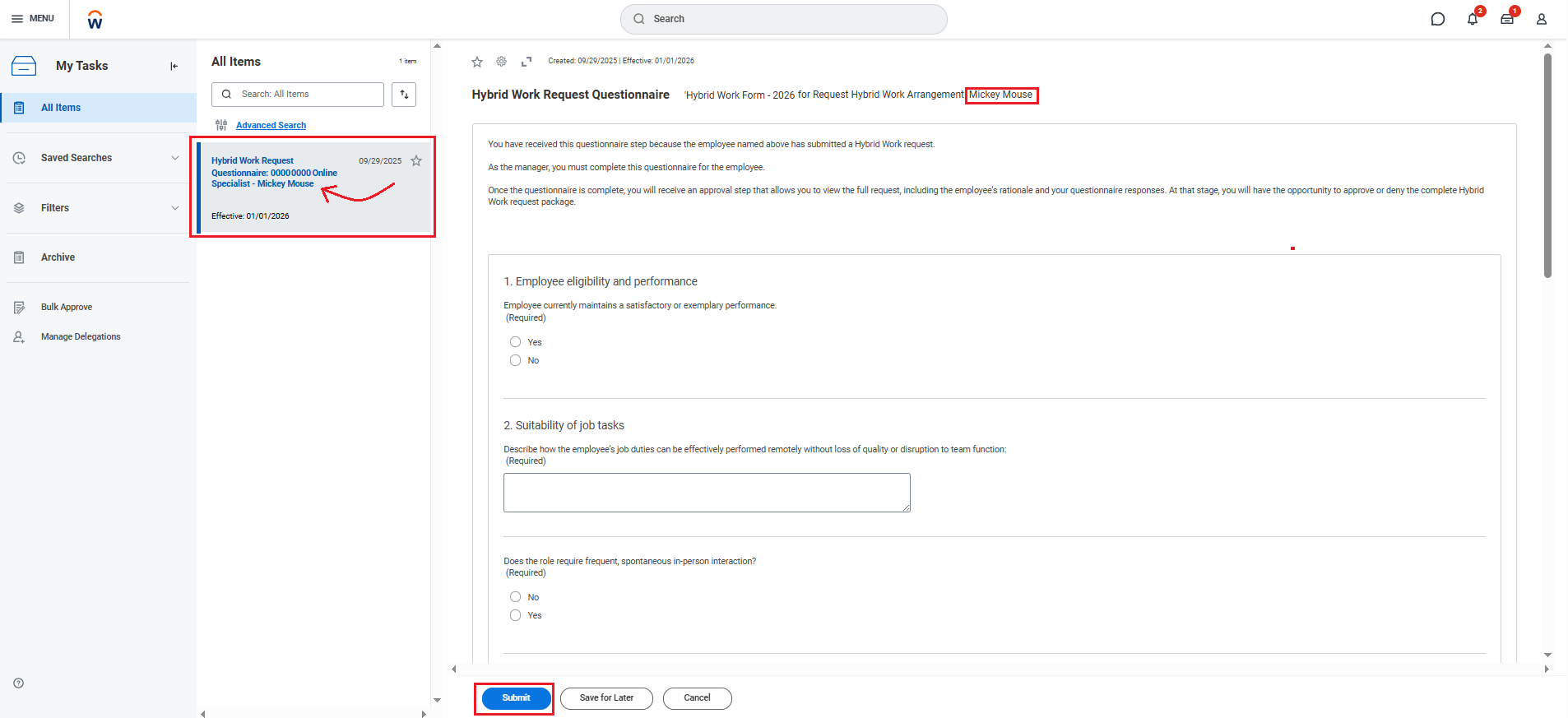
The manager will then receive a task in their inbox to complete a questionnaire for the employee
-
The employee’s position and name will appear in the task name details (indicated by the arrow)
-
Open the task, complete the questionnaire details for the employee, and click Submit.
-
-
The manager will then receive a Review step to examine the complete Hybrid Work Arrangement request package. At this stage, the manager can approve the request, deny it, or "Send it back" to a previous step in the workflow
-
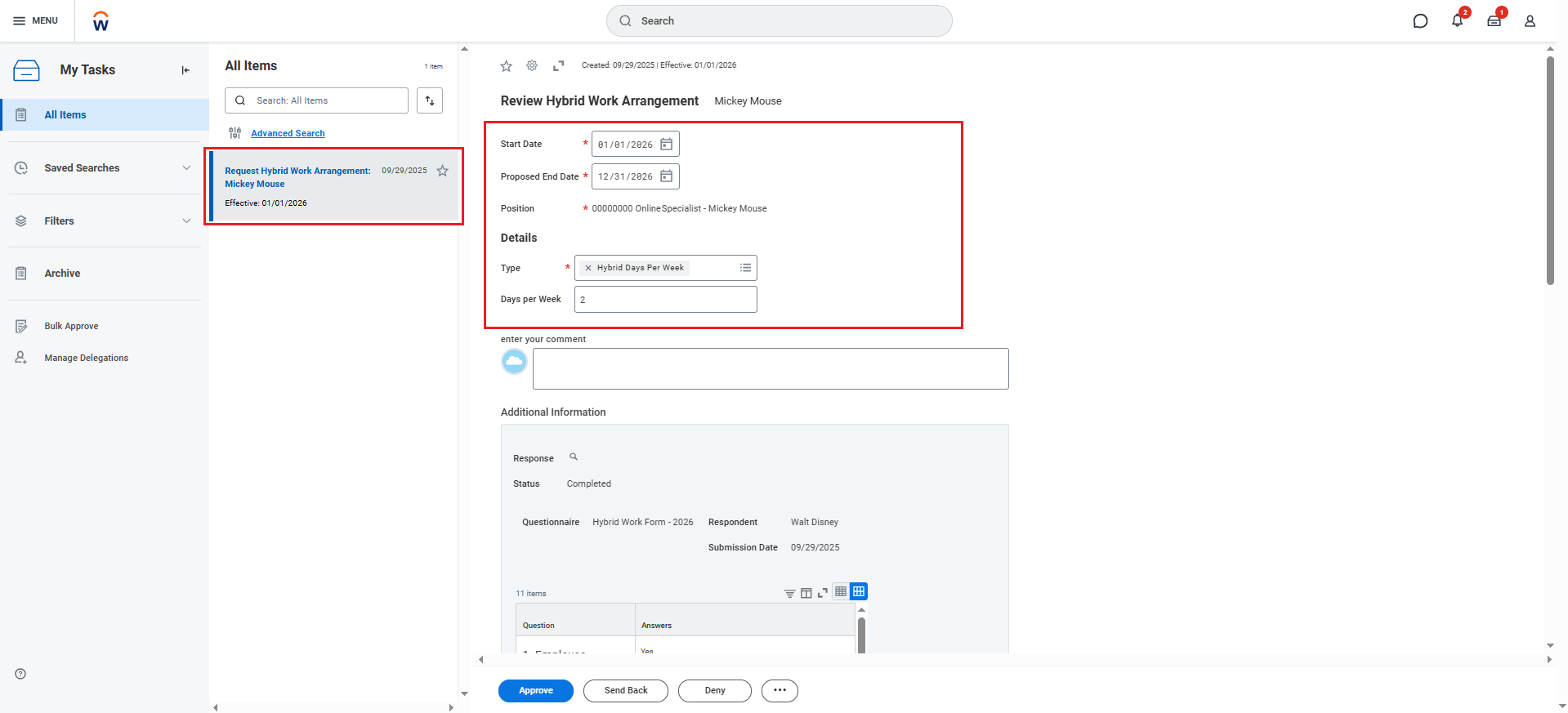
The first section of the package displays the details of the request, including the requested dates, number of hybrid days per week, and a reference to the employee’s position and name.
-
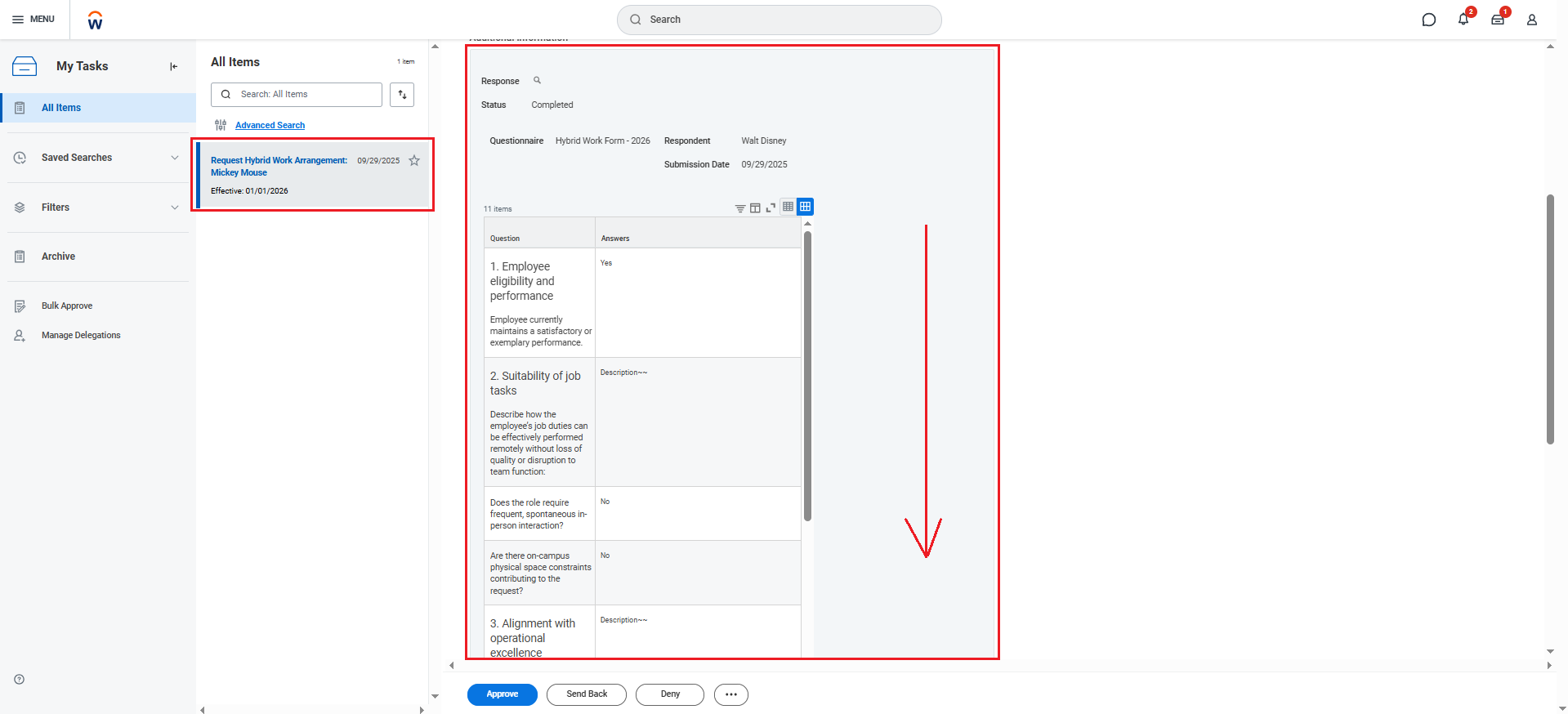
Scrolling down, the manager will find a second section that displays the answers they provided in the questionnaire completed in the previous step.
-
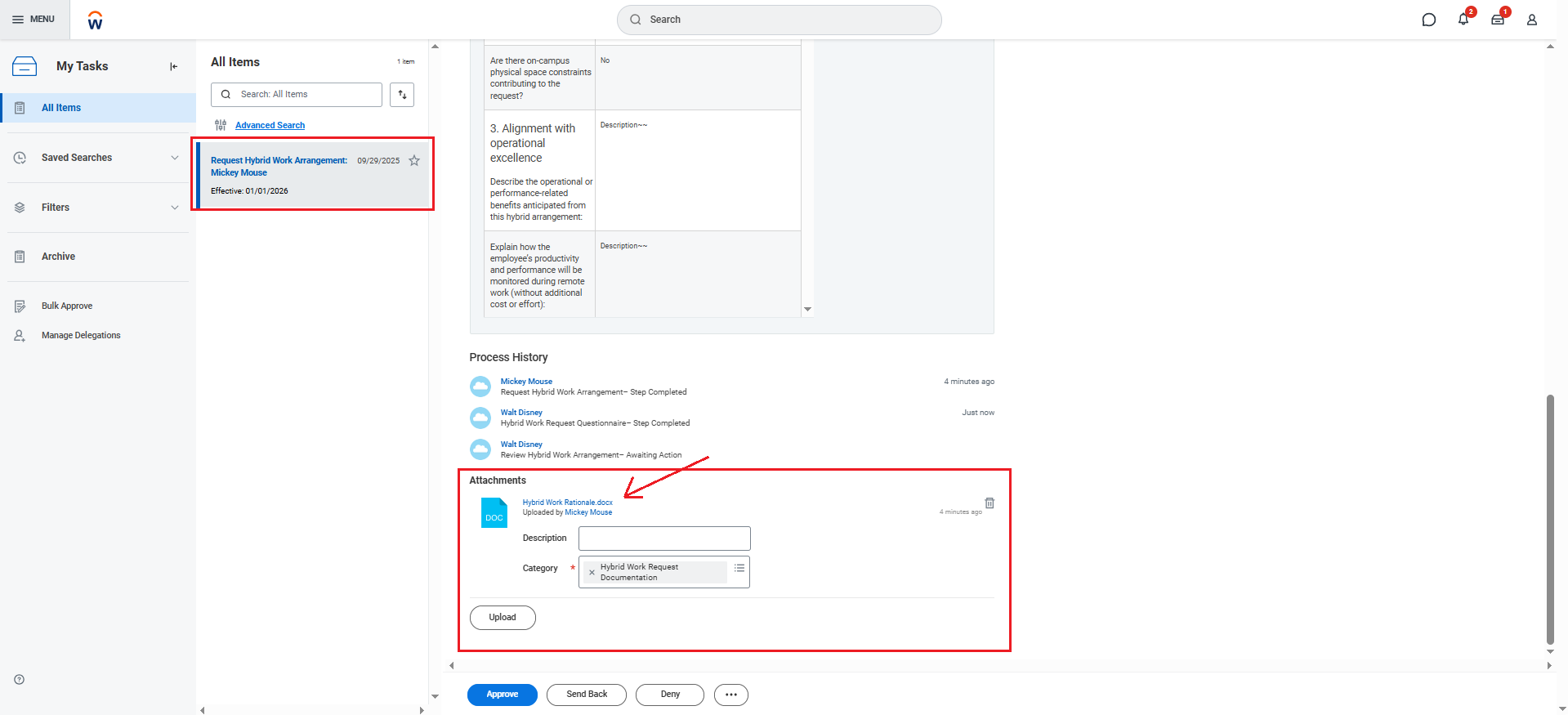
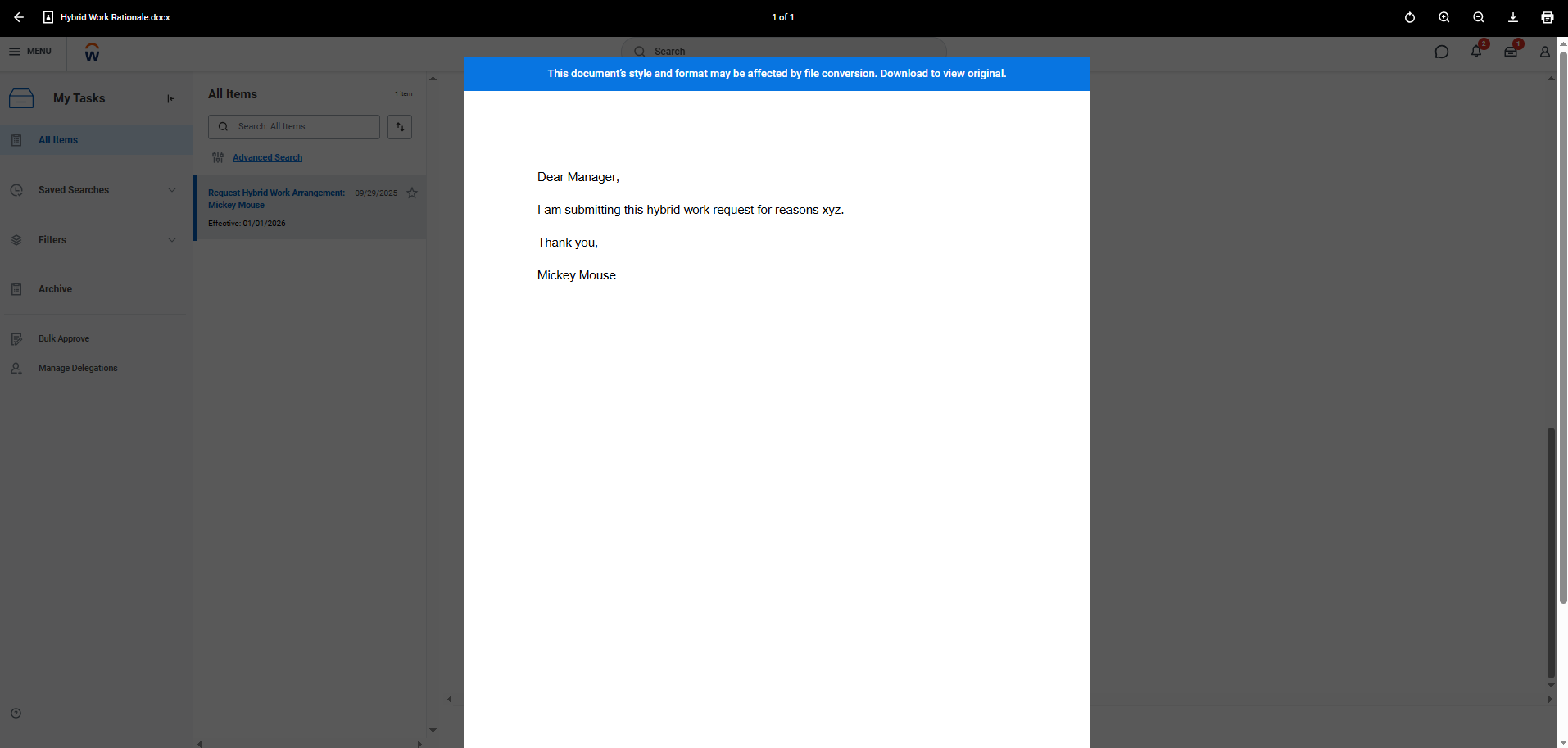
Continuing to scroll down, the manager will find the final section containing the attached document with the rationale for the Hybrid Work Arrangement request. The manager can click the hyperlinked file to review this rationale.
-
University Senior Leadership Council/ Department Head - Hybrid Work Arrangement Request Approval
6. Department and USLC member review
- Once the manager approves the request within Workday, the request will route to the Department Head and the University Senior Leadership Council member for approval.
-
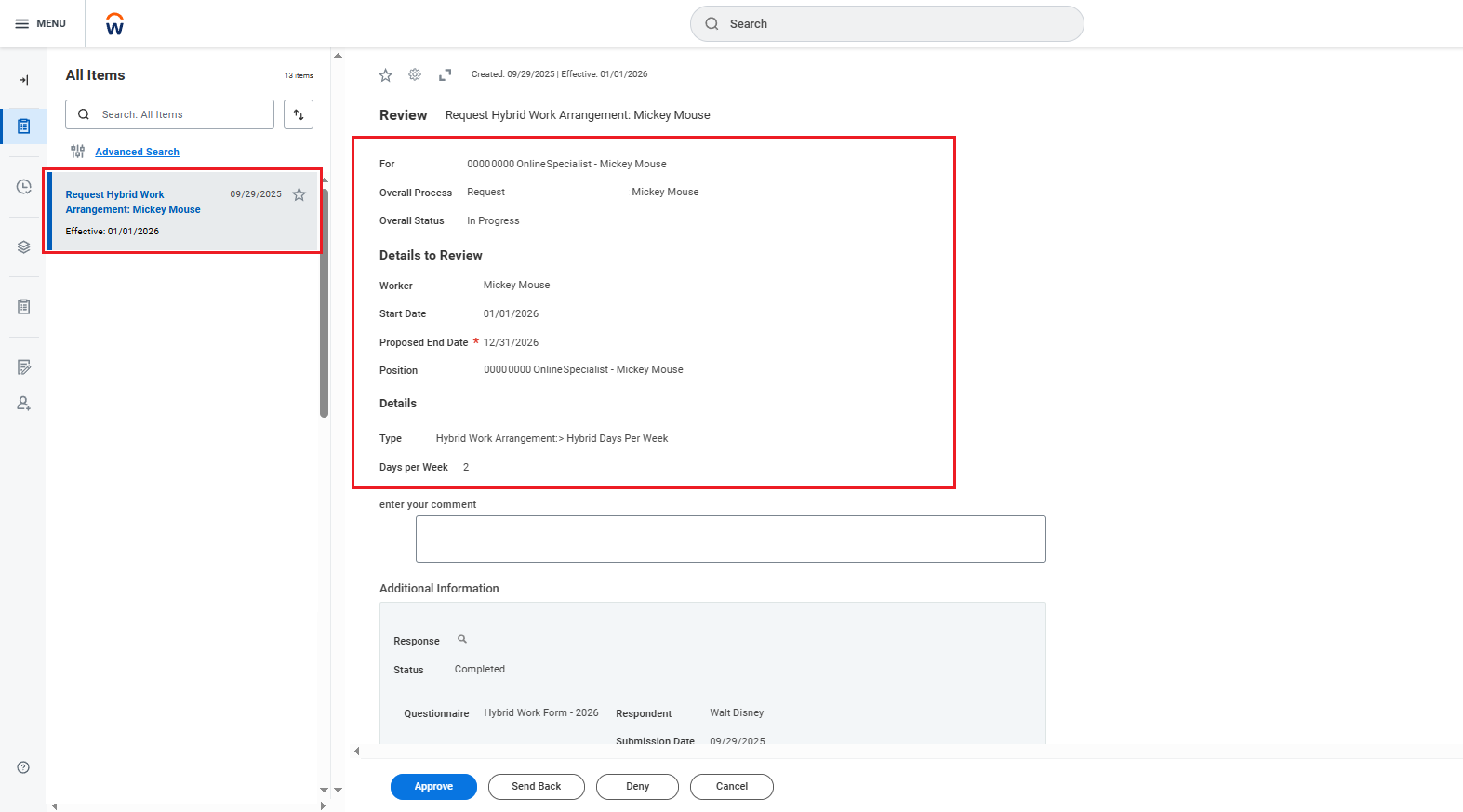
The first section of the package displays the details of the request, including the requested dates, number of hybrid days per week, and a reference to the employee’s position and name.
-
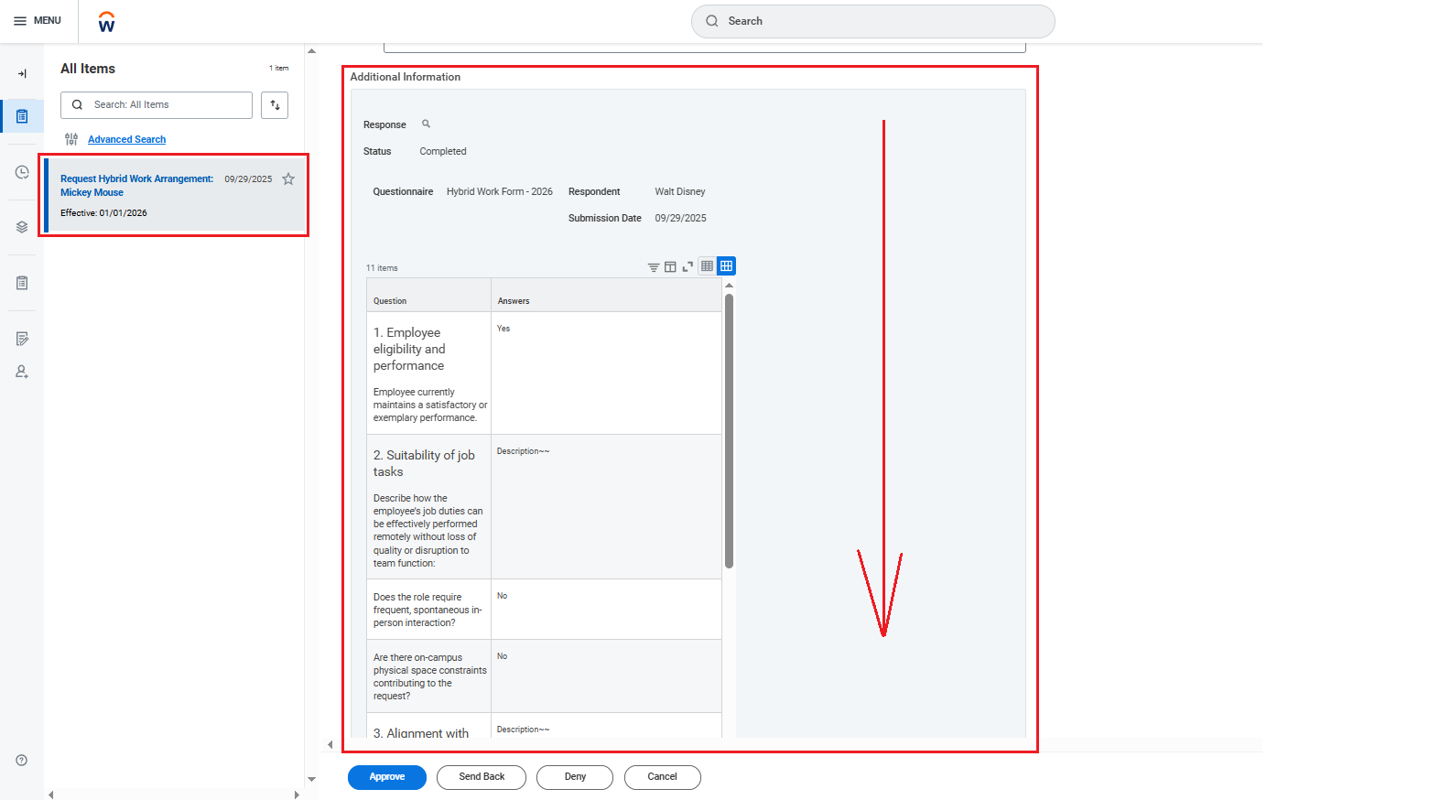
Scrolling down, the department head and University Senior Leadership Council member will find a second section that displays the answers the manager provided in the completed questionnaire.
-
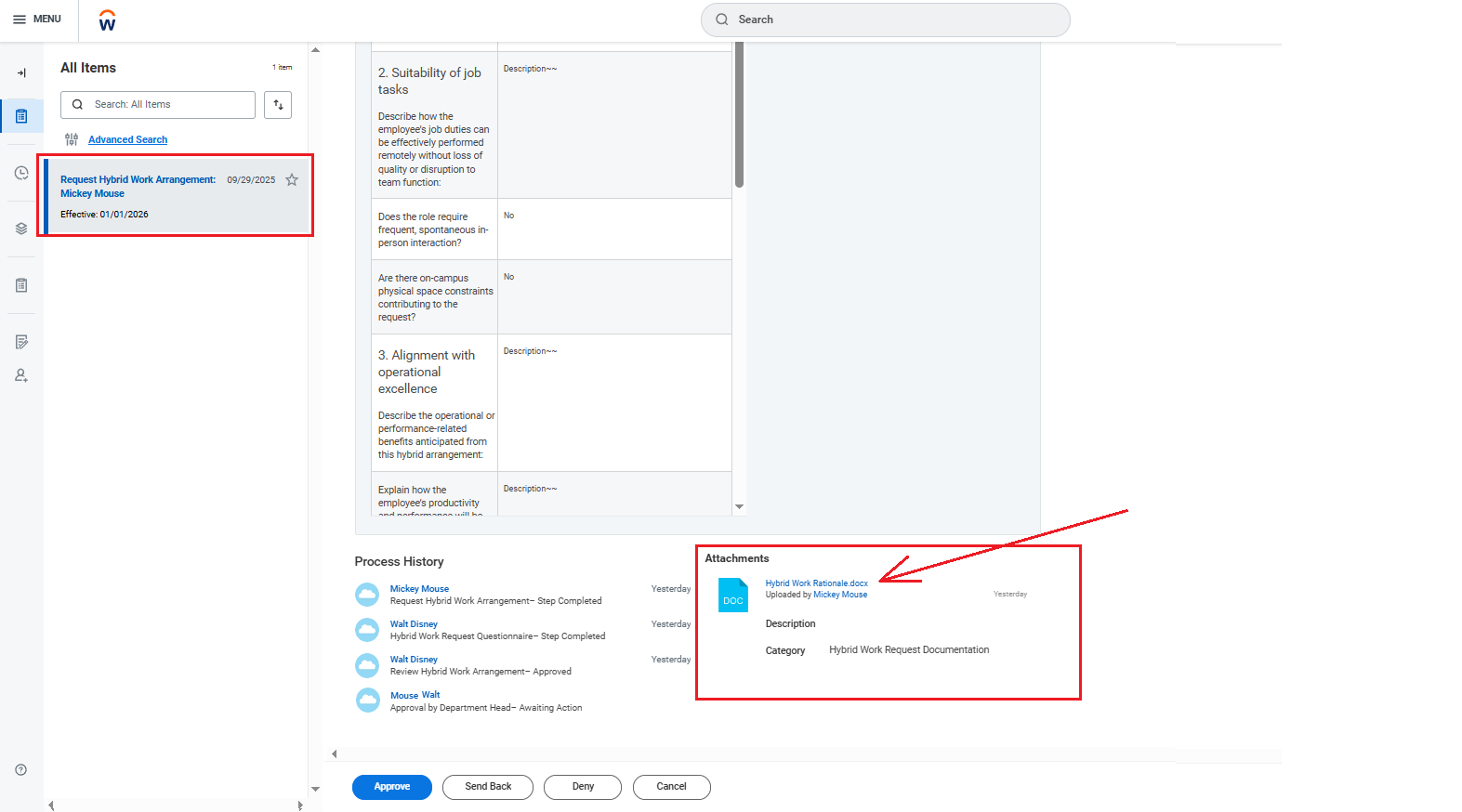
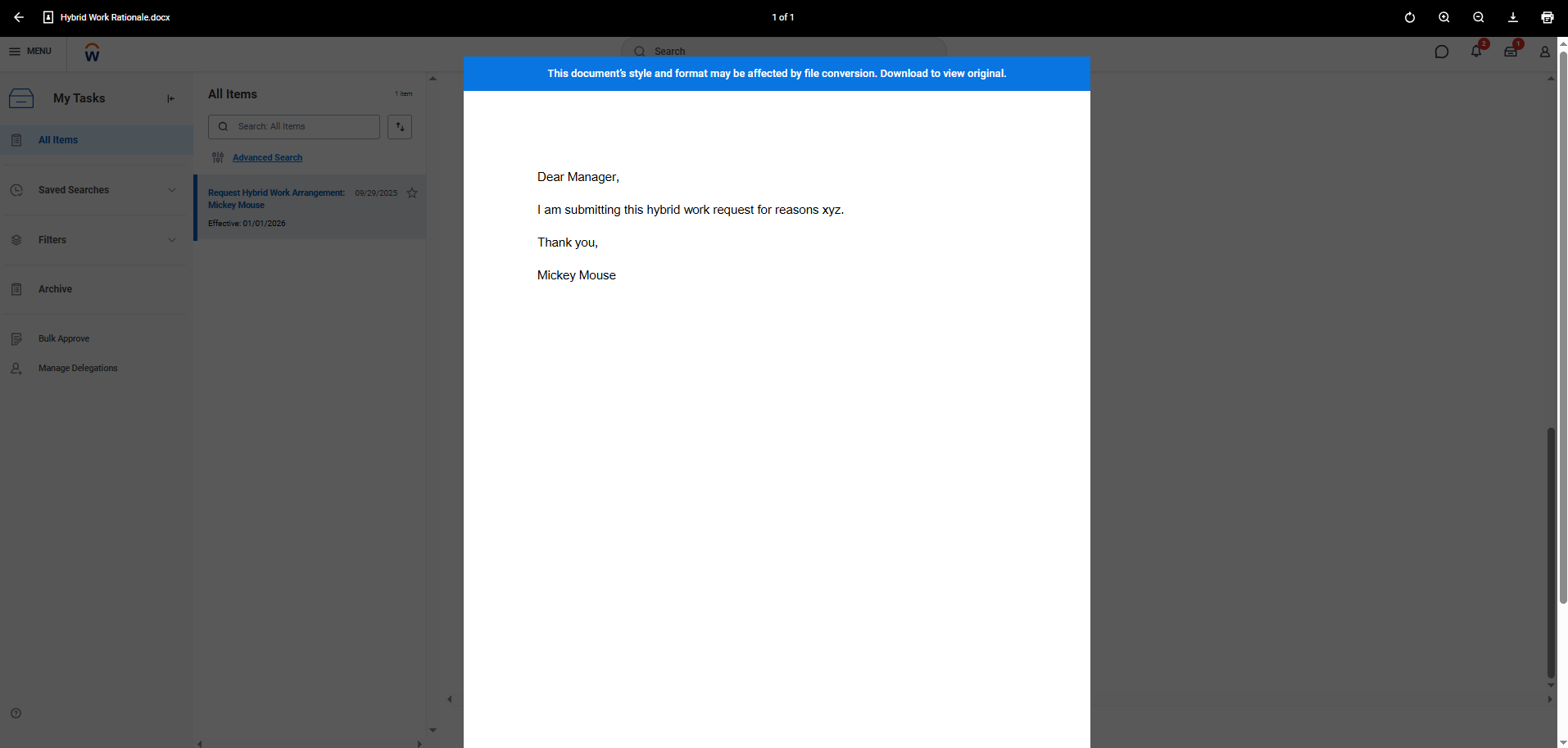
Continuing to scroll down, the department head and the University Senior Leadership Council member will find the final section containing the attached document with the rationale for the Hybrid Work Arrangement request. The approver can click the hyperlinked file to review the attached rationale.
Manager Submitting on Behalf of Employees
Manager - Adding a Hybrid Work Arrangement for an Employee
1. Search for the task:
- Type Add Hybrid Work Arrangement for Worker into the Workday global search bar and select the task from either the dropdown menu or the hyperlinked search result.
- Access the task from the dropdown: Click the Add Hybrid Work Arrangement for Worker option that appears in the dropdown.

- Access the task as a search result: Click the blue hyperlinked task name to open the Add Hybrid Work Arrangement for Worker task.

- Select the worker for whom you want to add a Hybrid Work Arrangement and click OK:

2. Complete the task details:
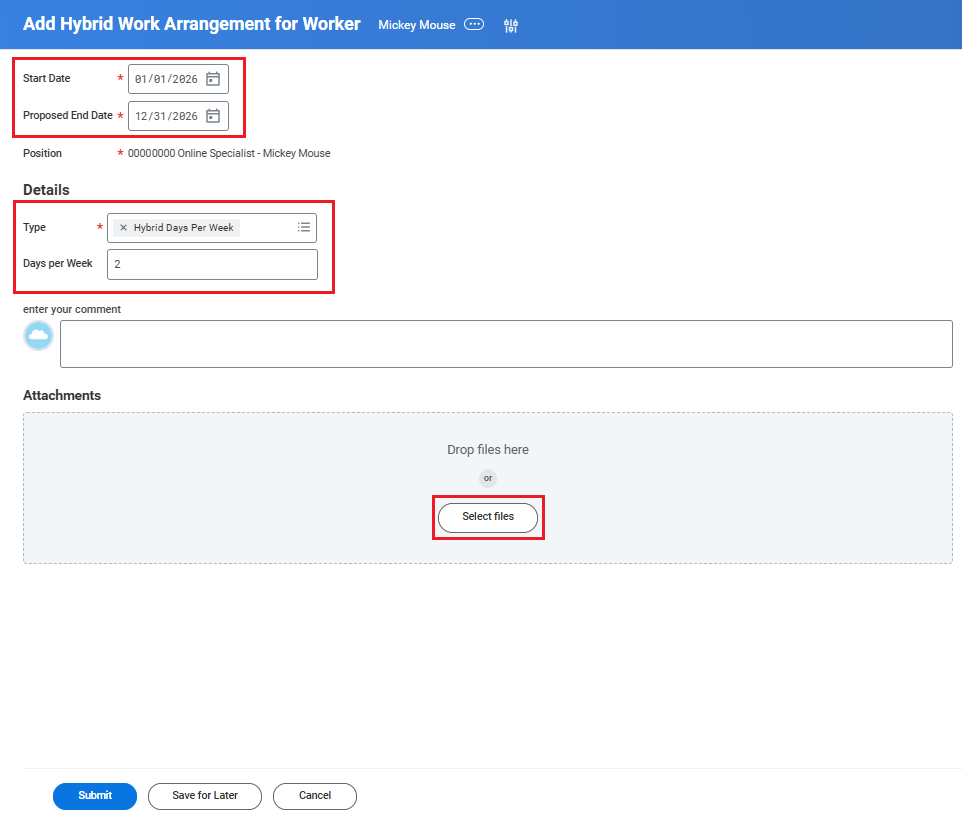
- Enter the start and end dates: Use January 1, 2026 as the start date (or, if the employee was hired after this date, enter their hire date instead) and December 31, 2026 as the end date.
- Fill in the details section: Select Hybrid Days Per Week as the request type, then enter the number of days you have discussed with the employee, ensuring it is within the allowable amount set by University policy.
- Upload the completed rationale: In the Attachments section, click Select files and upload the Hybrid Work Request Rationale. This document may be a Word file or a PDF, and should contain a brief written explanation of why you are requesting a hybrid work arrangement for the employee.
3. Attachment details:
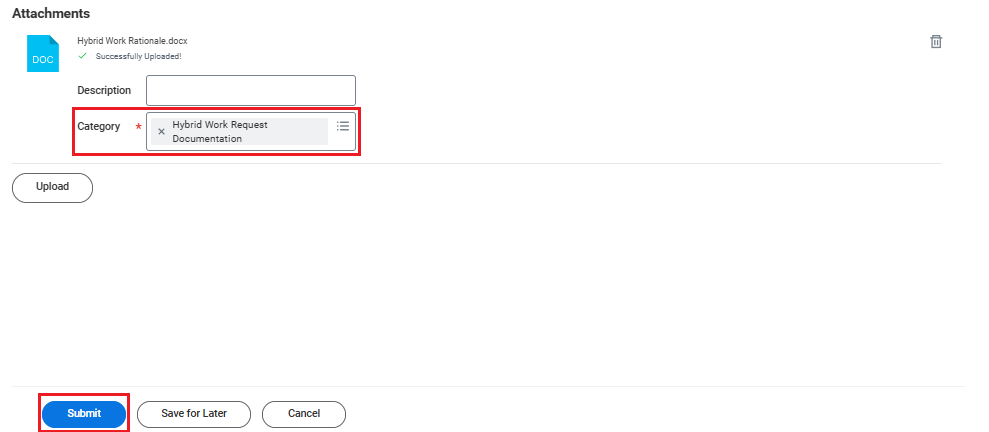
- When uploading your completed form, select Hybrid Work Request Documentation as the attachment category before submitting the task.
Manager - Submit Questionnaire and Approve
4. Manager's review
-
The manager will then receive a task in their inbox to complete a questionnaire for the employee
-
The employee’s position and name will appear in the task name details (indicated by the arrow)
-
Open the task, complete the questionnaire details for the employee, and click Submit.
-
-
The manager will then receive a Review step to examine the complete Hybrid Work Arrangement request package. At this stage, the manager can approve the request, deny it, or "Send it back" to a previous step in the workflow
-
The first section of the package displays the details of the request, including the requested dates, number of hybrid days per week, and a reference to the employee’s position and name.
-
Scrolling down, the manager will find a second section that displays the answers they provided in the questionnaire completed in the previous step.
-
Continuing to scroll down, the manager will find the final section containing the attached document with the rationale for the Hybrid Work Arrangement request. The manager can click the hyperlinked file to review this rationale.
-
University Senior Leadership Council/ Department Head - Hybrid Work Arrangement Request Approval
6. Department and USLC member review
- Once the manager approves the request within Workday, the request will route to the Department Head and the University Senior Leadership Council member for approval.
-
The first section of the package displays the details of the request, including the requested dates, number of hybrid days per week, and a reference to the employee’s position and name.
-
Scrolling down, the department head and University Senior Leadership Council member will find a second section that displays the answers the manager provided in the completed questionnaire.
-
Continuing to scroll down, the department head and the University Senior Leadership Council member will find the final section containing the attached document with the rationale for the Hybrid Work Arrangement request. The approver can click the hyperlinked file to review the attached rationale.
Hybrid Work Arrangement Request History on an Employee Record
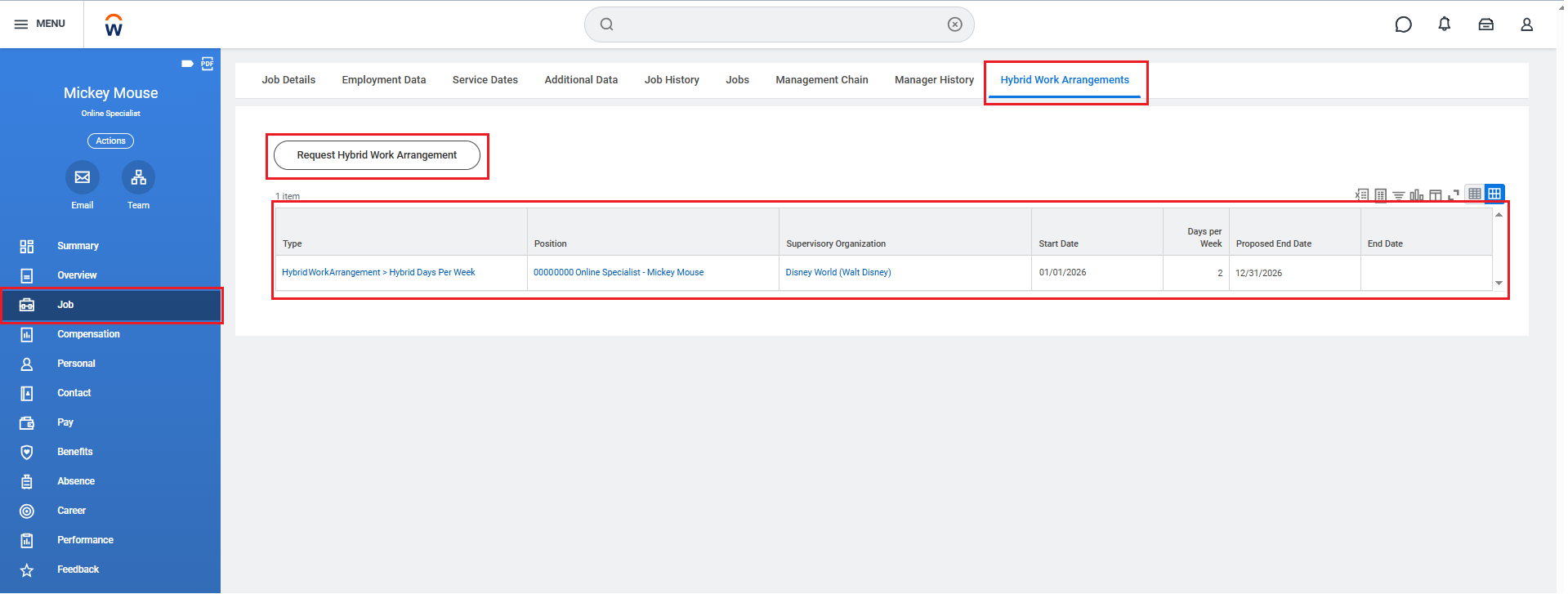
To view an approved hybrid work arrangement request, navigate to your employee profile and select the Job section on the left-hand side. From there, open the Hybrid Work Arrangements tab to see your listed hybrid work arrangement(s).
On this screen, you will also find a button to submit a new request, providing another way to initiate the process through employee self-service.
Support and resources
Have questions?
Start by speaking with your manager and reviewing the frequently asked questions. For further support, contact your HR Partner.
List of available support resources
You can find everything you need using the following links: