View the user guides for new employees, employees, or managers below to complete HR self-service processes and additional tasks for managers in Workday. You can also download the user guides or view our Workday video demos for a walk-through of some Workday processes. Please note that our user guides are more frequently updated than the video demos.
Glossary & useful information
Download the Waterloo Workday Glossary (PDF) to get started with Workday.
Reference the Hiring Chart for employee type definitions and processing instructions for each hire type.
Reference the Payment Types Chart (PDF) for definitions of one-time payment types and processing methods (Workday vs. paper form).
Reference the Workday trouble shooting guide for help with common questions.
Reference the Job Change Chart for job change processing instructions based on employee and change type.
User guides for new employees
All new employees and employees who have not been active in Workday for 30 days, receiving employment income from the University, will be required to complete the onboarding process. This includes Graduate Research Assistants and Graduate Teaching Assistants.
The New Hire Information Sheet (PDF) guides a new employee through the requirements to be completed before the first day of work.
1. Time off
2. Hiring*
3. Time entry and approval*
4. Job change*
5. Delegation
6. Review Probation Period
7. End of contract/resignation or retirement
8. Reporting*
9. Performance Development & Learning
10. Steps to access Job Requisitions and details for Campus Recruiters for GTA/GRA Recruiting
- Navigate to Workday.
- In the left-hand menu, select Recruiting and Recruiting Hub.
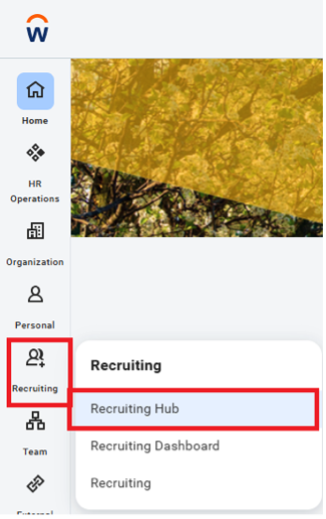
If unable to see the Recruiter Hub, create a JIRA ticket or email wservice@uwaterloo.ca with subject line “Access to Recruiter Hub” with description of who does not have access to the Recruiter Hub and specify which job requisitions they need access to.
- Once in the Recruiter Hub, the Overview tab appears first, giving you a snapshot of the candidate pipeline, your candidates, and tasks you need to complete.
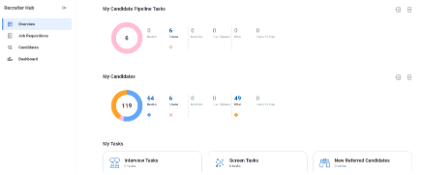
- Navigate to Job Requisitions where you can view job requisitions by all, hiring manager, and location by selecting the appropriate tab.
On the right-hand side, filtered results will show.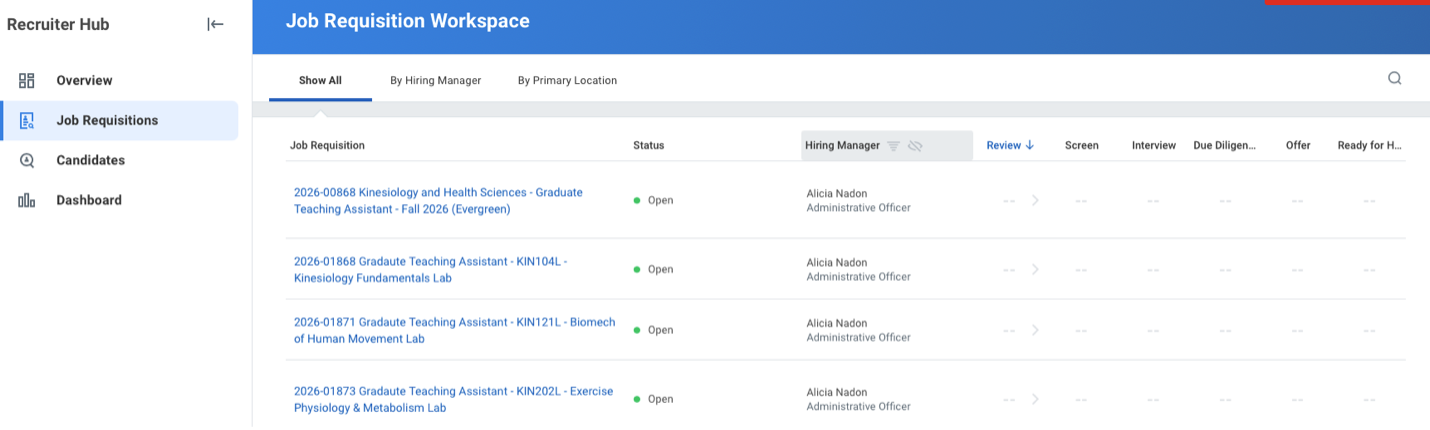
The type of filter applied will be listed. If no job requisitions appear, be sure to check if the Frozen filter is showing. You will want to remove it and choose the Open filter to see all open requisitions.

For GTA/GRA job requisitions, applicants will apply for Evergreen requisitions. These are identified by (Evergreen) in the job requisition title.
- Once you select a specific job requisition, view job details two ways: Open detailed view or Details.
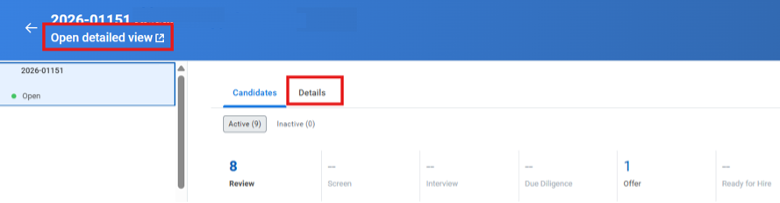
NOTE:There is a lot more information on the Details page such as location, hours, position start and end date, and we encourage you to explore.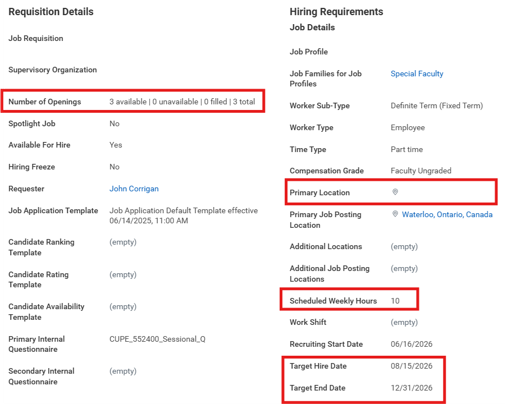
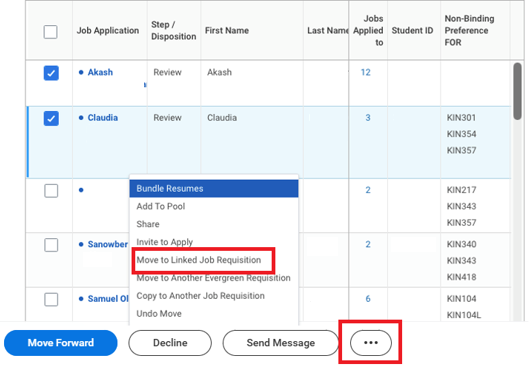
- Go through the candidates and their application. When ready, select chosen candidate(s) by clicking the checkbox in the first column beside the Job Application column. Click on the more details icon (three dots …) and select the following:
- Move to Linked Job Requisition: The candidates’ application will move to the linked job requisition and will no longer be in the current pool. This selection prepares the chosen candidates to the Offer stage.
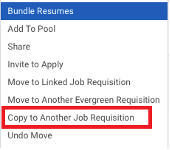
- Copy to Another Job Requisition: Keeps the selected candidates in the current pool and copies the candidates’ application to another Job Requisition. Select this option for candidates who are being selected for more than 1 job requisition that is linked to the evergreen requisition.
Download the user guides
- Workday User Guide for New Employees (PDF)
- Workday User Guide for Employees (PDF)
- Workday User Guide for Managers (PDF)
- Workday User Guide for Campus Partners (PDF)
- Workday User Guide for Timekeepers (PDF)
- Workday User Guide for Colleges and Affiliates (PDF)
| Update | User guide web page section | Date updated |
|---|---|---|
| Supervisory Organization Hierarchy - Temporary Manager |
No Userguide. Note: When a manager is a temporary employee and their employment is terminated, their direct reports are automatically reassigned upward in the management chain to the next available manager. There is no need to submit change forms or request employee movement because Workday handles this reassignment automatically. However, all other employment changes that require a change form are still required. Please find the change form here. |
12/17/2024 |
| Review Probation Period | Managers/Administrators - 6. Review probation | 12/17/2024 |
| Hire MURA user guide | Managers/Administrators - 2. Hiring | 12/17/2024 |
| Employee and Reviewer Work from home request guides updated |
Employees - 3. Updating Personal/Job Related Information Managers/Administrators - 4. Job Change Managers/Administrators - 7. Reporting |
03/10/2023 |
|
Contract Contingent Worker - allowable job profiles. Department to hire all contingent workers |
Managers/Administrators - 2. Hiring | 02/10/2023 |
|
userguides and customizing Workday instructions | |
|
Employees - 3. Updating Personal/Job Related Information Managers/Administrators - 4. Job Change Managers/Administrators - 7. Reporting |
03/02/2022 |
| Hire a Work Placement Student guide updated with new funding amount of $2300 | Managers/Administrators - 2. Hiring | 01/07/2022 |
| All user guides that reference the Workday home page - updated View All Apps options and profile menu screenshots | userguides | 12/06/2021 |
| Benefit user guides - updated to align with system changes | Employees - 4. Managing benefits | 09/13/2021 |
| End Employee Contract instructions added to Campus Partner user guide | User Guides - Workday User Guide for Campus Partner (PDF) | 04/22/2021 |
|
Time entry calendar and steps update in enter hours for casual staff and enter overtime |
Employees - 7. Time Tracking Managers/Administrators - 3. Time Entry and Approval |
03/13/2021 |
| Hiring guides - updated with new next step actions | Managers/Administrators - 2. Hiring | 03/13/2021 |